

Manage your team
Resend an invitation, send a password reset email, change someone's role, or remove a member.
Updated 2 min read
On this page
Your team is in Account Settings → People. From there you can resend an invitation, send someone a password reset email, change a name or a role, and remove people who have left. Inviting is covered in Invite your team.
The list shows each person's Role, Status, when they were Last active (the last time they changed something, such as a playlist, an app, media or a screen) and when they Last signed in. Click a column heading to sort by it. The tabs above the list show All people, only Owners, and Pending invites (people who haven't joined yet), and each tab has its own link you can bookmark.
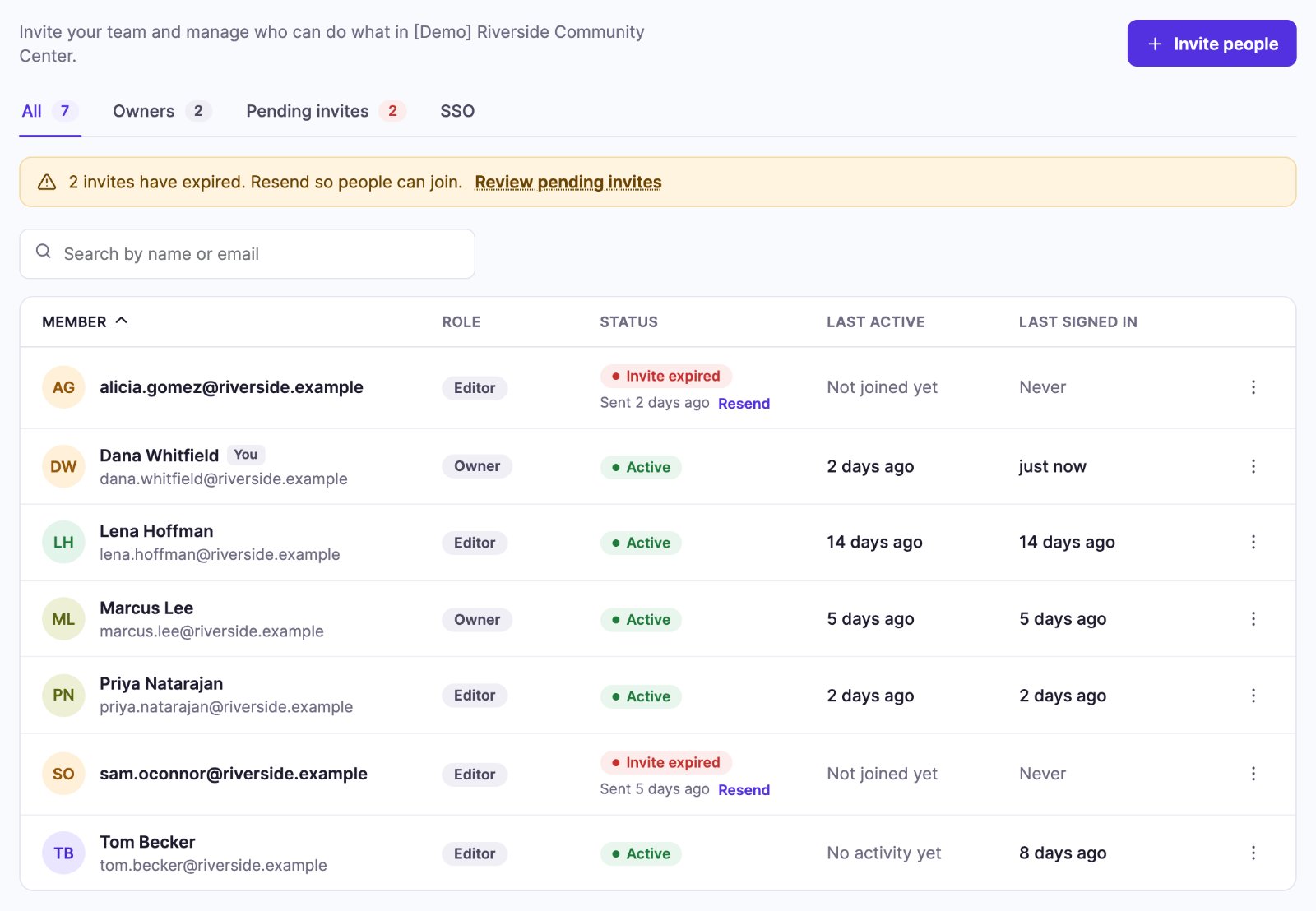
Each person's actions are in the ⋮ menu at the end of their row. You only see the actions you're allowed to take: for example, Editors don't see Remove member.
Resend an invitation
An invitation link works for 24 hours. A pending person's Status shows when their link expires, or Invite expired with the date it was sent.
- Go to Account Settings → People (click your name at the bottom of the left navigation, then Account Settings) and find the person, or open Pending invites.
- Click Resend under Invite expired, or open the ⋮ menu and choose Resend invite. A new email goes out with a fresh link.
Ask them to check spam. If the address has a typo, choose Edit, fix the Email address and click Save changes: the invitation goes to the new address. If that email can't be sent, the new address is still saved; send the invitation again with Resend invite.
Help someone who forgot their password
Open the ⋮ menu on their row and choose Send password reset email. They get a link to choose a new password. Nobody can set another person's password for them.
Change someone's name or role
- Open the ⋮ menu on their row and choose Edit.
- Change the Full name, or pick a different Role.
- Click Save changes.
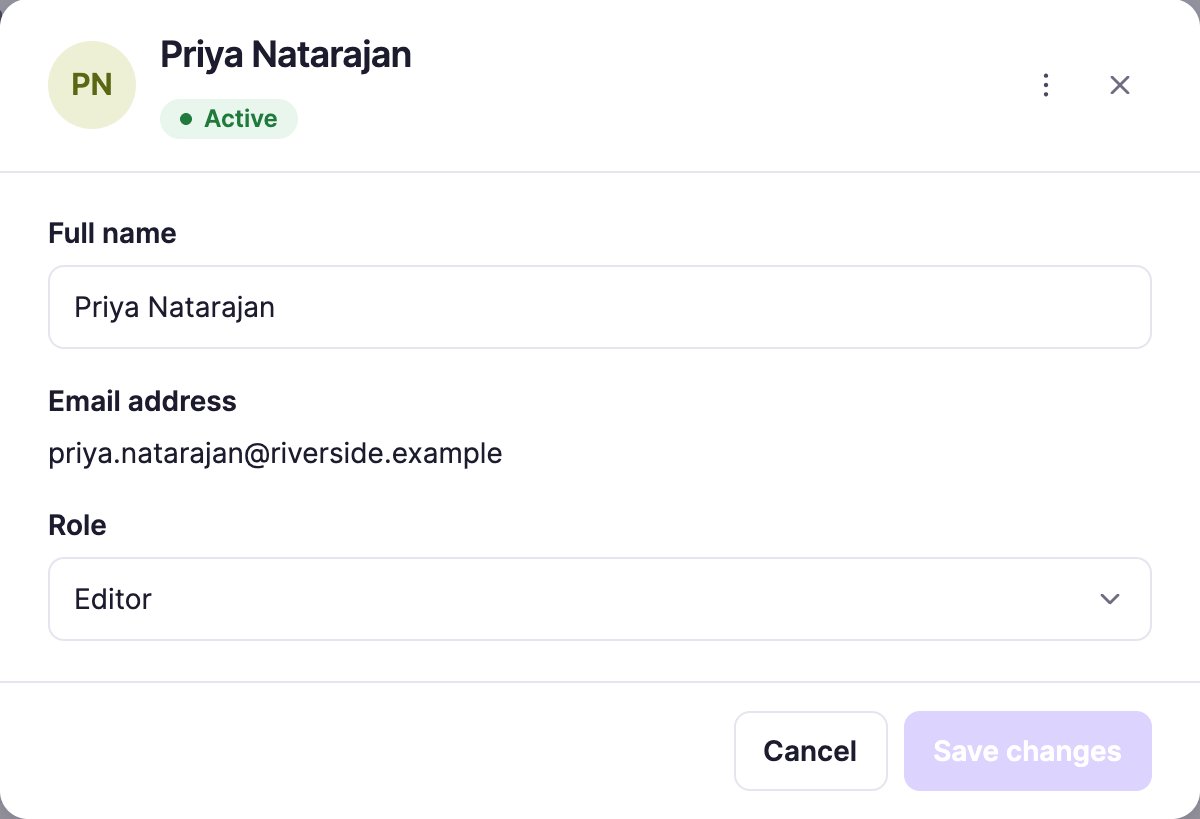
Only Owners can change roles. A field you can't change is shown as text instead of a box. Someone else's email address can only be changed while their invitation is still pending. To change your own, edit your own row (you're asked for your current password) or use My Account.
Remove someone
- Open the ⋮ menu on their row and choose Remove member.
- Confirm with Remove member.
Only Owners can remove people, and nobody can remove themselves or the last Owner who has signed in. They lose access straight away. Nothing they created is removed: their playlists, apps, media and screens stay with your organization.
Can't find someone?
- Clear the Search box above the list.
- Check the tab. Owners shows only Owners, and Pending invites only people who haven't joined yet.
- People only lists your organization. Someone in another organization never appears.
Related articles
Still need help?
Our support team can walk you through it.