

Invite your team
Give colleagues their own login, several at once, each with the role you choose.
Updated 2 min read
Give each colleague their own login, so you can see who changed what and remove access when someone leaves. Click your name at the bottom of the left navigation, choose Account Settings, open the People tab and click Invite people. Add one or more email addresses, pick each person's role, and click Send invite. They get an email with a link to choose a password.
Invite people
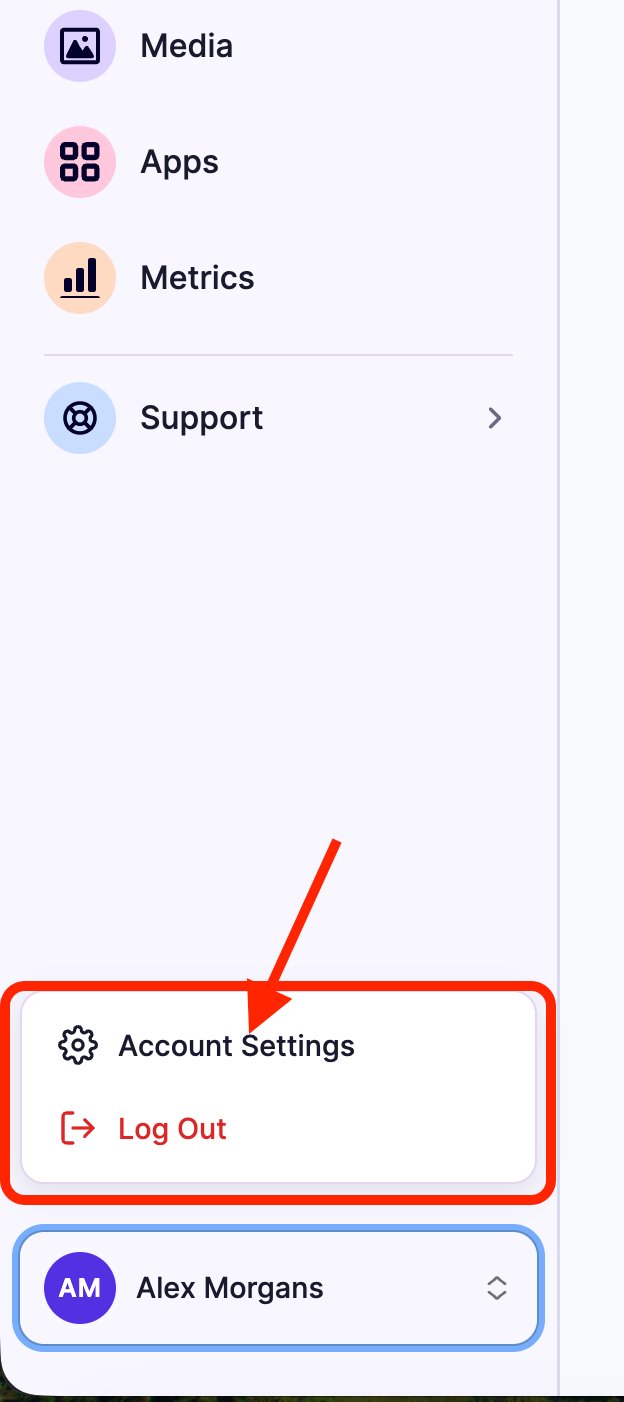
Click your name at the bottom of the left navigation, then Account Settings.
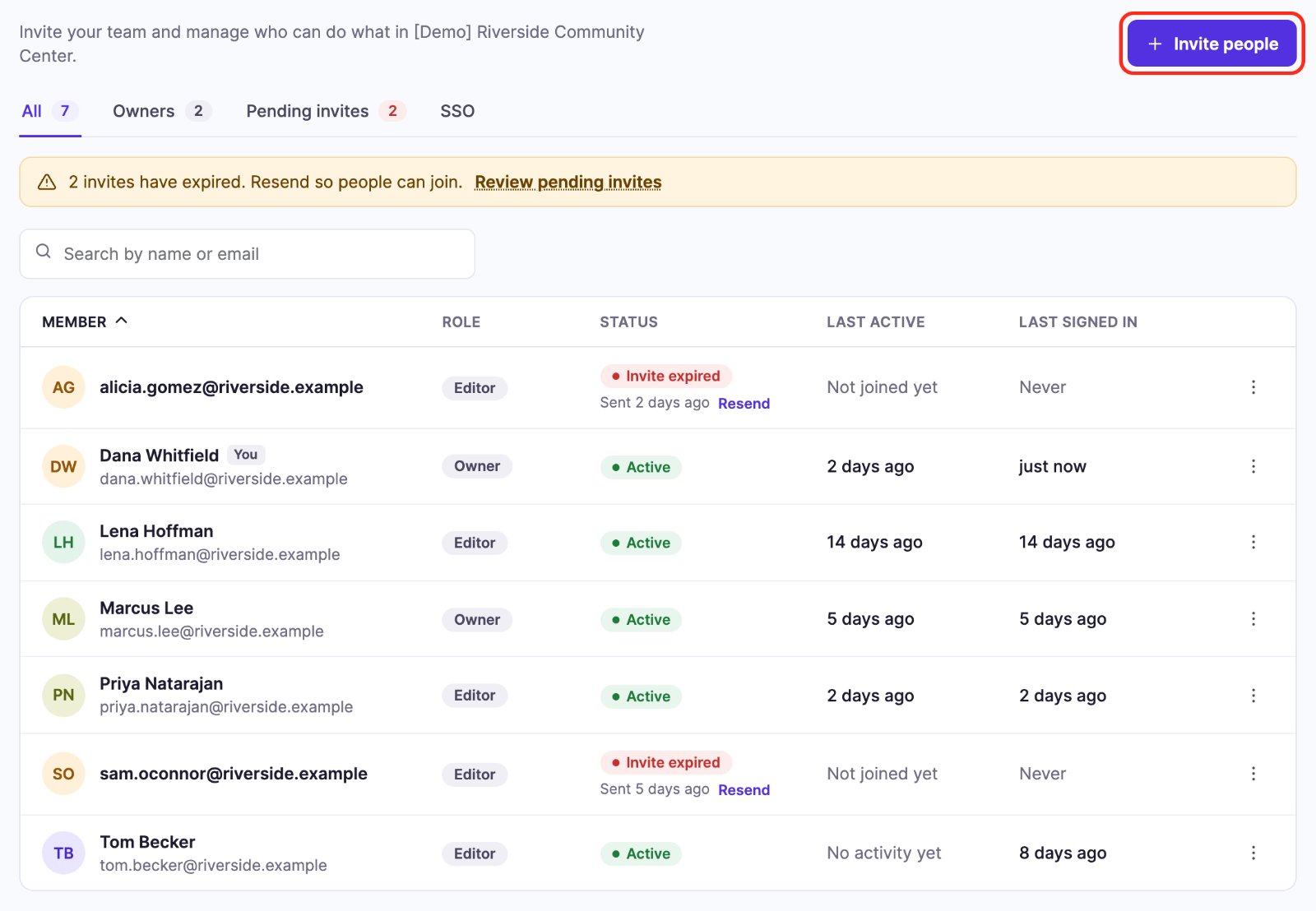
Open the People tab and click Invite people at the top right.
Type an email address, pick a role next to it, and press Enter (or click Add). To invite several people at once, paste a list of addresses separated by commas, spaces or new lines.
Check the list: you can change each person's role or remove them with ×. Addresses with a typo, repeated in the list, or already in your organization are marked in red and won't be sent.
Click Send invite (or Send 3 invites). The emails go out straight away.
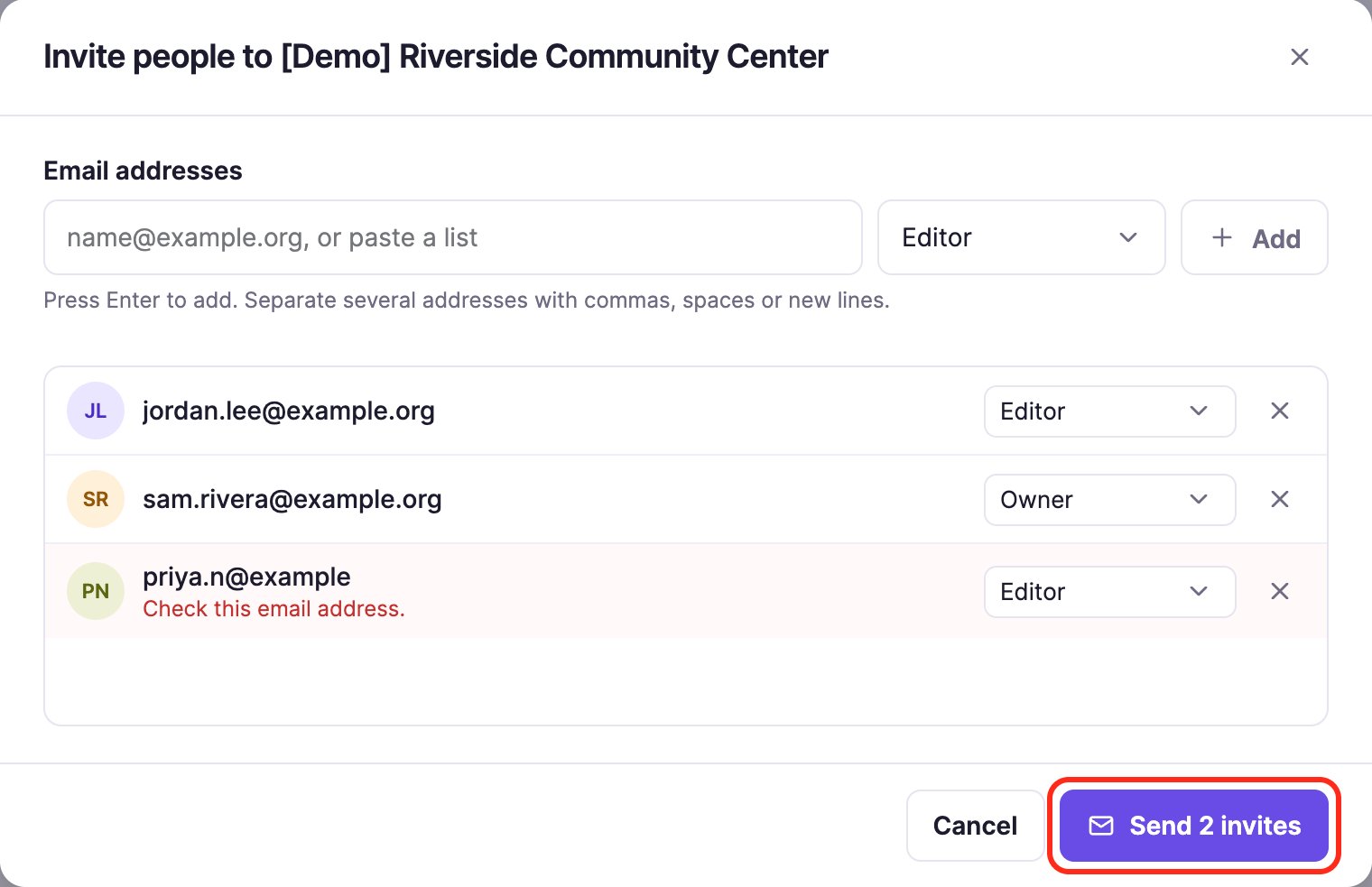
If an address can't be invited, for example because it already belongs to another organization, it stays in the list with the reason, and the others are still sent.
They click the link in the email, choose a password, and they're in. The link works for 24 hours. Their username is their email address. The steps they follow are in Welcome to Screen Pulse.
Which role should they get?
- Editors do everything day to day: playlists, apps, media, screens and donors, and they can invite other Editors.
- Owners can also manage Owners, change roles, remove people and see Billing. Only Owners can invite Owners.
- The first person invited to a new organization becomes its Owner, whatever role was picked.
They didn't get the email
Ask them to check spam. Then click Resend on their row in People (or use Resend invite in its ⋮ menu); see Manage your team.
If the invite dialog says The invite email couldn't be sent. Try again., that person was not added. Their row stays in the dialog: click Send invite again in a moment.
Related articles
Still need help?
Our support team can walk you through it.