

Welcome to Screen Pulse: how it works
How Screen Pulse works, how to sign in for the first time, and the order to set things up in.
Updated 4 min read
On this page
Screen Pulse lets you manage what plays on the TVs and displays around your building from one web account. You build content (images, videos and live apps such as clocks, class schedules and donor walls), choose which screen shows it, and every change reaches the screens over the internet within moments.
This page covers how to sign in, the few building blocks you'll work with, and the order to set things up in.
Signing in for the first time
Your account is created for you, and you receive an email titled "Welcome to Screen Pulse – Your account has been created".
- In the email, click Log In to Your Account, or copy the link under the button into your browser.
- A Reset Password page opens, saying "This is a one-time login" for your email address. Click Log in.
- You land on My Account. Under Email and password, choose a password, type it in Password and again in Confirm password, and click Save changes.
From then on, sign in at app.screenpulse.io with your email address and that password.
The link works once, within 24 hours. If it has expired or was already used, go to app.screenpulse.io/user/password, enter your email address, and you'll get a new link by email. No email? Check your spam folder, or write to support@screenpulse.io.
The first person in your organization becomes its Owner. That person can invite colleagues later, as Editors or as other Owners.
New organizations start on a free trial. A banner at the top of every page shows the days left. Contact us before it ends to move to a plan: when a trial ends, your screens pause until the plan is set up. See Trials, renewals and payment.
The building blocks
| What it is | Example | |
|---|---|---|
| Screen | A display you manage in Screen Pulse. It has a name, a location and an orientation (landscape or portrait). | "Front Lobby TV" |
| Device | The hardware that plays content on the display, such as a streaming stick, a media player or a browser. You pair a device to a screen once. | A Fire TV Stick plugged into the lobby TV |
| Media | Your images and videos, kept in a private library for your organization. | Event poster, welcome video |
| Apps | Live, configurable content, such as a clock, a countdown, today's class schedule, a YouTube video or a donor recognition wall. | "Today's Classes" schedule |
| Playlist | A sequence of media and apps that plays in a loop, each item for as long as you choose. | Poster for 10 s, then schedule for 30 s, then a video |
They fit together like this:
media and apps → go into a playlist → the playlist is assigned to a screen → the paired device plays it.
You can also put a single app or image straight on a screen without a playlist, but a playlist is the usual way.
A few things are worth knowing from day one:
- Each screen shows one thing at a time. Assigning a new playlist to a screen replaces what it was showing.
- Changes reach screens on their own. Edit a playlist and publish it, and every screen using it updates. You don't need to visit the display.
- The hardware can be swapped. If a device breaks, pair a new one to the same screen. The screen keeps its name and content.
Your setup in three steps
When your organization is new, Screen Pulse opens on a Welcome page that tracks these three steps for you. You can follow it or use the guides below. The Welcome page is available for roughly the first two weeks.
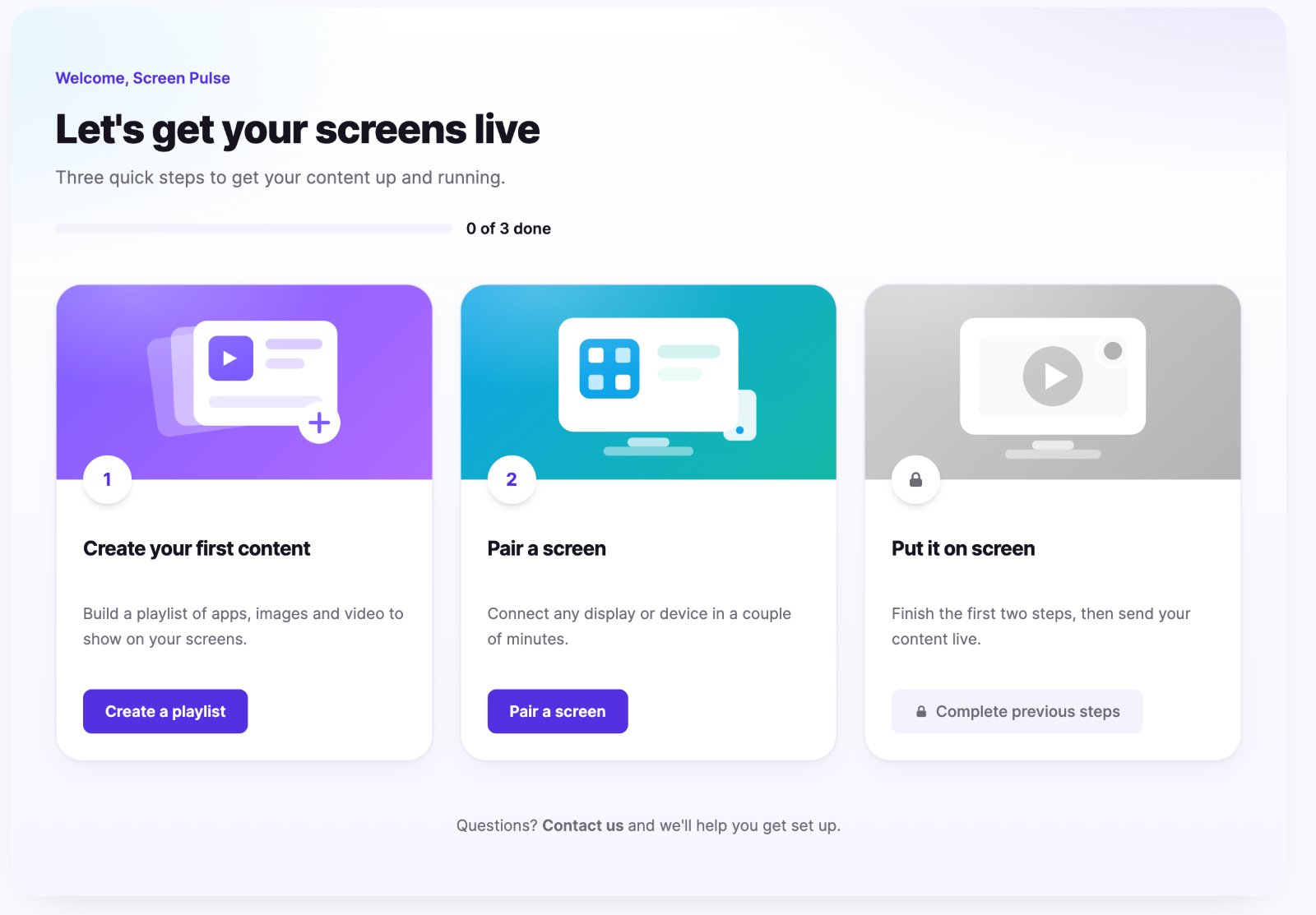
- Create your first content. Upload an image or two and build a playlist. See Put your first content on screen.
- Pair a screen. Get the Screen Pulse player running on your device and pair it. See Install the player and connect your first screen.
- Put it on screen. Assign the playlist to the screen and you're live. This step unlocks once the first two are done, and is covered in Put your first content on screen.
You can do steps 1 and 2 in either order. Most people finish all three in under 30 minutes.
Finding your way around
- Screens: all your displays, their status (Inactive, Live or Offline) and what each is playing.
- Playlists: create and edit playlists, and assign them to screens.
- Apps: the App Store, where you turn apps on, and My Apps, where you set them up.
- Media: your image and video library, organized in folders.
- Donor Recognition: thank your donors on your screens. If your plan doesn't include it yet, the page shows the templates and lets you contact our team about it.
- Account Settings (click your name at the bottom of the left navigation): your profile, your organization's logo and timezone, default content, your team (People) and Billing.
- Support: this Help Center, our website, and the forms to Contact Support or send Feedback.
Related articles
Still need help?
Our support team can walk you through it.