

Install the player and connect your first screen
Start the player on your device, pair it with a 6-character code and check that it is live.
Updated 5 min read
On this page
Connecting a display takes about five minutes and has three parts. First, start the Screen Pulse player on your device, and it shows a 6-character pairing code. Next, in Screen Pulse, click Add screen and type in that code. Finally, check that the display says "You're all set!".
The steps are the same for every kind of device. Screen Pulse detects the device type on its own.
What you need
- A display. Any TV or monitor with an HDMI input.
- A device to run the player. For example, a streaming stick or media player plugged into the TV, or a computer with a web browser. See Which devices and operating systems can I use?.
- An internet connection for the device. Wi-Fi works, and a wired connection is more reliable for screens that run all day.
- Your Screen Pulse login on a computer or tablet, to enter the code. A tablet works better than a phone.
Step 1: Start the player on your device
Install and open the Screen Pulse player on the device:
- Amazon Signage Stick: Screen Pulse is chosen and installed during the stick's first setup. See Set up with the Amazon Signage app or with the web console.
- Amazon Fire TV: install the Screen Pulse Player app from Amazon, then open it.
- Android box, tablet or TV (Android 13 or newer): install the Screen Pulse app from Google Play, then open it.
- Samsung (Tizen), LG (webOS) or Windows: players for these are on our roadmap. Contact our support team or email support@screenpulse.io for the latest. Meanwhile, a computer can play a screen in its web browser.
No player app? Owners can play a screen in a web browser instead; see Playing a screen in a web browser.
Step 2: Answer the player's setup questions
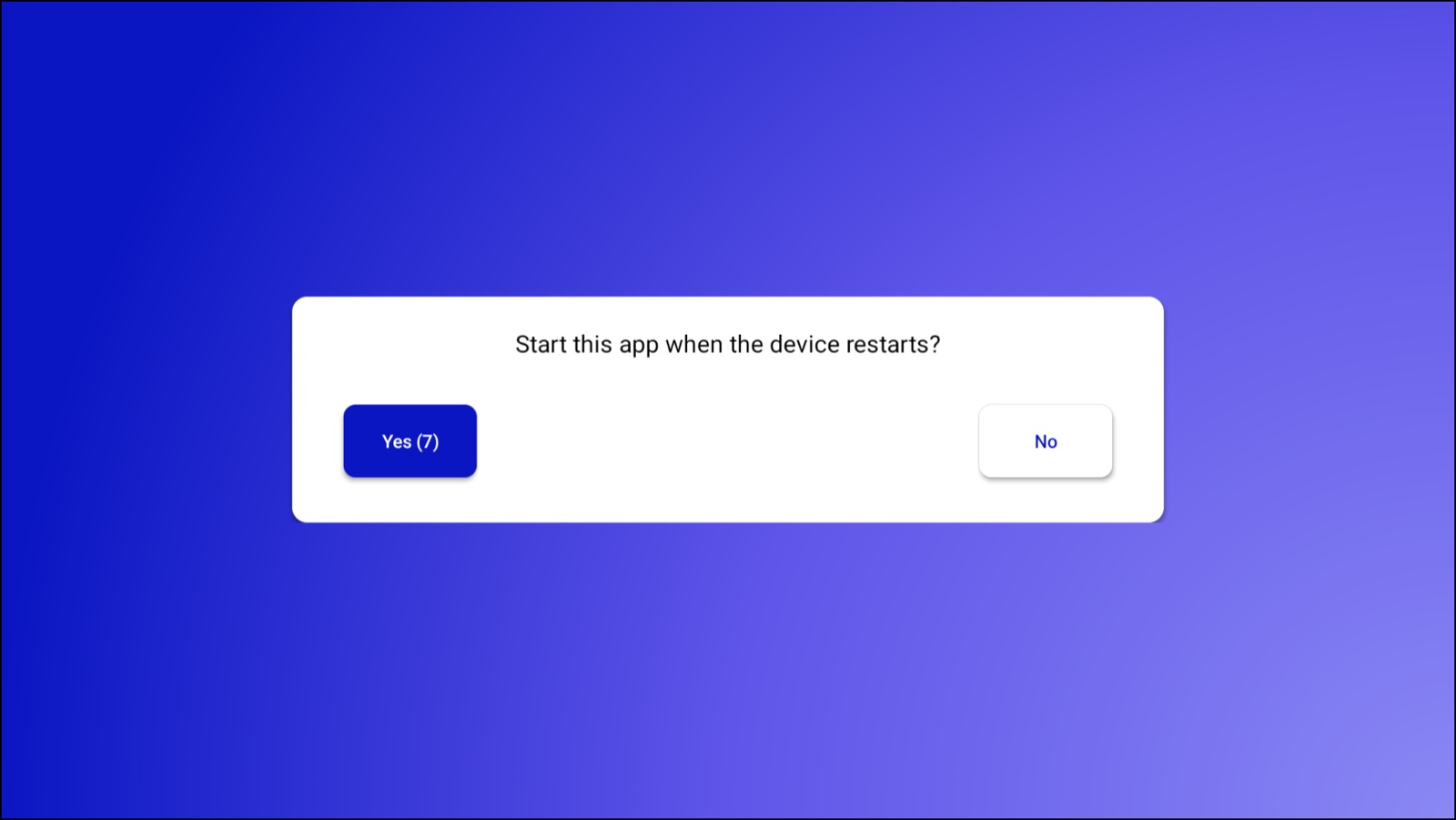
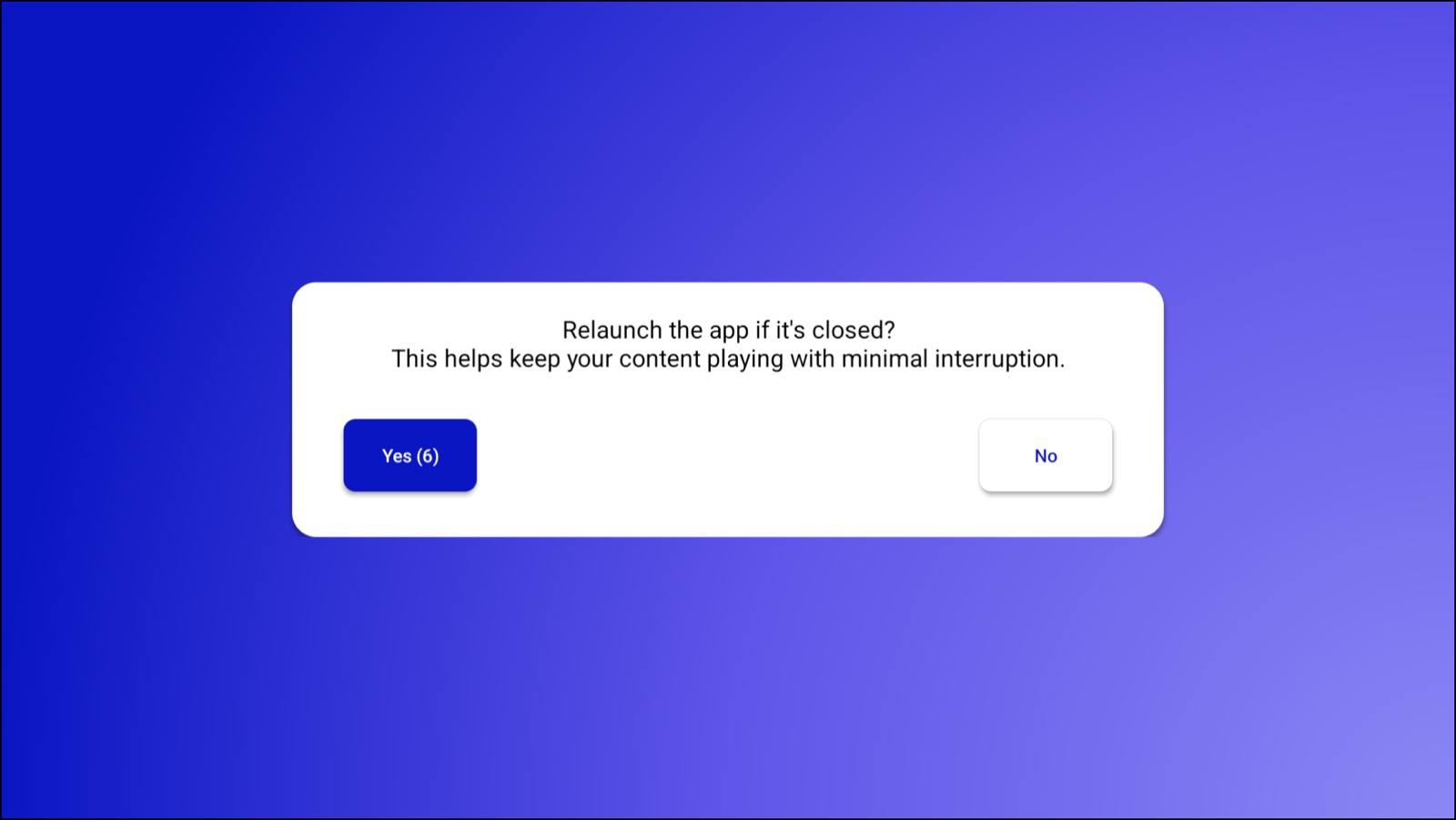
The first time the Screen Pulse player starts on a Fire TV or Android device, it asks a few questions before showing the pairing code. Answer with the remote, or by touch on a tablet. If you don't answer, each question picks its first button by itself after 10 seconds.
Start this app when the device restarts? Choose Yes, so Screen Pulse opens whenever the device turns on.
Relaunch the app if it's closed? Choose Yes, so Screen Pulse reopens if it's closed and your content keeps playing.
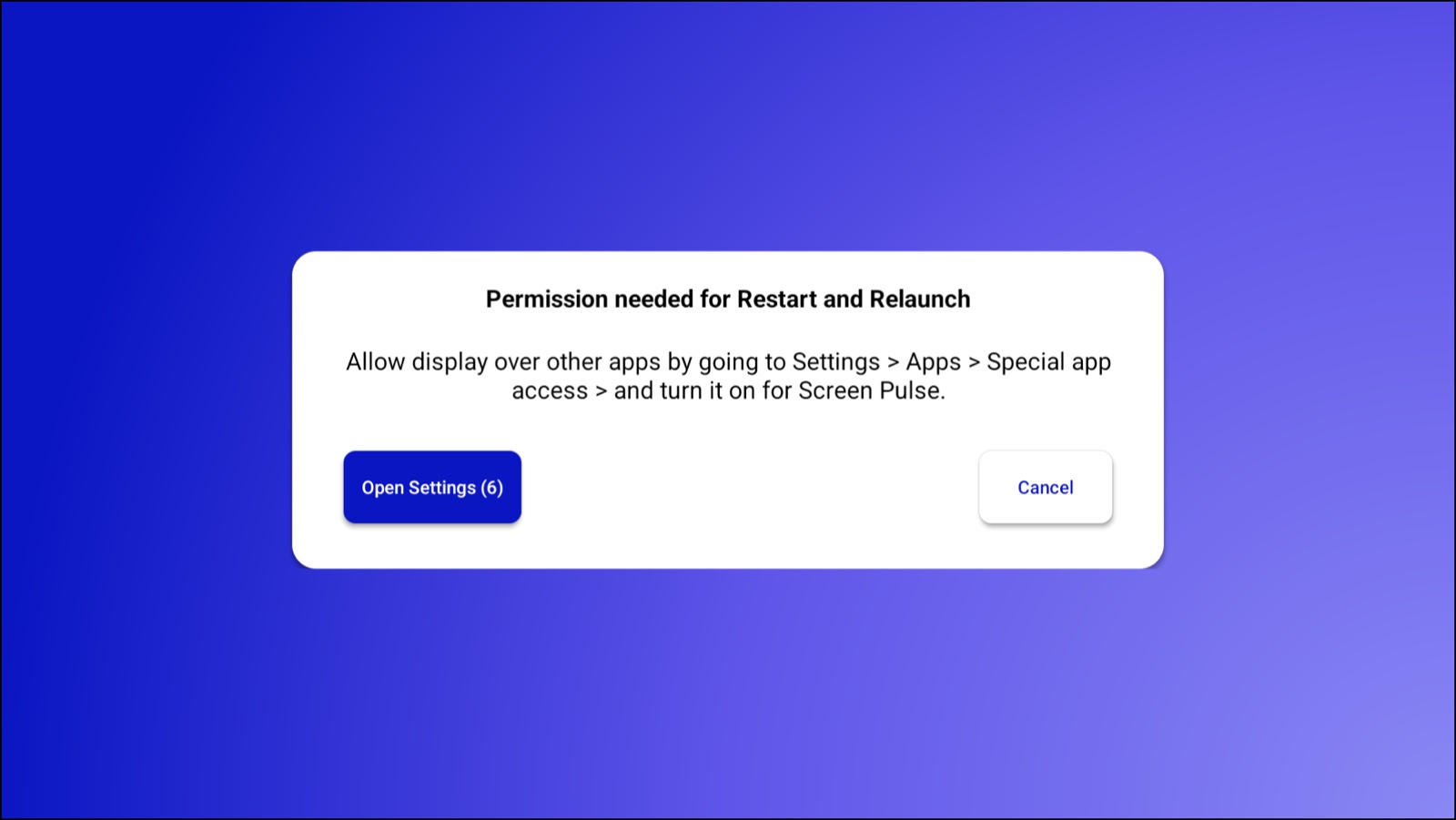
Permission needed for Restart and Relaunch (Android only). Choose Open Settings, turn on Display over other apps for Screen Pulse (in Settings → Apps → Special app access), and go back to the player. Fire TV devices skip this question.
You can change these answers later in the player's settings: press Back on the remote and select the gear in the top-right corner.
On an Amazon Signage Stick, Screen Pulse starts right away without these questions, and a screen played in a web browser skips them too.
Then the display shows "Activate this device" with a 6-character Pairing Code. Leave it on that screen.
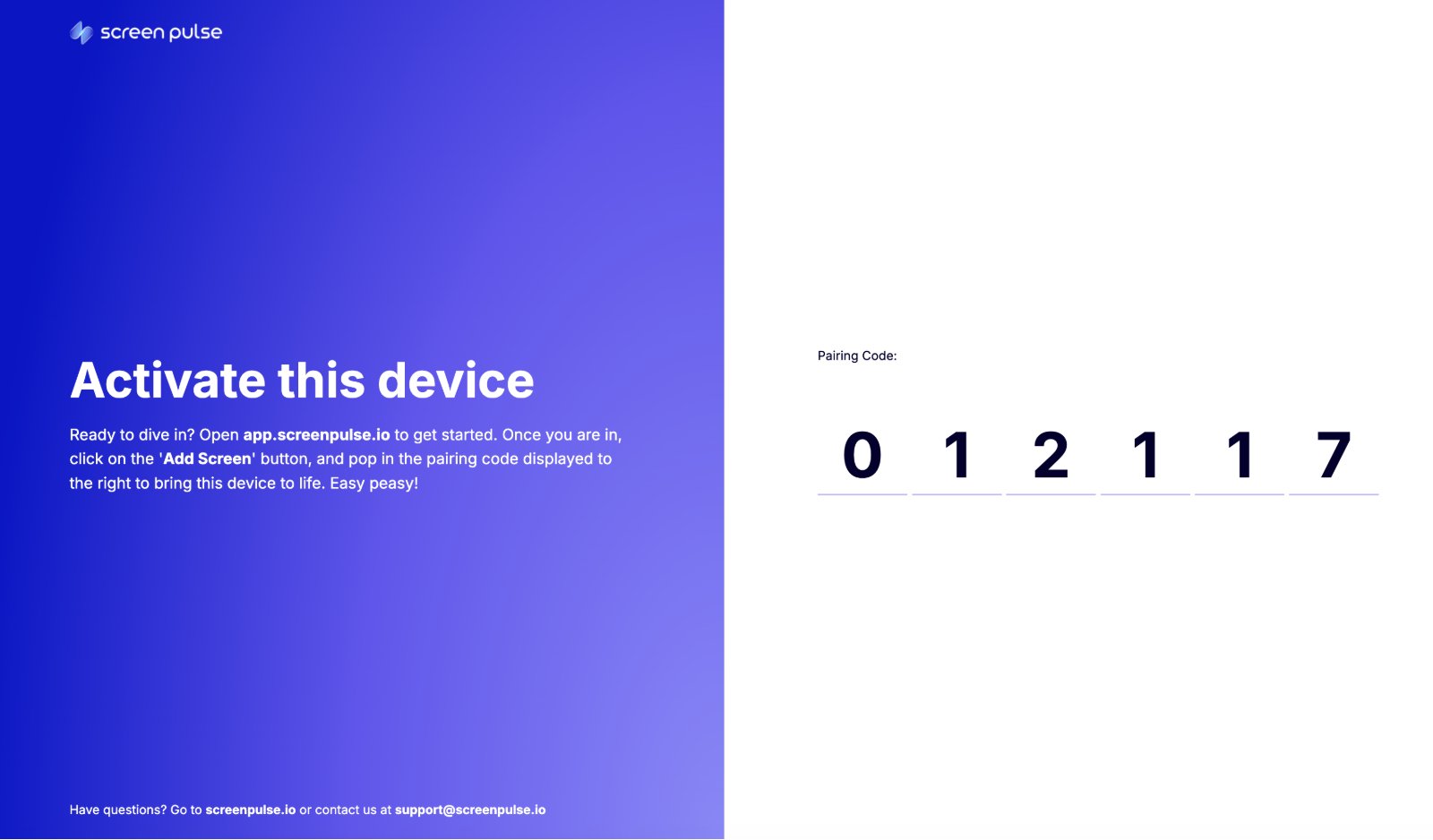
No code appears? If the display shows "Sorry, can't obtain pairing code", the device isn't reaching the internet. Check its network connection and restart the player.
Step 3: Add the screen in Screen Pulse
Sign in at app.screenpulse.io and go to Screens.
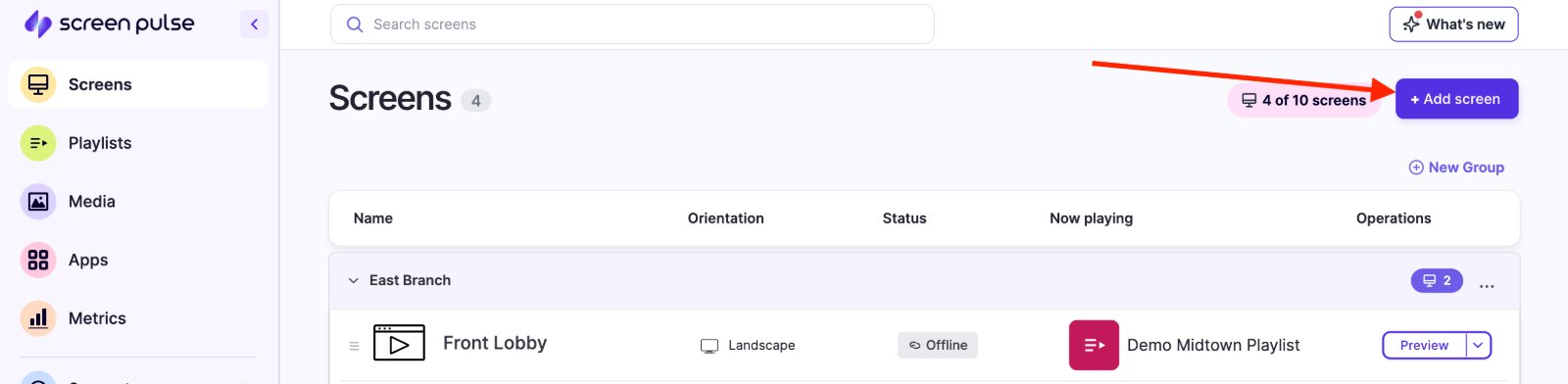
Click + Add screen at the top right. If this is your first screen, you'll see a "Ready to add your first screen?" message with the Add screen button on it. If you're on the Welcome page, use Pair a screen instead. It opens the same form.
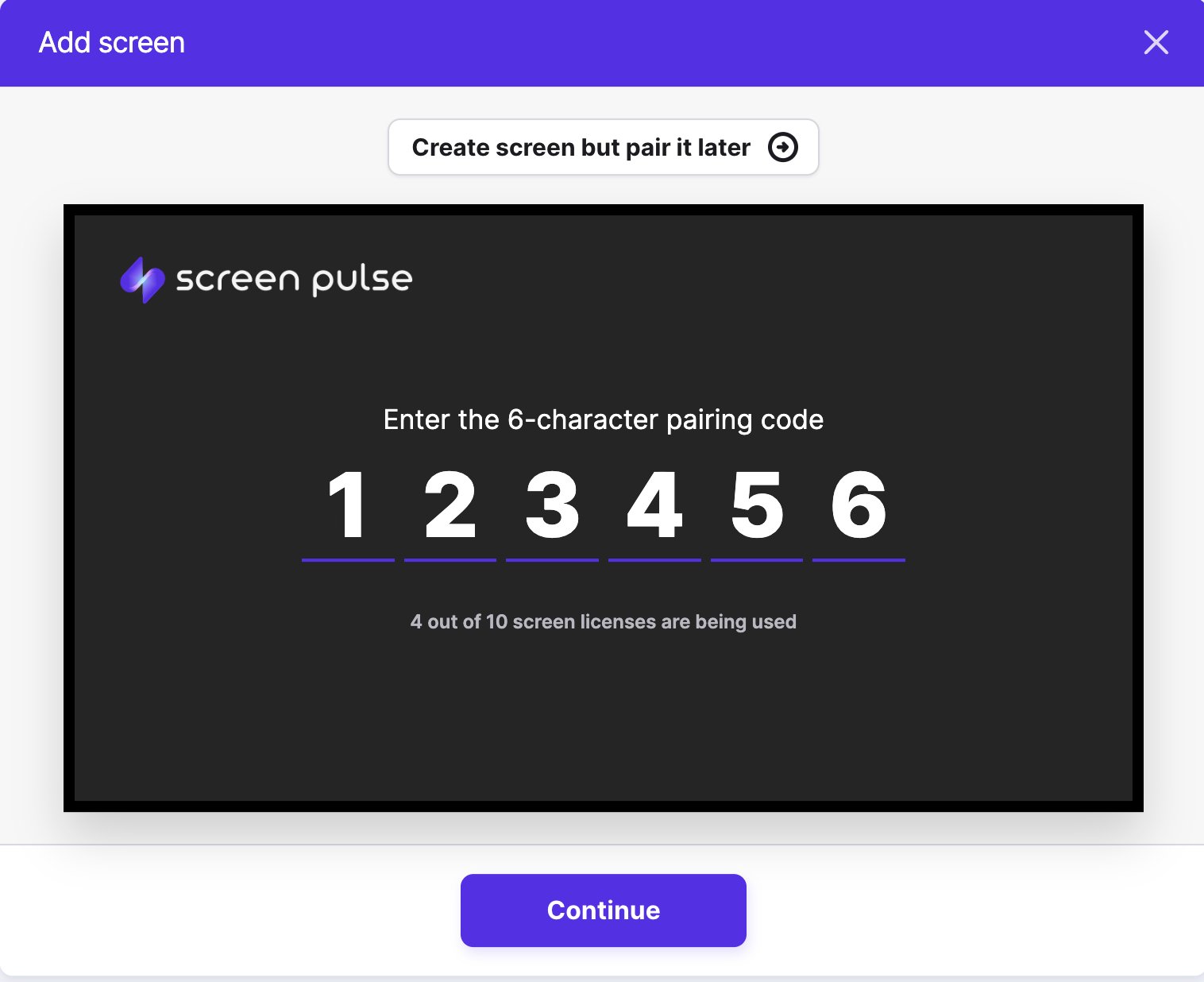
In Enter the 6-character pairing code, type the code shown on the display, then click Continue.
The device is now paired, and the window says "Your device is paired. Add a few details to finish setting up this screen." Fill in:
- Screen Name: replace "New Screen" with a name you'll recognize, such as "Front Lobby TV" or "Gym Entrance".
- Optional: Location (when your organization has locations) and Location Notes, such as the room or floor.
- Orientation and Rotation: leave Landscape and 0° for a normal TV on the wall.
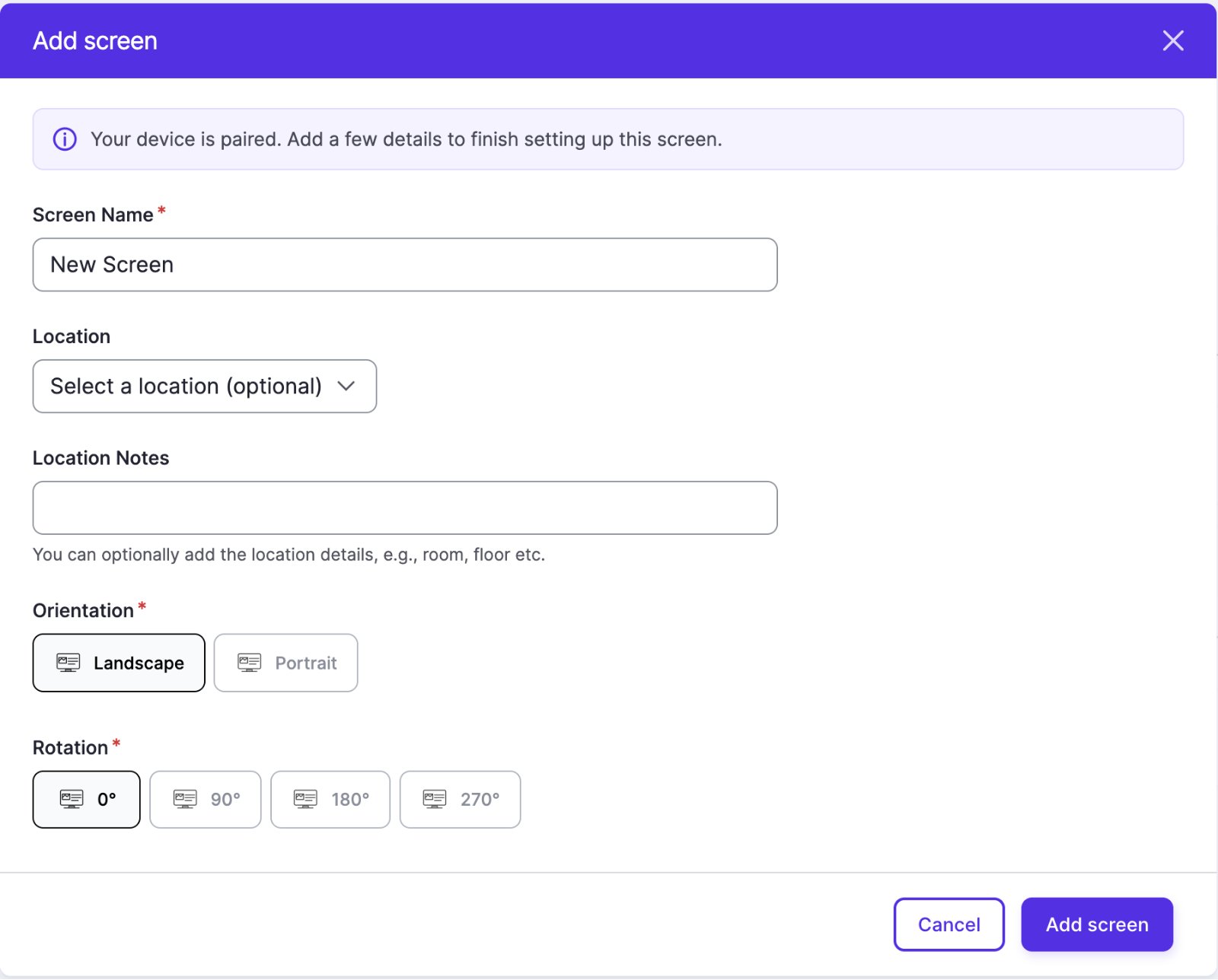
Click Add screen.
You can change all of this later, and also put the screen in a group or give it its own timezone, by editing the screen.
Choose portrait orientation for a vertical TV. If the TV is mounted on its side, set the orientation to portrait so content is laid out for a vertical screen.
Step 4: Check that it worked
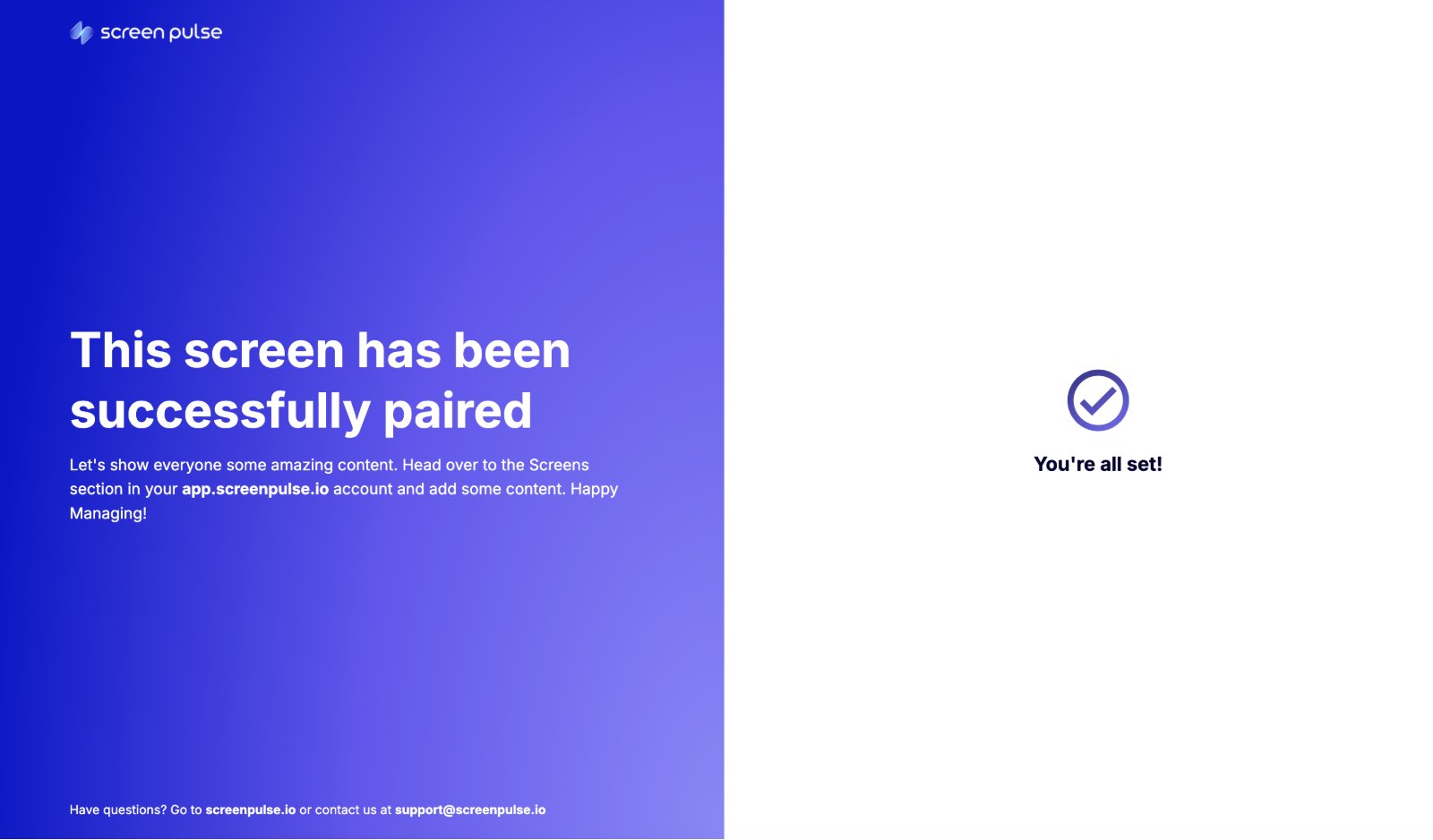
- On the display: the code is replaced by "This screen has been successfully paired" and "You're all set!".
- In Screen Pulse: the new screen appears in Screens with the status Live.
- In the player's settings (press Back on the remote, then select the gear in the top-right corner): Device Pairing shows Paired.
The display has nothing to play yet. Next, give it something to show; see Put your first content on screen.
If something goes wrong
| What you see | What to do |
|---|---|
| The code isn't accepted | Check that you typed exactly the code currently on the display. If the player has restarted, it may show a new code, so use the one on screen now. |
| Add screen shows "Your account subscription has expired" | Your trial has ended or your plan is cancelled, so new screens can't be added. Contact us to set up your plan; see My screens show "Subscription Not Active". |
| The Add screen form shows a license-limit message | All the screens included in your plan are in use. Remove a screen you no longer need, or contact us to add more. Screens count toward the limit even before a device is paired. |
| The screen shows Offline instead of Live | The device has lost its internet connection. Check the network and power at the display. Content already downloaded keeps playing while it's offline. |
| The device isn't in place yet | Create the screen now and pair the device later. In step 3, click Create screen but pair it later instead of typing a code. The screen shows as Inactive until a device is paired. When the hardware is ready, click Pair on the screen's row and enter the code. |
Screen statuses at a glance
| Status | Meaning |
|---|---|
| Inactive | The screen exists in Screen Pulse, but no device is paired to it yet. |
| Live | A device is paired and checking in normally. |
| Offline | A device is paired but hasn't checked in recently, usually because of a network or power problem. |
Also searched as: pairing URL, pair, TV app, install player, activate.
Related articles
- Set up an Amazon Signage Stick with the Amazon Signage app Set up the stick from your phone with the Amazon Signage app, choose Screen Pulse, and pair it with a screen.
- Welcome to Screen Pulse: how it works How Screen Pulse works, how to sign in for the first time, and the order to set things up in.
- Put your first content on screen Upload images, build a playlist, publish it and assign it to your screen.
Still need help?
Our support team can walk you through it.