

Set up an Amazon Signage Stick with the Amazon Signage app
Set up the stick from your phone with the Amazon Signage app, choose Screen Pulse, and pair it with a screen.
Updated 6 min read
On this page
The Amazon Signage Stick is a player built for digital signage, and Screen Pulse is one of its supported apps. The quickest way to set it up is from your phone with Amazon's Amazon Signage app: connect the stick to Wi-Fi, choose Screen Pulse, and the stick installs our player. Then pair it with a screen in Screen Pulse. Allow about 20 minutes.
This page covers the Screen Pulse side and summarizes Amazon's steps. Amazon's own guides have every detail: Set up with the mobile app and Getting started.
What you need
- The Amazon Signage Stick with its power cable and adapter. The box also has a remote, two AAA batteries and an HDMI extender cable.
- A TV or monitor with a free HDMI input.
- A Wi-Fi network and its password. The stick supports Wi-Fi 6E on the 2.4, 5 and 6 GHz bands (Amazon's Wi-Fi bands FAQ). Wired works with an Ethernet adapter.
- An Amazon account, to sign in to the Amazon Signage app.
- A phone with Bluetooth and the Amazon Signage app: an iPhone with iOS 14 or newer (App Store), or Android 11 or newer (Google Play).
- Your Screen Pulse login.
The Amazon Signage app is available in the United States, Canada, the United Kingdom, France, Germany, Italy and Spain. Elsewhere, use the remote and Amazon's web console.
1. Power on the stick
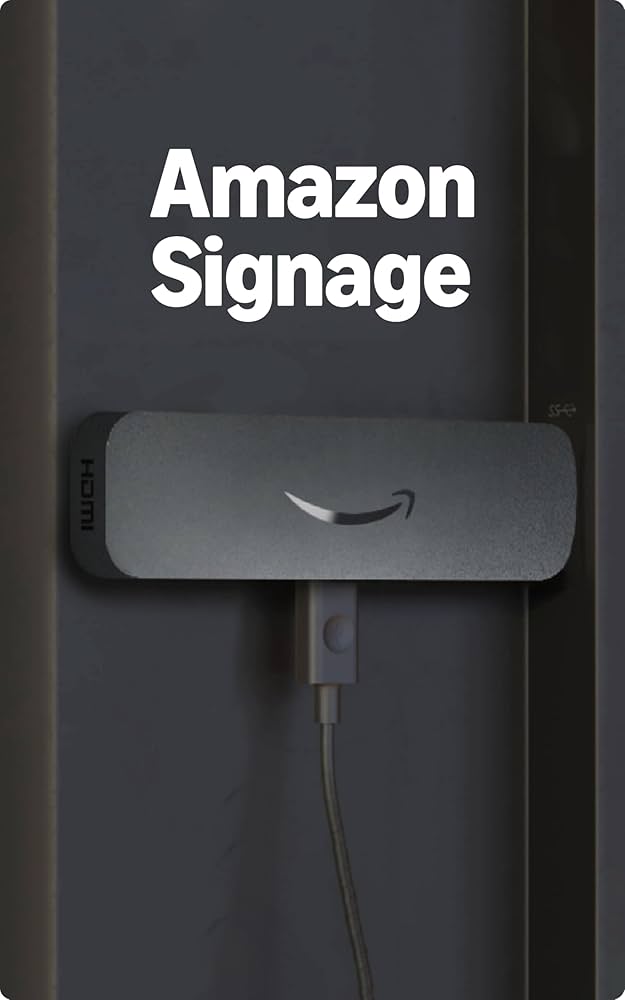
Connect the stick to its power cable and adapter, and plug it into a wall outlet. You can connect the stick to the display now or after setup.
2. Set up the stick in the Amazon Signage app
Install the Amazon Signage app from the App Store or Google Play, open it, and sign in with your Amazon account. The first time, the app creates an organization for you.
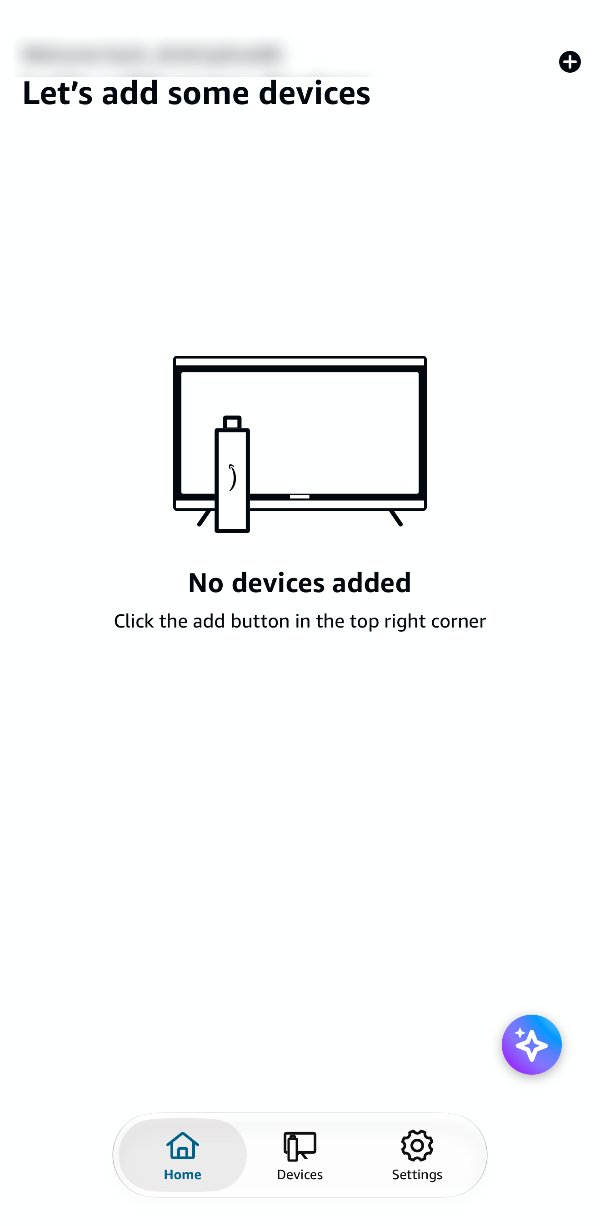
On the home screen, tap + at the top right.
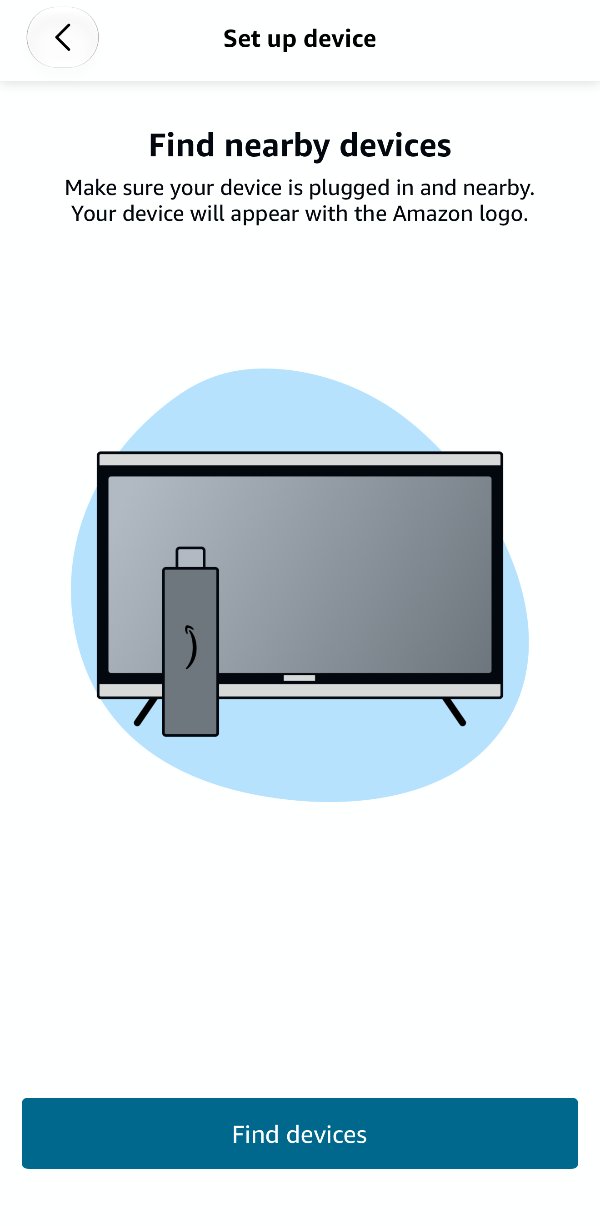
Under Find nearby devices, tap Find devices. The app looks for sticks nearby over Bluetooth, so keep your phone within about 3 m (10 ft) of the stick.
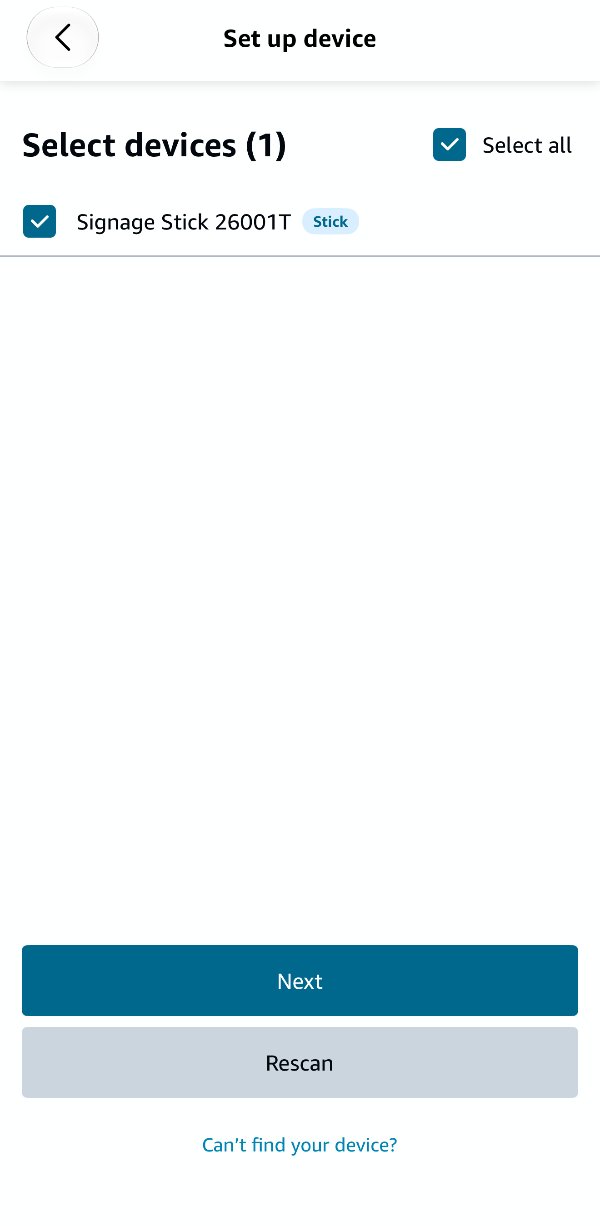
Under Select devices, tick your stick and tap Next. Setting up several sticks? Tick them all, or Select all: the app sets them up together, with the same Wi-Fi and CMS. Stick not in the list? Tap Rescan, or Can't find your device? for help.
Under Select Language, choose the stick's language and region, and tap Next.
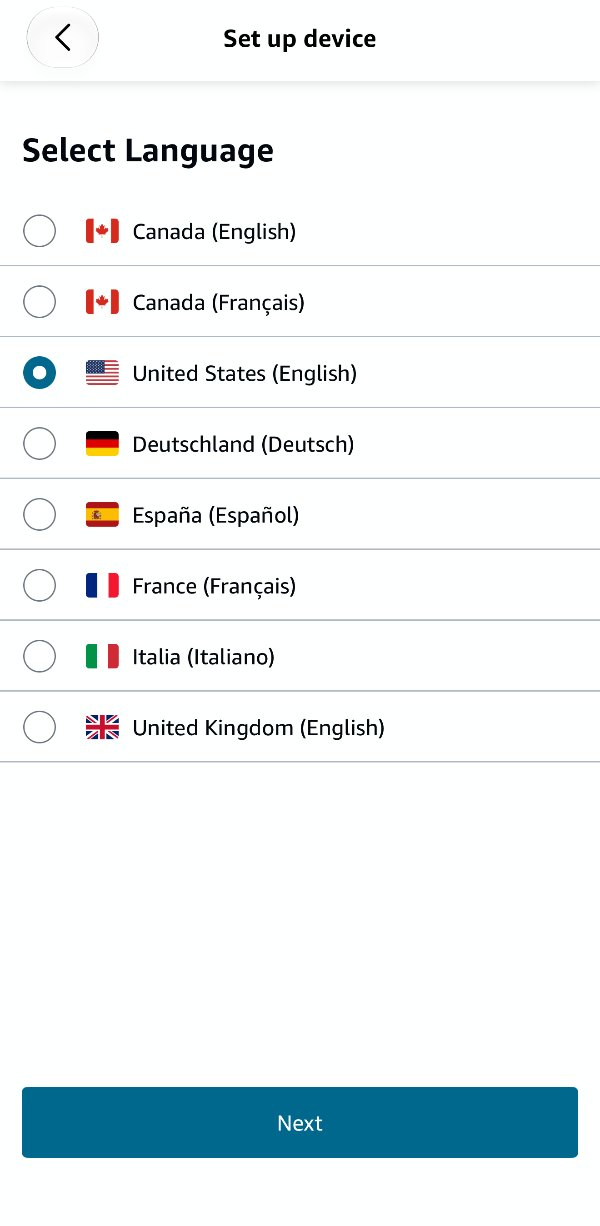
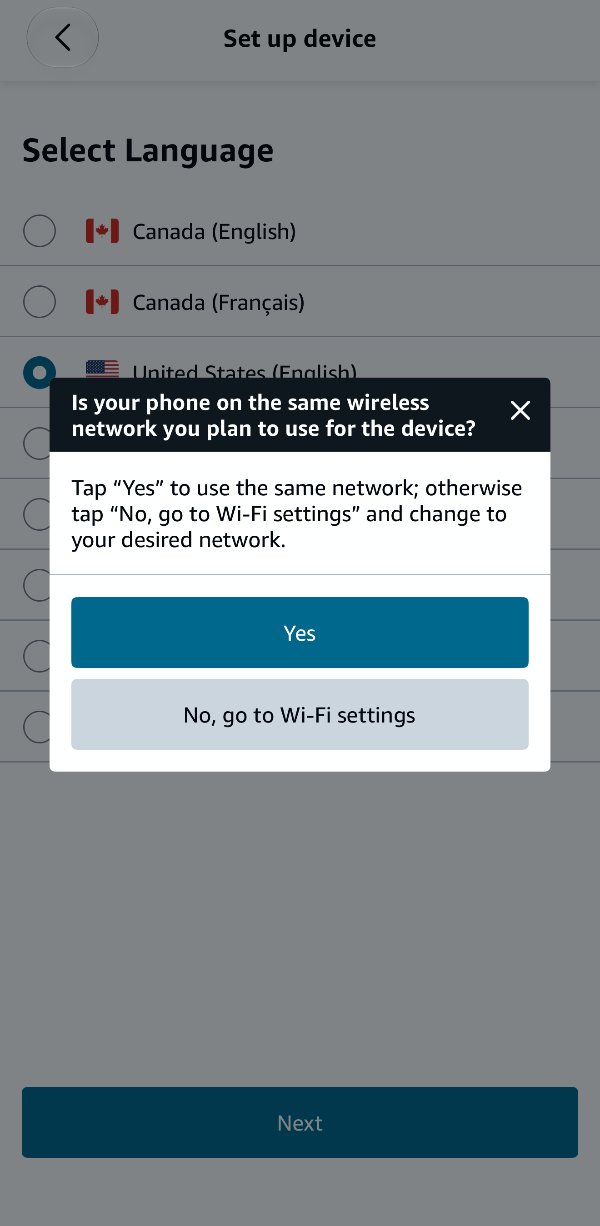
Choose the Wi-Fi network. The app asks whether your phone is on the network the stick should use: tap Yes to use it, or No, go to Wi-Fi settings to switch your phone to the right network first. On Android, pick the network from the list instead.
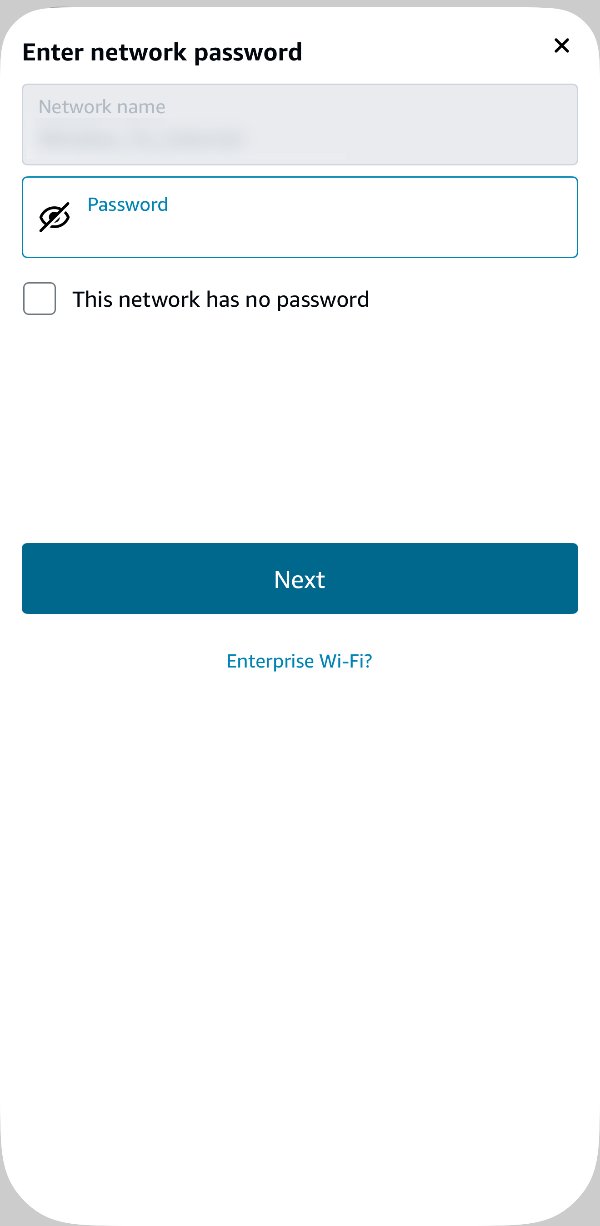
Under Enter network password, type the Wi-Fi password and tap Next.
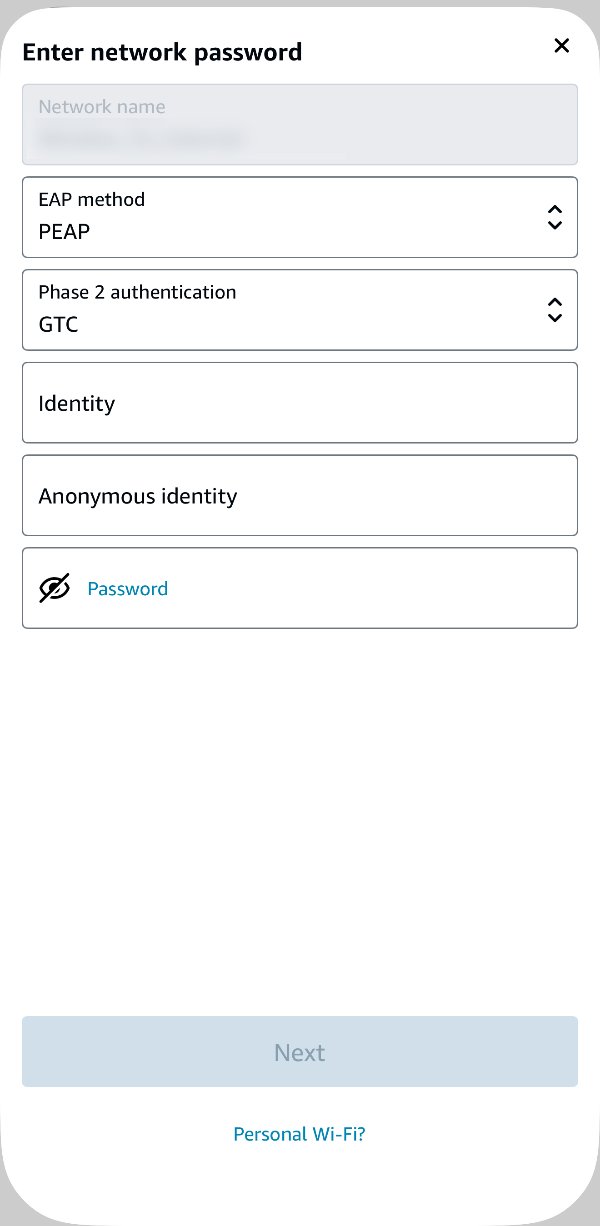
Enterprise Wi-Fi? If your network asks each person for a username and password, tap Enterprise Wi-Fi? on this screen and enter the details from your IT team: EAP method, Phase 2 authentication, Identity, Anonymous identity (if your network uses one) and Password. Then tap Next. Personal Wi-Fi? switches back to the simple password screen.
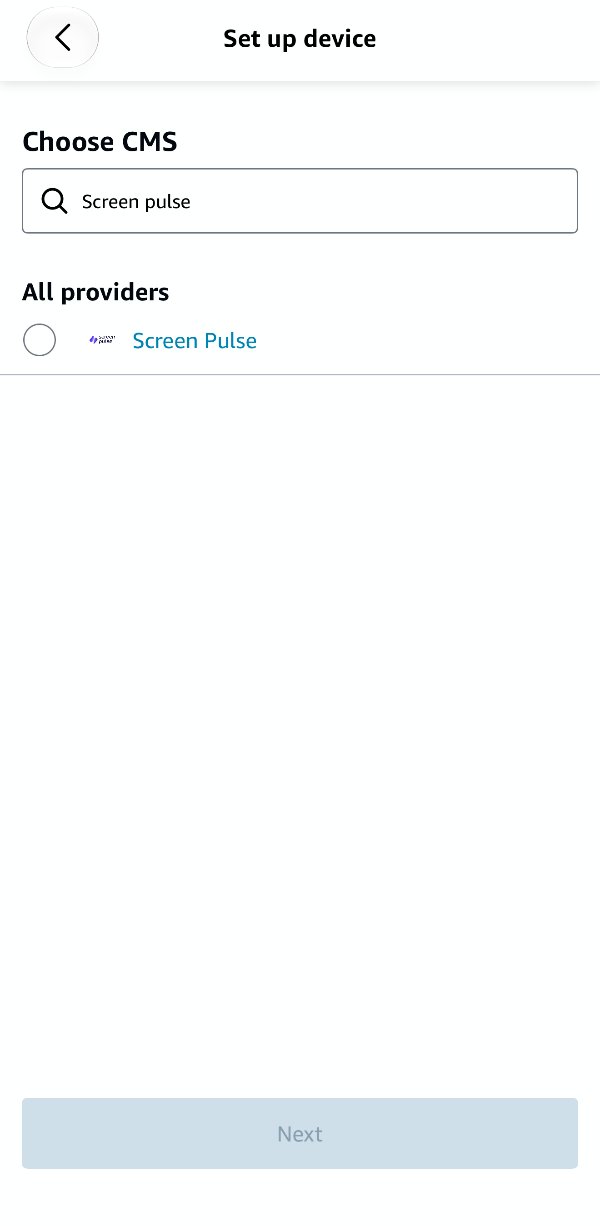
Under Choose CMS, search for Screen Pulse, select Screen Pulse under All providers, and tap Next.
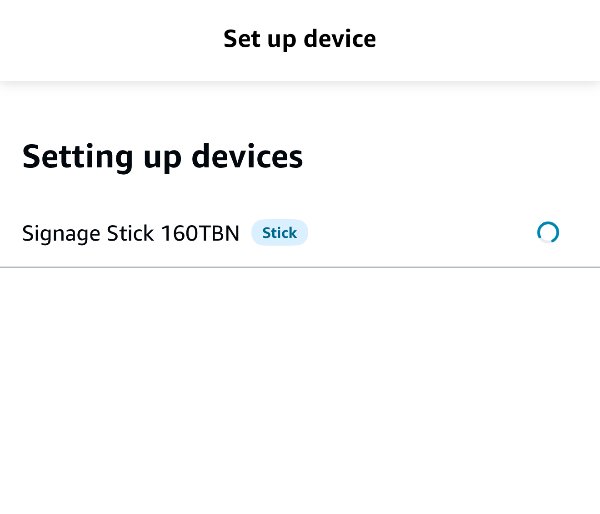
Setting up devices shows the stick with a progress spinner while it connects to Wi-Fi and starts installing Screen Pulse.
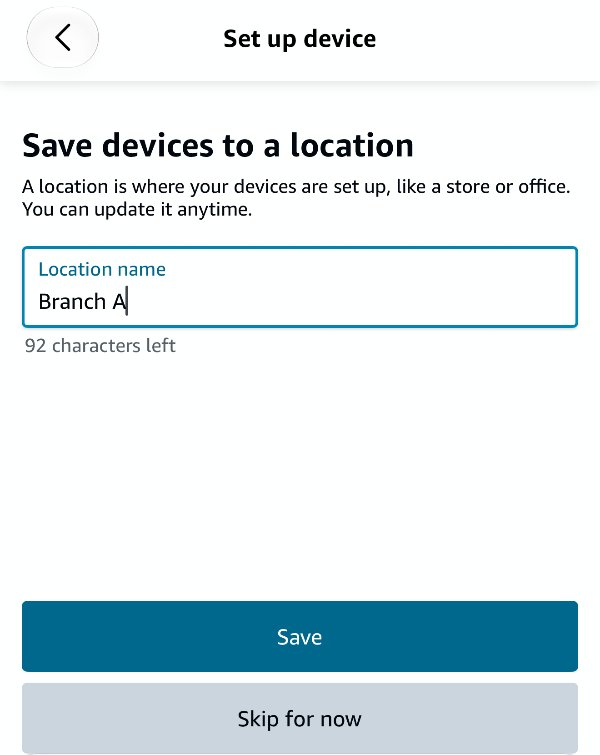
Under Save devices to a location, type a Location name, such as the building or room the screen is in, and tap Save. Or tap Skip for now: the stick then stays unassigned, and you can add a location later.
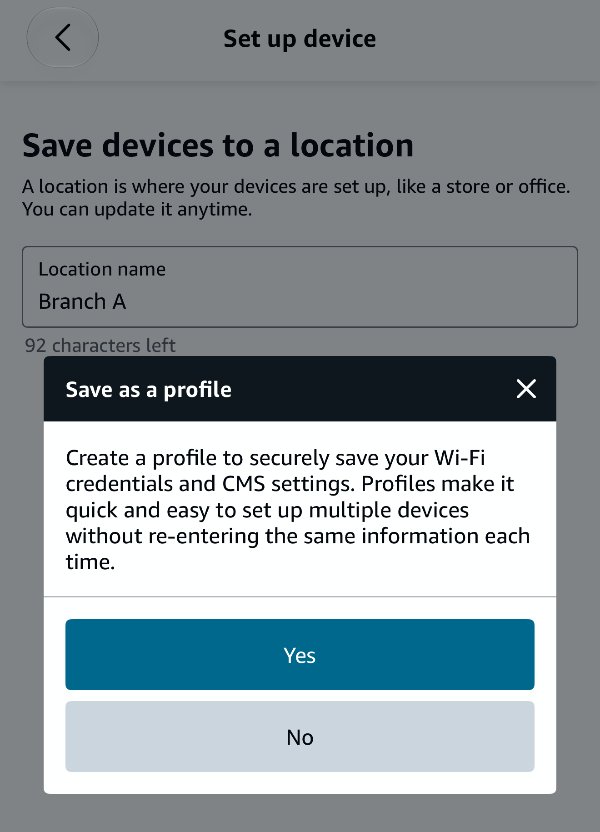
Save as a profile offers to save the Wi-Fi and CMS settings, so your next sticks are quicker to set up. Tap Yes or No.
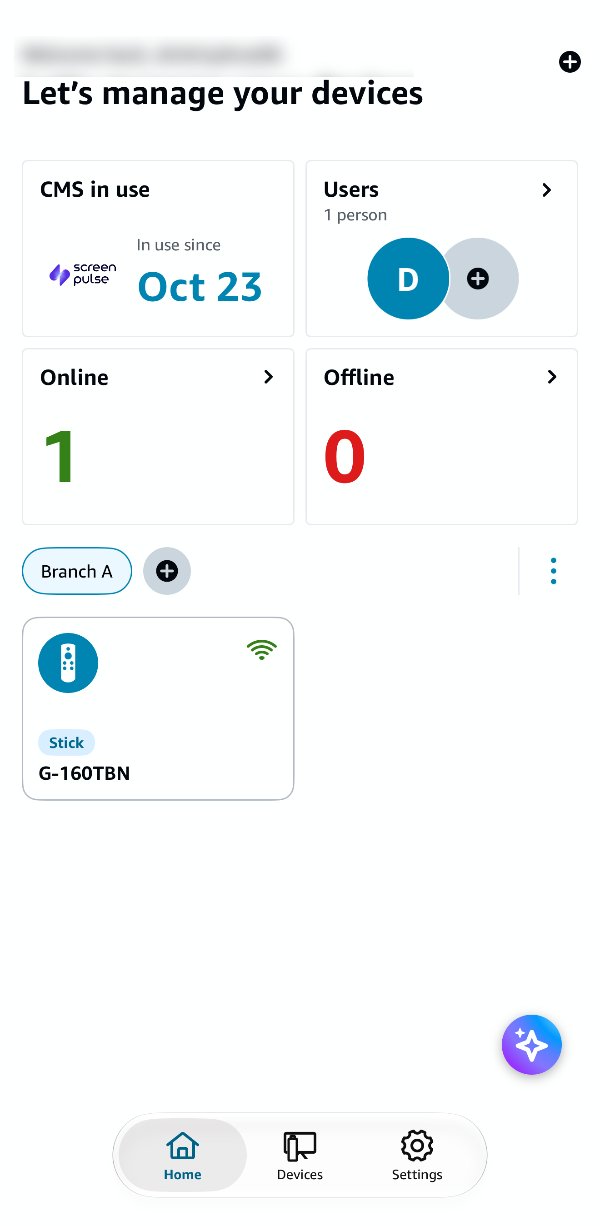
The app's home screen, Let's manage your devices, now shows Screen Pulse under CMS in use, how many sticks are Online and Offline, and your stick under its location. The stick keeps installing Screen Pulse in the background, which takes 5 to 10 minutes.
3. Pair the stick with a screen in Screen Pulse
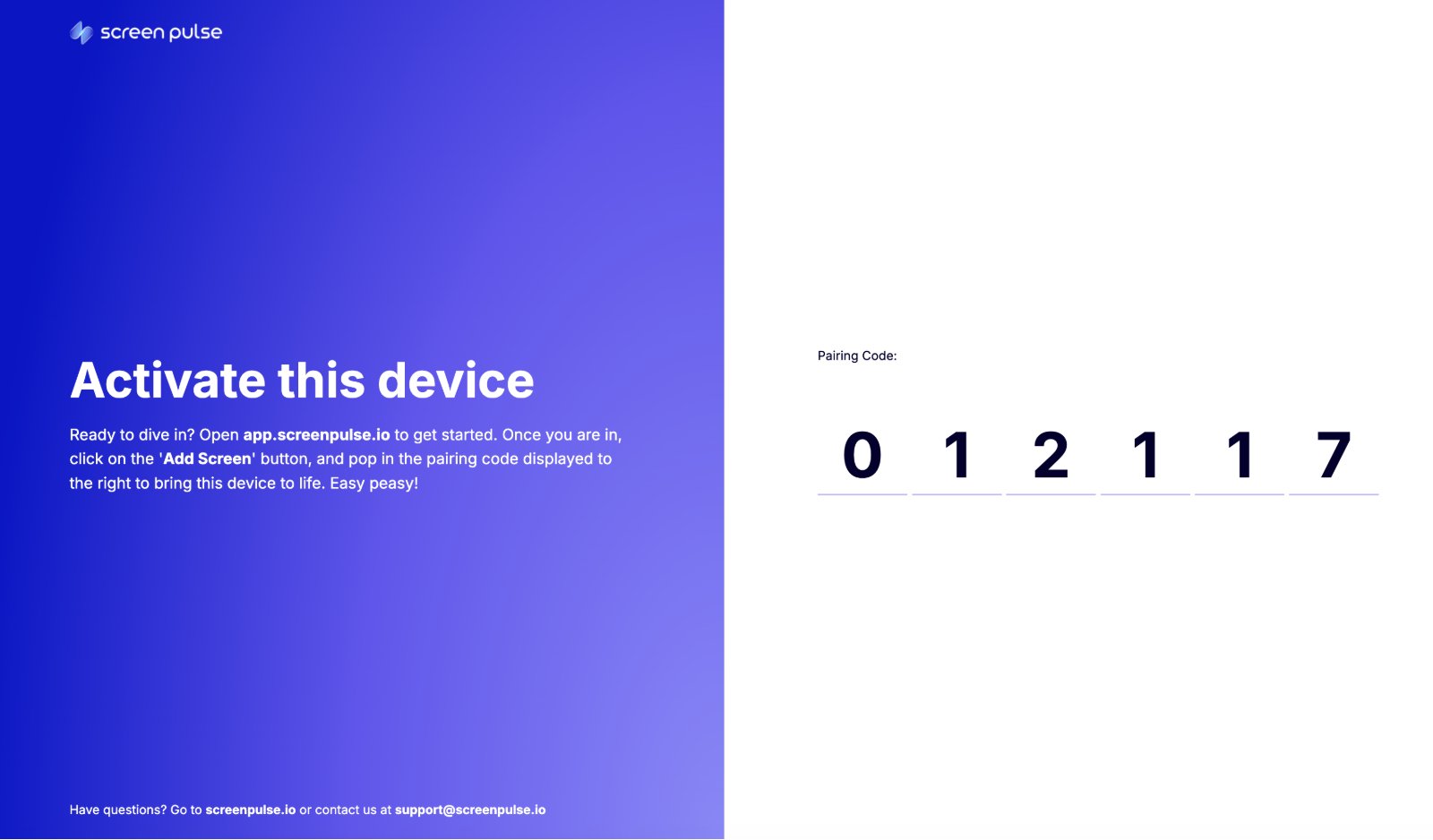
When the install finishes, Screen Pulse starts right away and the display shows Activate this device with a 6-character Pairing Code. In Screen Pulse, go to Screens, click + Add screen, and enter the code. The steps, with screenshots, are in Install the player and connect your first screen.
Prefer a computer?
If the app isn't available in your country, or you'd rather not use a phone, set the stick up with its remote and Amazon's web console instead; see Set up an Amazon Signage Stick with the web console.
Manage your sticks in the app
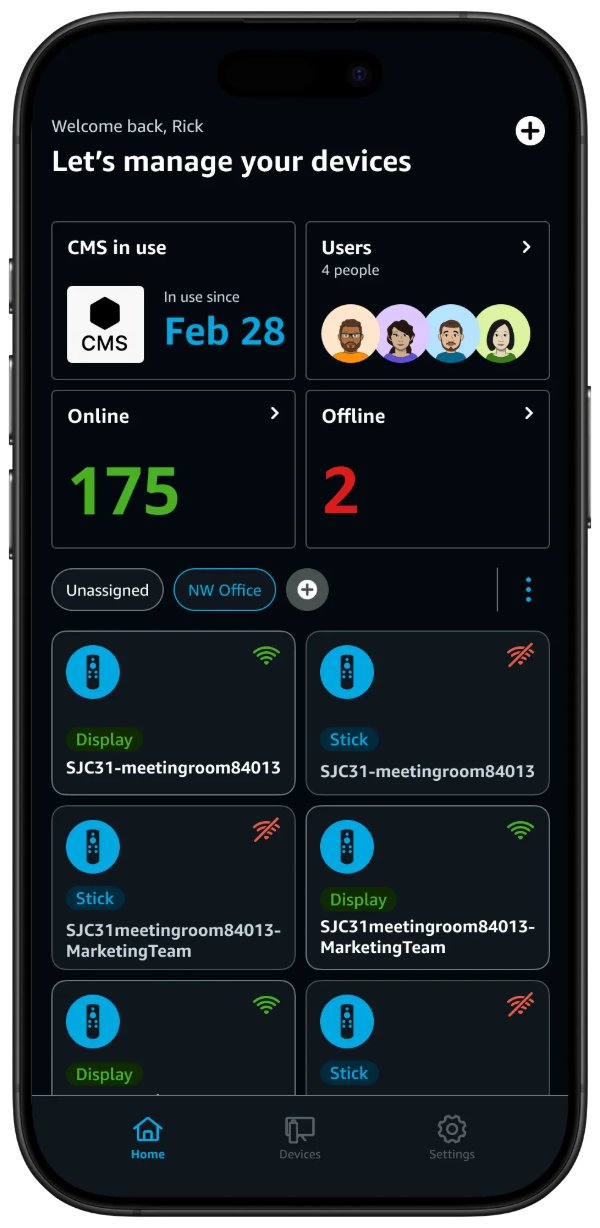
As you add more sticks, the app's home screen becomes your overview:
- Online and Offline show how many sticks are connected. Tap either to see which.
- Locations appear as tabs above the sticks. Unassigned holds sticks without a location, and + adds a location.
- Each stick has a card with its name and type (Stick, or Display for Amazon Signage displays). A crossed-out Wi-Fi icon means it's offline.
Control the stick from your phone
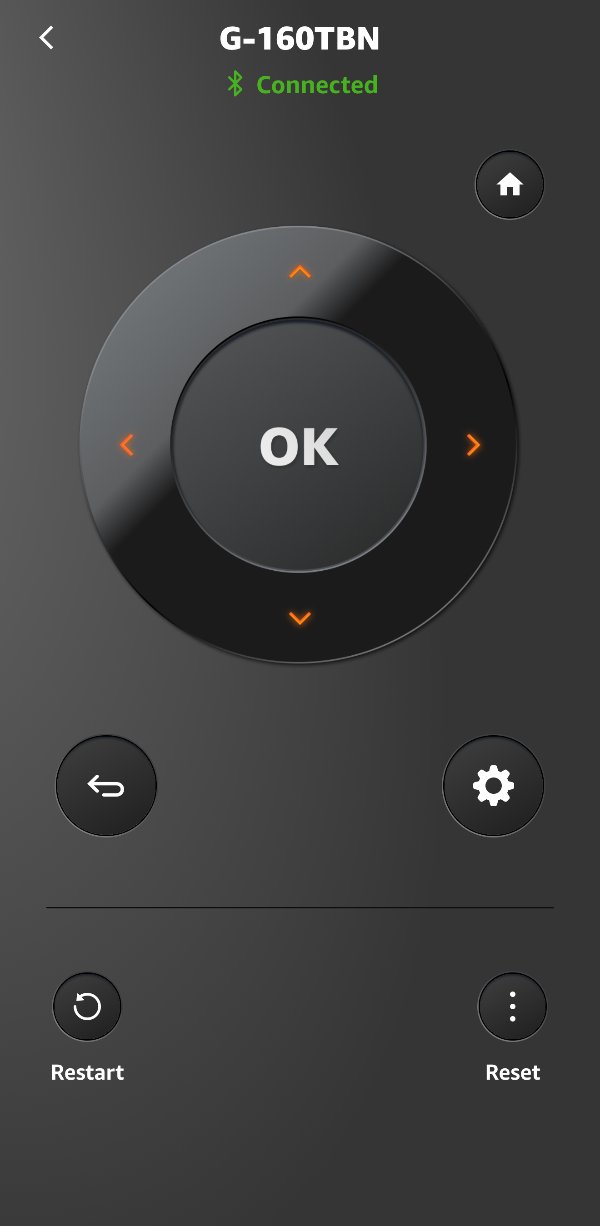
The Amazon Signage app works as a remote. On the home screen, tap the stick's card to open it. When it shows Connected, use:
- Home, the arrows and OK, Back and Settings, like the physical remote.
- Restart to restart the stick.
- Reset to factory reset it, for example to start over with a different CMS. See Reset the stick to start over.
Amazon's mobile app guide has more on managing locations, users and devices in the app.
Good to know
- The physical remote is optional after app setup. To use it as well as the app, add it from the stick's settings with Add physical remote.
- The Alexa and app buttons on the remote don't work on the Signage Stick.
- Home and Back on the remote return to Screen Pulse, so your content stays on the display.
- The player's settings: press Back on the remote and select the gear in the top-right corner. Settings shows the stick's Internet Connection, Platform Connection and Device Pairing status. Start on device restart and Auto-relaunch if closed show Managed by device: on the Signage Stick, Screen Pulse is the stick's home screen, so the stick starts it and reopens it by itself.
- To start over (for example if another app was chosen instead of Screen Pulse), reset the stick and set it up again. See Reset the stick to start over.
- Something not working? See Amazon Signage Stick troubleshooting.
Related articles
- Set up an Amazon Signage Stick with the web console Set up the stick with its remote, add it in Amazon's Signage manager with Screen Pulse as its CMS, and pair it with a screen.
- Amazon Signage Stick troubleshooting Fix the most common Signage Stick setup problems, from Wi-Fi and remote pairing to a stick that doesn't show Screen Pulse.
- Install the player and connect your first screen Start the player on your device, pair it with a 6-character code and check that it is live.
- Which devices and operating systems can I use, and what are the minimum requirements? The players Screen Pulse runs on, the minimum versions for each, and what to check before you buy.
Still need help?
Our support team can walk you through it.