

Which devices and operating systems can I use, and what are the minimum requirements?
The players Screen Pulse runs on, the minimum versions for each, and what to check before you buy.
Updated 4 min read
Screen Pulse works with any TV or monitor that has an HDMI input, driven by a small player device: an Amazon Signage Stick, an Amazon Fire TV device running Fire OS 6 or newer, or an Android box, tablet or TV running Android 13 or newer. Owners can also play a screen in a modern web browser. For most new installs, we recommend the Amazon Signage Stick.
Planning to use something else? Check Devices and operating systems that don't work with Screen Pulse first.
At a glance
| Player | Minimum | Recommended | How you get Screen Pulse on it |
|---|---|---|---|
| Amazon Signage Stick | Any | The best choice for new screens: built for signage, 4K, Wi-Fi 6E | Chosen during the stick's setup. See Set up an Amazon Signage Stick. |
| Amazon Fire TV | Fire OS 6 (based on Android 7.1) | Fire OS 8 or newer | The Screen Pulse Player app from Amazon |
| Android box, tablet or Android TV | Android 13 | Android 15 or newer | The Screen Pulse app on Google Play |
| Web browser | Chromium 88 (Chrome or Edge 88), or a recent Firefox or Safari | The latest Chrome or Edge | Owners open the screen's Player URL. See below. |
Once the player is running, connecting it is the same on every device; see Install the player and connect your first screen.
Amazon Signage Stick
A player made for digital signage, and the one we recommend. It's built to run all day, and you can set it up from your phone with Amazon's Amazon Signage app (App Store, Google Play). Screen Pulse is one of the apps you pick during its setup, so there's nothing to install.
Buying Signage Sticks
- Buy them directly from Amazon. That's the quickest way. We sell them too: contact us through Support → Contact Support if you'd rather order through us.
- Ordering many? Amazon limits an order from a personal account to 30 sticks. An Amazon Business account has no limit.
- Out of stock? Contact us, and we'll help you find sticks or a player that works in the meantime.
Amazon Fire TV
- Fire OS 6 or newer. To check, open Settings → My Fire TV → About on the device.
- Fire OS 8 or newer is recommended.
- Fire TV devices with Vega OS don't run the Screen Pulse player. See Devices and operating systems that don't work with Screen Pulse.
Android
- Android 13 or newer, with Android 15 or newer recommended. To check, open Settings → About on the device (on Android TV, Settings → System → About).
- Boxes, tablets and Android TVs all work, as long as they have Google Play.
- Chromecast with Google TV works: the 4K model, and the HD model once it's updated to Android 14.
Web browser
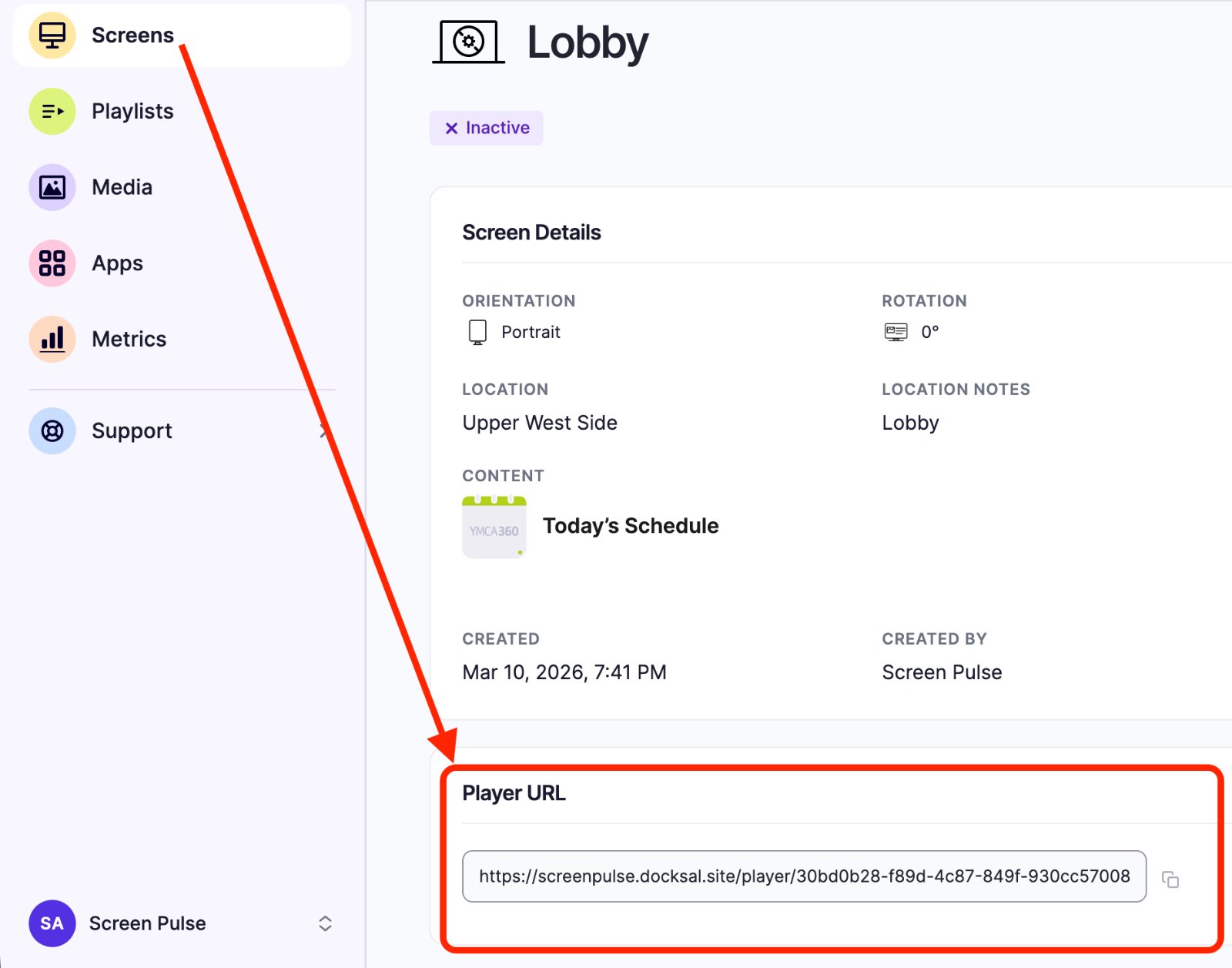
Every screen has its own address. Owners find it on the screen's page: go to Screens, click the screen's name, and scroll to Player URL. Copy it with the copy button, open it in a browser, and switch the browser to full screen. It plays that screen's content. This is how Raspberry Pi, ChromeOS devices, Windows PCs and Macs run Screen Pulse, and it's handy to try Screen Pulse before a player arrives.
The browser has to be based on Chromium 88 or newer (Chrome or Edge 88 and later, released in 2021), or be a recent Firefox or Safari. Older browsers, such as the one on the ASUS Chromebit, can't run the player; see Devices that don't work with Screen Pulse.
Samsung (Tizen), LG (webOS) or Windows players? They're on our roadmap. Contact us through Support → Contact Support for the latest before you buy.
Displays
- Any TV or monitor with HDMI works. Commercial displays are built to run all day; home TVs may switch off or change input on their own, so check their power-saving settings.
- Portrait screens are supported; see Portrait screens: orientation and rotation.
Before you buy
- Storage: 8 to 16 GB is enough for typical content. More if you play a lot of video, because the player keeps videos on the device so they play smoothly.
- Internet: each player needs a connection. Wired is more reliable for screens that run all day. If your network is locked down, see Network requirements.
- Sound: if videos need sound, check the display or a sound bar is connected and not muted.
Also searched as: buy, purchase, order devices, quantity, hardware, TV app, out of stock, player app.
Related articles
- Devices and operating systems that don't work with Screen Pulse Players and systems that can't run Screen Pulse, or that we don't recommend, and what to use instead.
- Set up an Amazon Signage Stick with the Amazon Signage app Set up the stick from your phone with the Amazon Signage app, choose Screen Pulse, and pair it with a screen.
- Network requirements: what your IT team needs to allow The internet addresses Screen Pulse players and the CMS need, for networks with firewalls or filters.
Still need help?
Our support team can walk you through it.