

Portrait screens: orientation and rotation
Set up a vertical display, or one that's mounted sideways or upside down.
Updated 2 min read
On this page
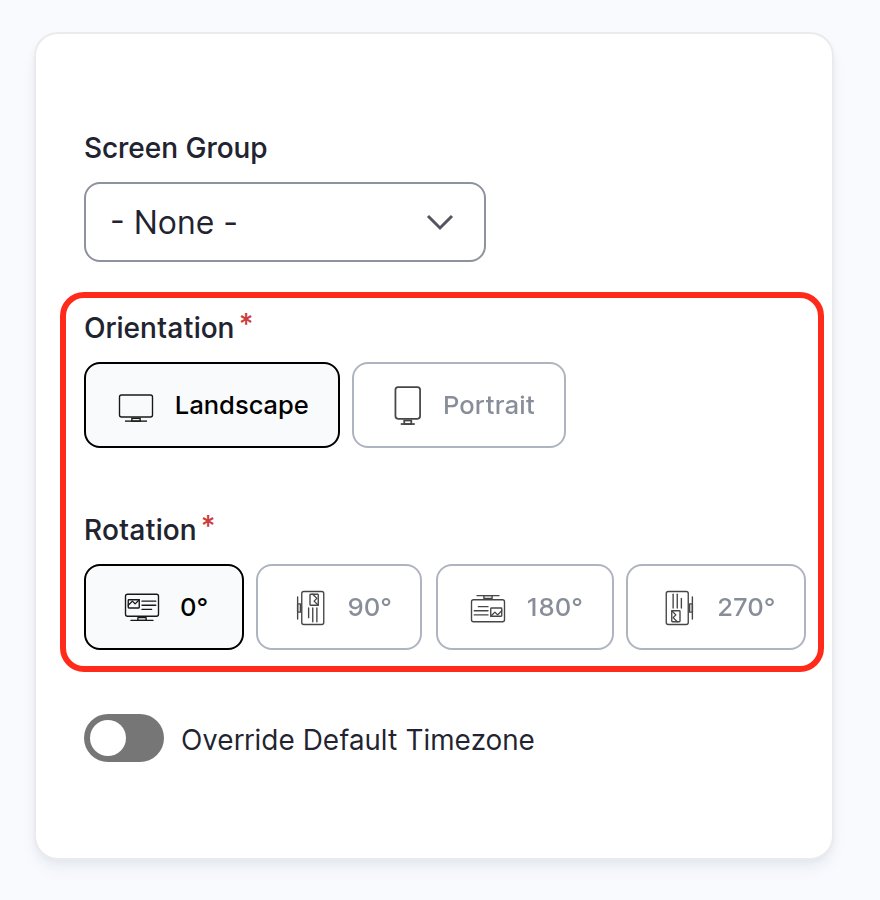
Two settings control how content appears on a display. Orientation decides whether content is laid out wide (Landscape) or tall (Portrait). Rotation turns the picture 0°, 90°, 180° or 270° to match how the hardware is physically mounted. Set both on the screen's edit form.
Set them
- Go to Screens, open the menu next to Preview on the screen's row and click Edit.
- Set Orientation to Landscape or Portrait.
- Set Rotation to match how the device is mounted.
- Click Save. The device updates on its own.
Which settings do I need?
| How the display is mounted | Orientation | Rotation |
|---|---|---|
| A normal TV on the wall, wide | Landscape | 0° |
| A TV turned on its side, where the TV shows the picture upright itself | Portrait | 0° |
| A TV turned on its side, and the picture comes out sideways | Portrait | 90° or 270°, whichever makes it upright |
| A display mounted upside down (for example, hung from the ceiling) | Landscape | 180° |
Try one rotation, look at the display, and switch if the picture is the wrong way up. That's quicker than working out which way the TV was turned.
Preview looks right, but the TV is sideways
Preview lays the content out in the screen's Orientation, always upright: it doesn't apply Rotation, which only turns the picture on the display itself. So when Preview is right and the TV isn't, the Rotation doesn't match how the TV is mounted. Change it to the other side (90° or 270°), save, and look at the display again.
If Preview itself shows the content in the wrong shape, Orientation is wrong: set Portrait for a TV on its side.
Check the settings after a change
- Open the screen in Screens and click Preview: the content should be laid out in the shape you expect.
- Look at the display, or ask someone there for a photo: the picture should be upright.
- The display went blank after the change? Wait a minute while it re-lays out the content. If it stays blank, click Refresh on the screen's page. A screen with nothing assigned shows your default content for its orientation, so set a Portrait default image too.
Good to know
- Orientation is about the content, rotation is about the hardware. Orientation changes how apps lay themselves out; rotation only turns the finished picture.
- Changing orientation re-lays out the content, so give the screen a moment to update.
- Design for the shape. A playlist built from landscape images looks cramped on a portrait screen. See Designing content that looks good on a TV.
Related articles
Still need help?
Our support team can walk you through it.