

Designing content that looks good on a TV
Sizes, file formats and design tips for images and videos that read well from across a room.
Updated 3 min read
On this page
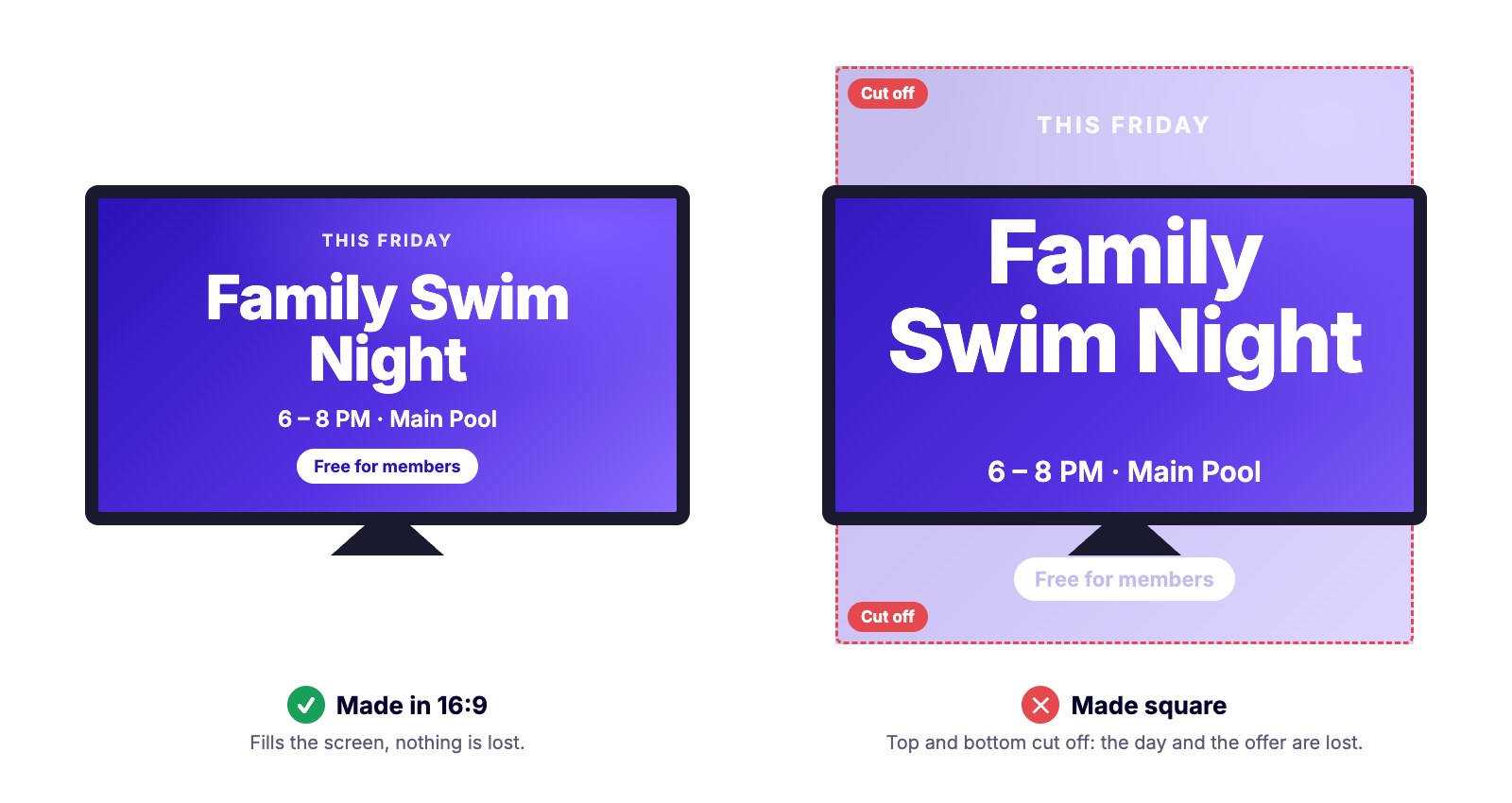
Make your content in the same shape as the screen: 16:9 for a TV on the wall, 9:16 for a portrait TV. Screen Pulse fills the whole screen with each image and video, so content in a different shape gets its edges cut off. Use 1920 × 1080 pixels, or 3840 × 2160 for 4K screens, keep text large and short, and leave a margin around the edges.
Match the screen's shape (aspect ratio)
The aspect ratio is the shape of an image: its width compared with its height. Most TVs are 16:9. Turned on its side, a TV is 9:16.
Screen Pulse always fills the whole screen. When an image or video doesn't match the screen's shape, it's enlarged until it covers the screen, and whatever sticks out is cut off:
- A square or 4:3 image on a 16:9 TV loses its top and bottom.
- A landscape image on a portrait TV loses most of its left and right sides.
- Text near the edges is the first thing to go.
So design each piece for the screens it will play on, and make a separate version if the same message needs to show on both landscape and portrait screens. Several displays run by one player as a video wall have a shape of their own; see Video walls.
Sizes and formats
| Landscape screen | Portrait screen | |
|---|---|---|
| Aspect ratio | 16:9 | 9:16 |
| Image size, HD | 1920 × 1080 px | 1080 × 1920 px |
| Image size, 4K | 3840 × 2160 px | 2160 × 3840 px |
| Image formats | JPG, PNG or WEBP, up to 50 MB | Same |
| Video formats | MP4 (most compatible) or WEBM, up to 50 MB | Same |
4K is supported. On a 4K player such as the Amazon Signage Stick, a 4K image plays at full 4K. Images larger than 4K are scaled down to 4K, and every image is optimized for fast delivery to the screen. An image smaller than the screen is stretched to fill it and can look soft, so for a 4K display, use 4K images.
Make it readable
- Big text. Anything smaller than about 1/20 of the screen height is hard to read from across a room.
- Few words. A headline and one line of detail. Viewers glance, they don't read.
- Strong contrast. Dark text on light, or light on dark. Avoid text over busy photos.
- Keep a margin. Leave about 5% clear around the edges; some TVs cut off the border.
Make it last long enough
Give each slide enough time to be read: about 8 to 10 seconds for a headline and a line of text, more for anything denser. Set durations per item in the playlist; see Build a playlist.
Keep videos light
Videos over 50 MB won't upload. Export at 1080p with a standard H.264 MP4 setting, and trim anything that isn't needed.
Use tools you know
Design in Canva, PowerPoint, Photoshop or similar, export as PNG or JPG at the sizes above, and upload. A Canva design can also be shown live with the Canva app; see the App guides.
Related articles
Still need help?
Our support team can walk you through it.