

Build a playlist
Create a playlist, add images, videos and apps, set timings, preview it and put it on screens.
Updated 4 min read
On this page
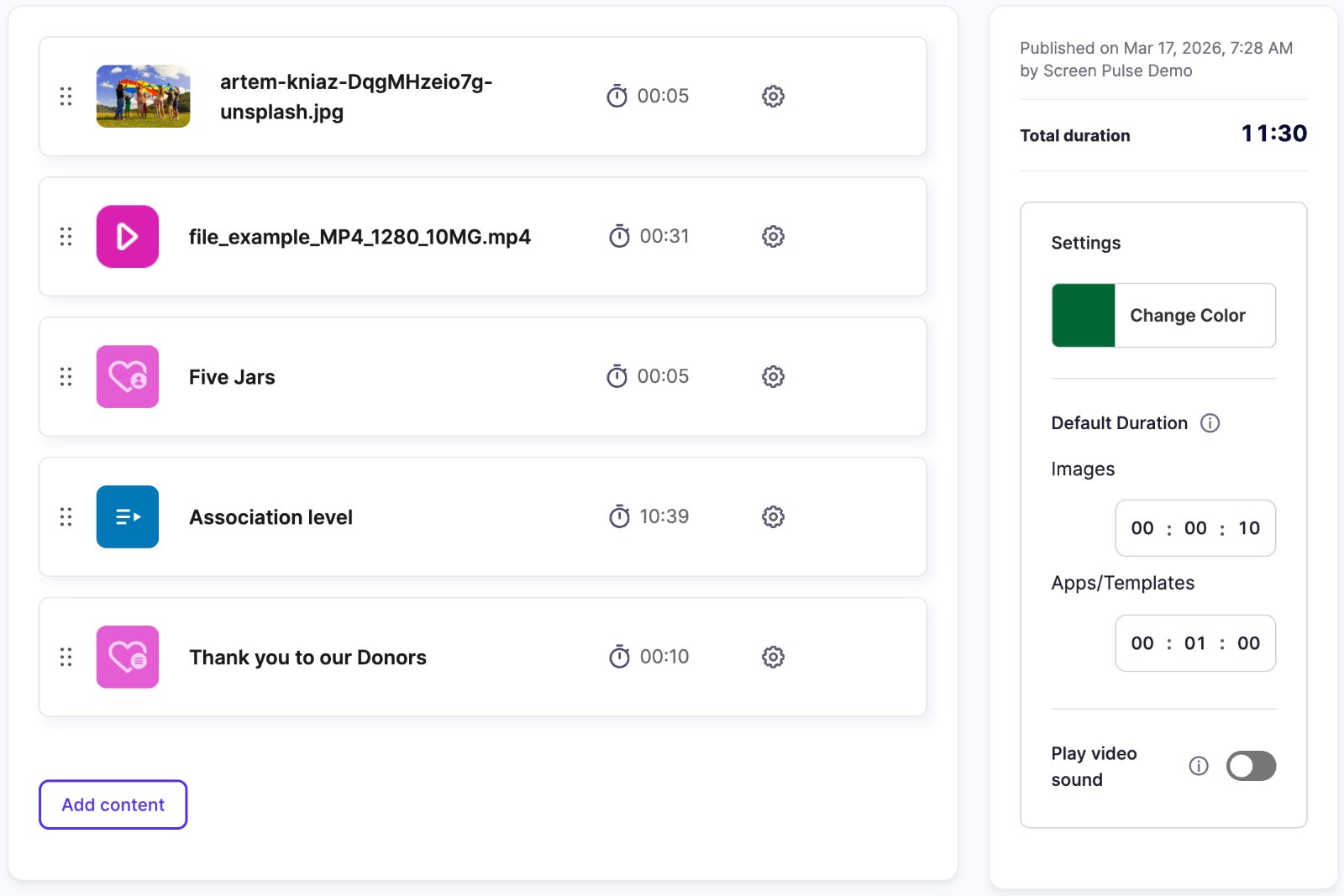
A playlist is a list of images, videos, apps and even other playlists that a screen plays from top to bottom and then loops. Create one in Playlists → Create playlist, add content, set how long each item shows, click Save & Publish, then put it on screens with Set to Screen.
Create it
- Go to Playlists and click Create playlist.
- Enter a Name.
- Click Add content, pick what to add, and confirm. See Pick content with Add content below.
- Click Save & Publish, or Save Draft to keep working on it.
Pick content with Add content
Add content opens one window for everything a playlist can play. Pick a kind of content on the left:
- Media: images and videos from your Media library, with its folders and search. Click the items you want, then Add (N) in the bar at the bottom of the browser. + Add at the top uploads new files.
- Apps: the apps you've set up, such as a clock or a schedule. Click an app to see its instances (the copies you set up, "3 instances"), then tick the ones to add. Apps at the top takes you back to the list of apps.
- Playlists: another playlist, to play inside this one; see Nested playlists. A playlist that already holds this one isn't listed.
- Donor Recognition, if your organization has it: click a template, then tick its displays.
The search box finds by name. On the first step of Apps, it finds instances across every app, so you don't have to know which app a copy belongs to.
Ticked items stay ticked when you switch tabs, and the number next to a tab shows how many you picked there. The bottom bar counts them all: click Add N items to add them at the end of the playlist, or Clear selection to untick everything. Cancel, or the X, closes without adding.
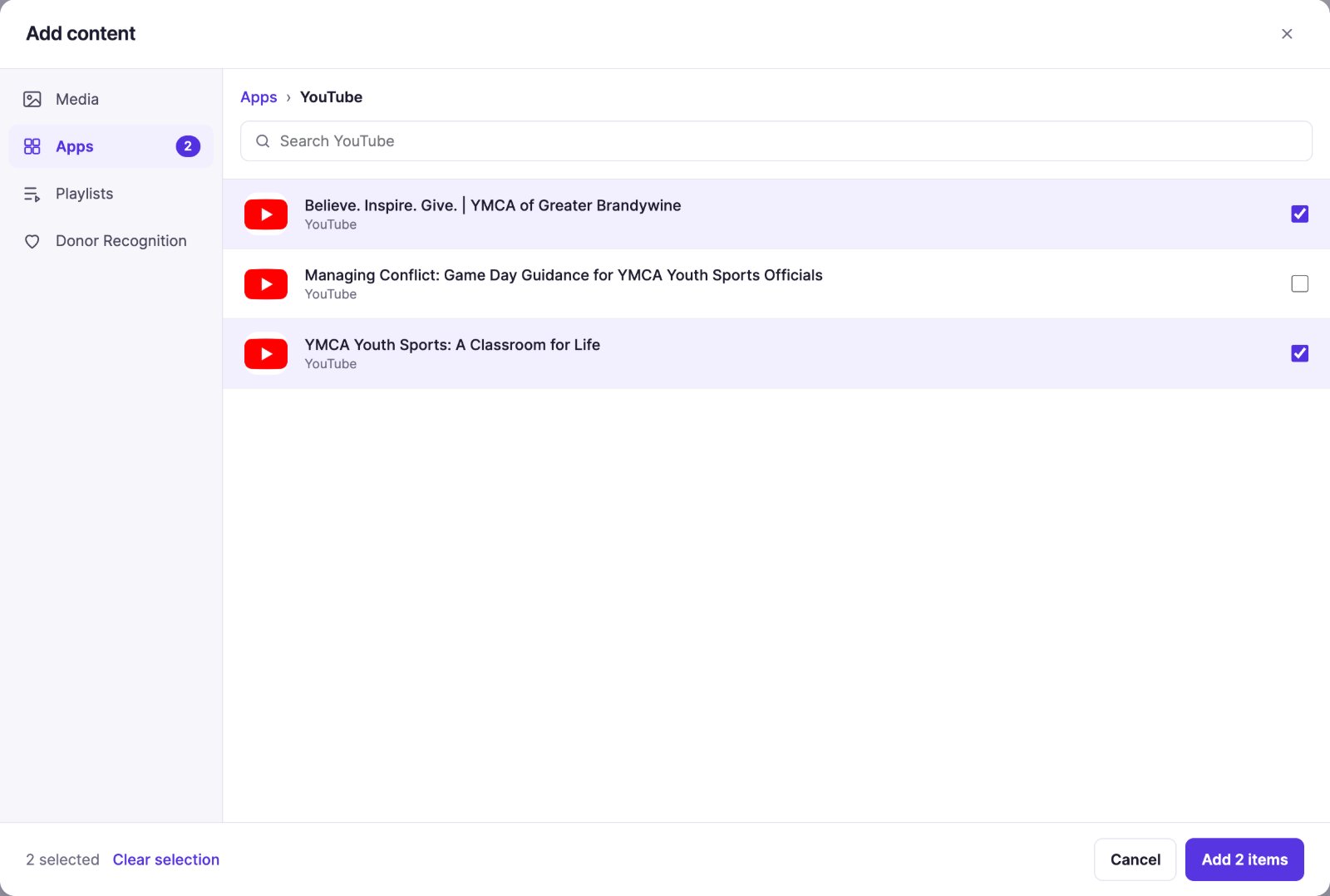
A screen's Content uses the same window, but picks one item: choose it and click Add.
Set the order and timing
- Order: drag items by their drag & drop handle. The list order is the play order.
- Duration: set each image and app item's length in minutes and seconds (MM:SS). It can't be 0.
- Videos always play for their full length; you can't change that.
- A nested playlist plays for the total of its own items.
- Default durations: in the Settings sidebar, Default Duration has two rows: Images, and Apps/Templates for apps and Donor Recognition displays. They set the starting length for items you add next. Without them, new images start at 10 seconds and new apps and displays at 60 seconds. Changing a default doesn't change items already in the list.
The playlist's total length updates as you edit.
Transitions: one image fades into the next. Other items switch straight to the next, and there's no transition setting. For a different effect, build it into the video or the design itself.
Edit a playlist later
Go to Playlists and click the playlist's name to open it in the editor. Make your changes, then click Save & Publish to send them to its screens, or Save Draft to keep working; see Drafts vs. published.
Other settings
In the Settings sidebar:
- Play video sound: off by default, so videos in a playlist are muted. See Play videos with sound.
- Color: the color of the playlist's icon in Screen Pulse. It doesn't change anything on screen.
Preview it
Click Preview on the playlist's row in Playlists. The preview plays the items in order. The progress bar has a tick for each item, so you can jump straight to one.
For playlists with YouTube or Vimeo items, a real screen runs slightly longer than the preview, because it waits a moment for each video to load. That's expected.
Put it on screens
- In Playlists, open the menu next to Preview on the playlist's row.
- Click Set to Screen, tick the screens (Select all ticks every screen the search shows), and click Set to N screens. A screen that already plays the playlist is ticked and greyed out.
The Screens column shows how many screens use each playlist, or "Not assigned". Editing and re-publishing the playlist later updates all of them.
Duplicate or delete a playlist
- Duplicate (in the menu next to Preview) makes an independent copy with all items, timings and settings. The copy isn't on any screen until you assign it.
- Delete shows a Used in list of screens and playlists that use it. Check it before you confirm. Deleting can't be undone, but the images, videos and apps in the playlist aren't deleted.
Also searched as: slideshow, several images, multiple videos, play order, rotation, loop, edit playlist.
Related articles
- Drafts vs. published: when changes go live Why a playlist isn't showing on screen, and how to work on changes without disturbing what's playing.
- Schedule content for certain dates or times of day Make a playlist item play only between two dates, only during certain hours, or both.
- Nest playlists for reusable blocks Put one playlist inside another, so a shared block (like announcements) is maintained in one place.
Still need help?
Our support team can walk you through it.