

Nest playlists for reusable blocks
Put one playlist inside another, so a shared block (like announcements) is maintained in one place.
Updated 1 min read
A playlist can include another playlist. Its items play in place, as part of the outer playlist. Use this for content several screens share: keep "Weekly announcements" as its own playlist, add it to each location's playlist, and update it once for every screen. Open the outer playlist, click Add content and use its Playlists tab.
Add a playlist inside another
- Go to Playlists and open the outer playlist.
- Click Add content, open Playlists, tick the playlist to include, and click Add 1 item. A playlist that already holds this one isn't offered, since it would play inside itself.
- Drag it to where its items should play.
- Click Save & Publish.
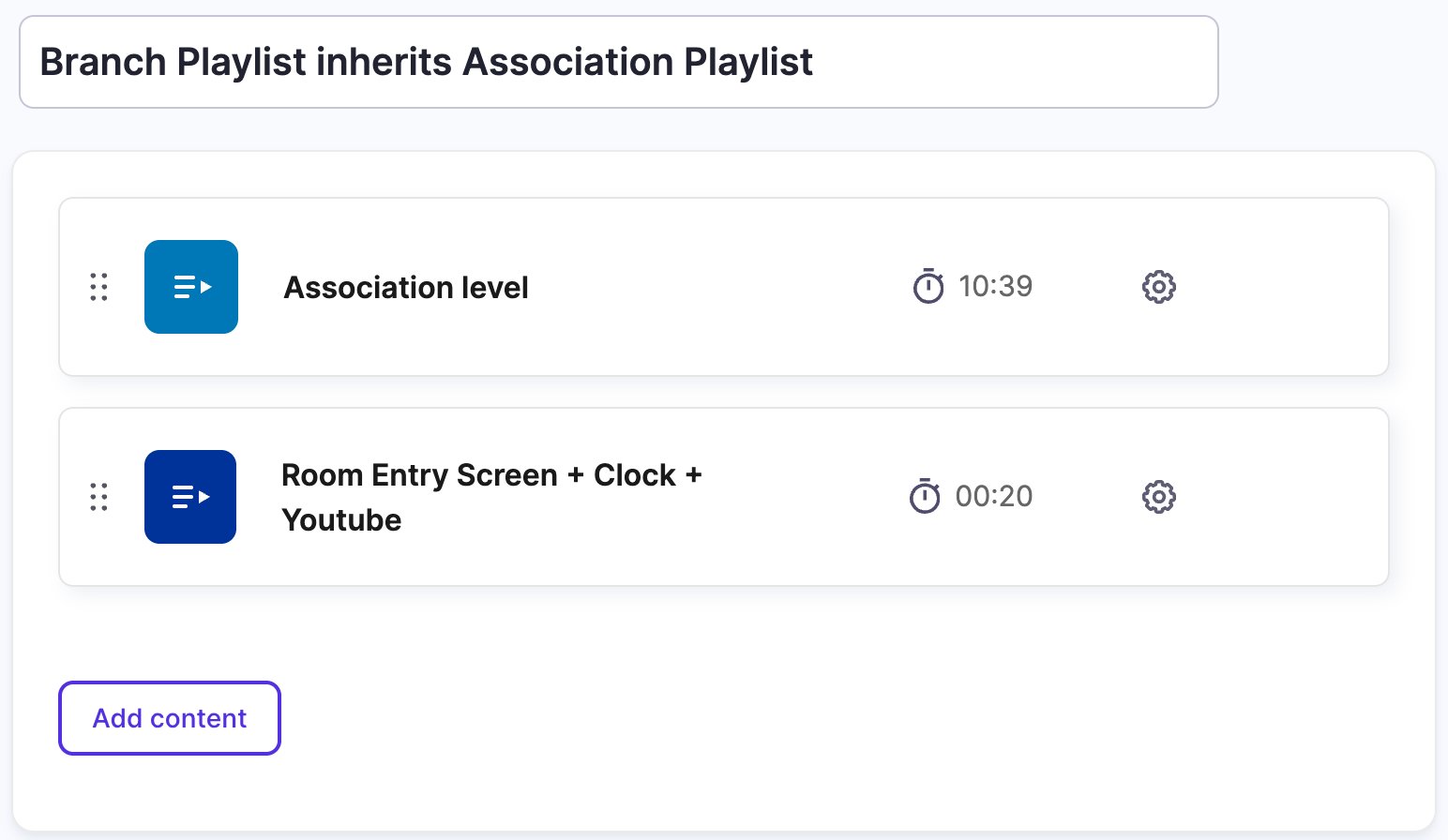
How long it plays
A nested playlist plays for the total length of its own items, so its duration can't be edited in the outer playlist. To change it, open the inner playlist and change its items.
Good to know
- Edit the inner playlist once, and every playlist that includes it changes too.
- No loops. You can't add a playlist to itself, or to a playlist it already contains; Screen Pulse hides those from the list.
- Schedules combine. If you schedule the nested item, its window combines with the schedules of the items inside. An item plays only when both allow it.
- Publish both. Draft changes to the inner playlist don't play until you Save & Publish it.
Related articles
Still need help?
Our support team can walk you through it.