

Video walls: one player across several displays
Plan content for a wall of displays driven by one player, such as a three-panel donor wall - the canvas size, one image across every display, videos, apps and checking it in Preview.
Updated 3 min read
On this page
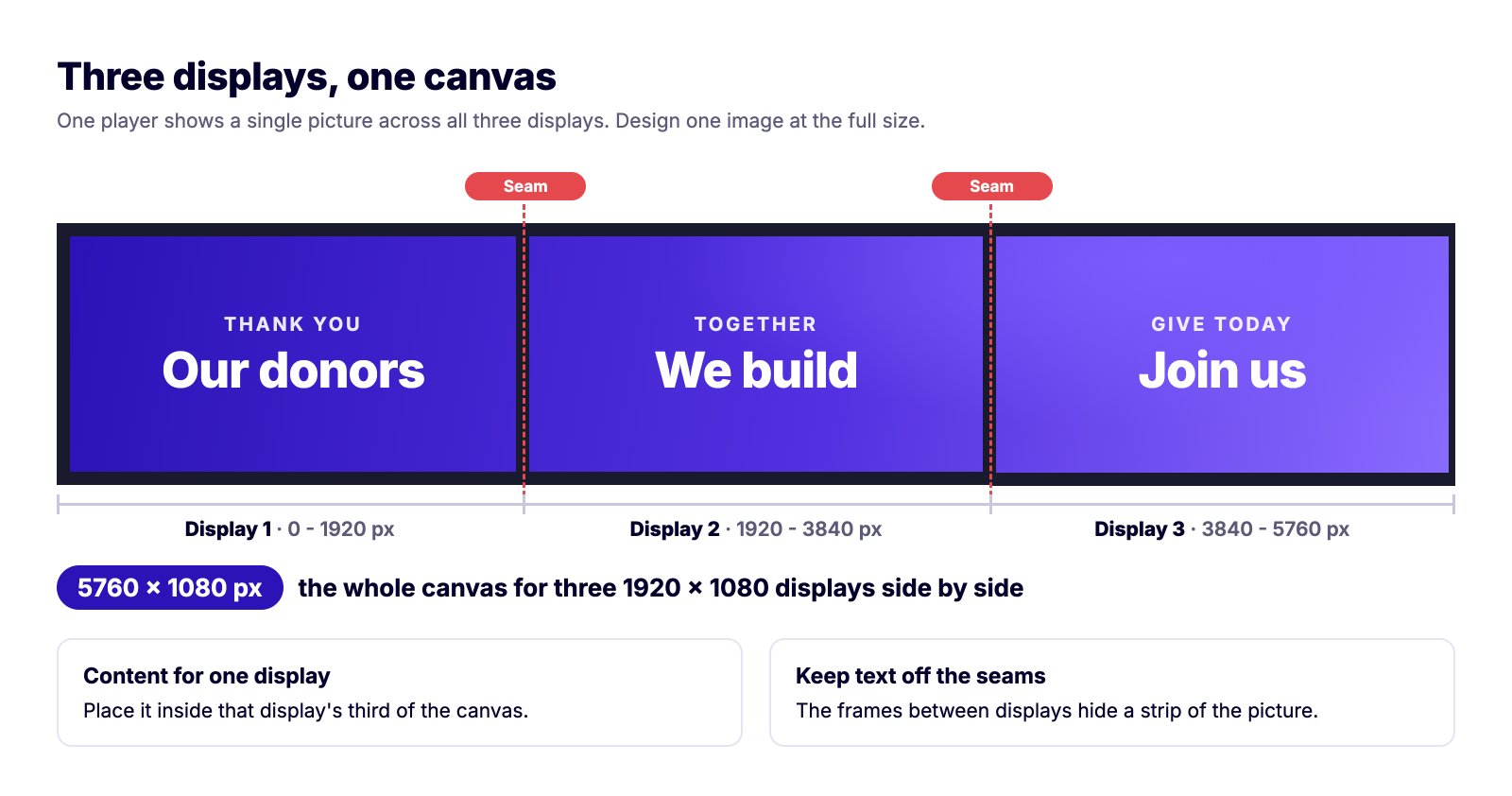
A video wall is several displays side by side, such as three TVs in a donor wall, driven by one player that treats them as one wide display. To Screen Pulse it's a single screen: it uses one screen license, and everything you put on it is shown across the whole wall. So you design for the whole wall at once. For three 1920 × 1080 displays side by side, that's one picture 5760 × 1080 pixels wide, and each display shows a third of it.
Find your wall's size
Pair the player like any screen, then open the screen's page and read Resolution on the Device Information card; see Check which device is connected. That's the size of your canvas: design every image and video at exactly that size.
| Your wall | Canvas | Each display |
|---|---|---|
| Three landscape 1920 × 1080 displays side by side | 5760 × 1080 px | 1920 px wide: 0-1920, 1920-3840, 3840-5760 |
| Two landscape 1920 × 1080 displays side by side | 3840 × 1080 px | 1920 px wide |
If your Resolution differs from the table, trust the Resolution: it's what the player actually draws. Set the screen's Orientation to match the shape of the whole wall, Landscape for a wide one.
One image across every display
Any image or video spans the whole wall: you don't need a special app. Make one image at the canvas size and add it to a playlist, like any other.
- To show something on one display only, put it inside that display's third of the canvas.
- Keep text and faces off the seams. The frames between the displays hide a strip of the picture.
- Match the canvas shape exactly. Screen Pulse fills the whole wall with each image and video, so a 16:9 image on a 5760 × 1080 wall is enlarged until it covers the wall, and loses most of its top and bottom. See Designing content that looks good on a TV.
Design tools such as Canva and Photoshop let you set a custom size: enter the canvas size before you start.
Videos
Export videos at the canvas size, as MP4 with H.264 video, and under the 50 MB upload limit. A video as wide as a wall is a lot of picture, so keep it short and simple, and play it on the wall itself before it goes live: if it stutters, see A video won't play, stays black or stutters.
Apps and Donor Recognition displays
Apps, such as Countdown or Clock, and Donor Recognition displays are laid out for one screen. On a wall, they lay themselves out across the whole width, so text can land on a seam and the layout can look stretched. A single player can't show an app on just one of its displays.
- Check each one in Preview before you put it on the wall.
- For a message or a countdown on one display, make it an image instead, placed in that display's third of the canvas.
- If each display should show its own app, give each display its own player. Each is then its own screen in Screen Pulse, with its own content, and uses its own license.
Check the whole wall in Preview
Once the player is paired, Preview on the screen shows the whole wall at the player's real resolution: the order of your items, how long each one stays, and how one image fades into the next. It doesn't show the seams, so keep those in mind, and look at the wall itself after a change. See Preview what a screen is showing.
Good to know
- The player, or a video wall controller, does the splitting. Screen Pulse sends one picture; the hardware spreads it over the displays. Setting that up is done on the device, not in Screen Pulse.
- Bezel width varies by display. Leave a margin of a few percent of a display's width on each side of a seam.
Also searched as: panels, three screens, multiple monitors, donor wall, span, multi-screen.
Related articles
- Designing content that looks good on a TV Sizes, file formats and design tips for images and videos that read well from across a room.
- Preview what a screen is showing See exactly what's on a display without walking over to it.
- Check which device is connected to a screen Find the model, operating system, resolution, player version and network details of a screen's device.
Still need help?
Our support team can walk you through it.