

Check which device is connected to a screen
Find the model, operating system, resolution, player version and network details of a screen's device.
Updated 1 min read
Open the screen's page and look at the Device Information card. It shows the device's resolution, operating system, model, network type and player version, and when it was connected. Click View Details for everything the device reports, including storage, memory and Wi-Fi signal. Our support team often asks for these details.
The Device Information card
- Go to Screens and click the screen's name.
- Scroll to Device Information.
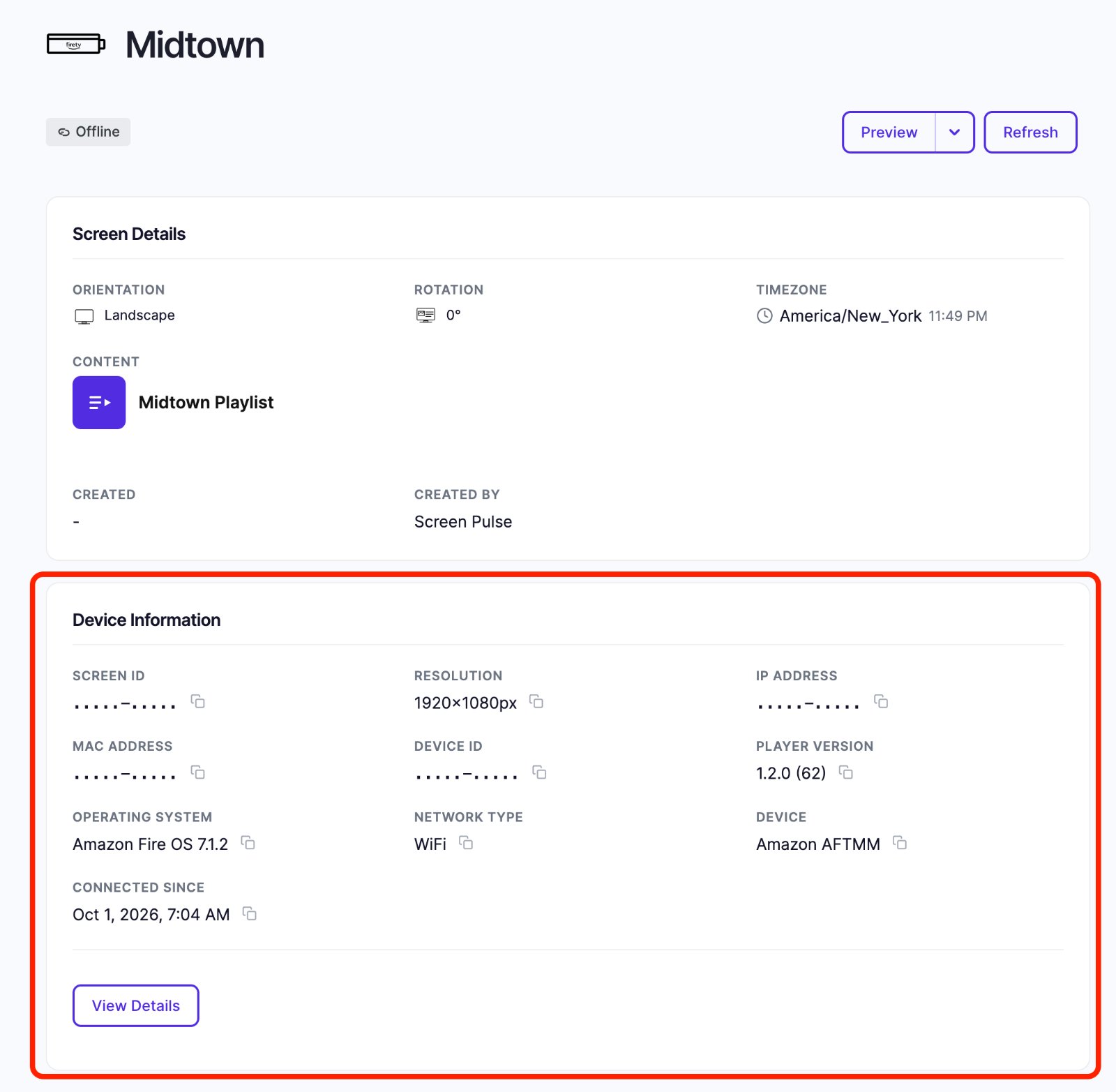
| Field | What it tells you |
|---|---|
| Screen ID | The screen's unique ID in Screen Pulse. |
| Resolution | The display resolution the device reports, such as 1920×1080px. |
| IP Address, MAC Address | Network identifiers, useful for your IT team. |
| Device ID | The device's unique ID. |
| Player Version | The version of the Screen Pulse player on the device. |
| Operating System | The device's system and version, such as Amazon Fire OS 7.1.2. |
| Network Type | How it's connected, such as WiFi. |
| Device | The manufacturer and model. |
| Connected Since | When the device was paired to this screen. |
Every value has a copy button next to it.
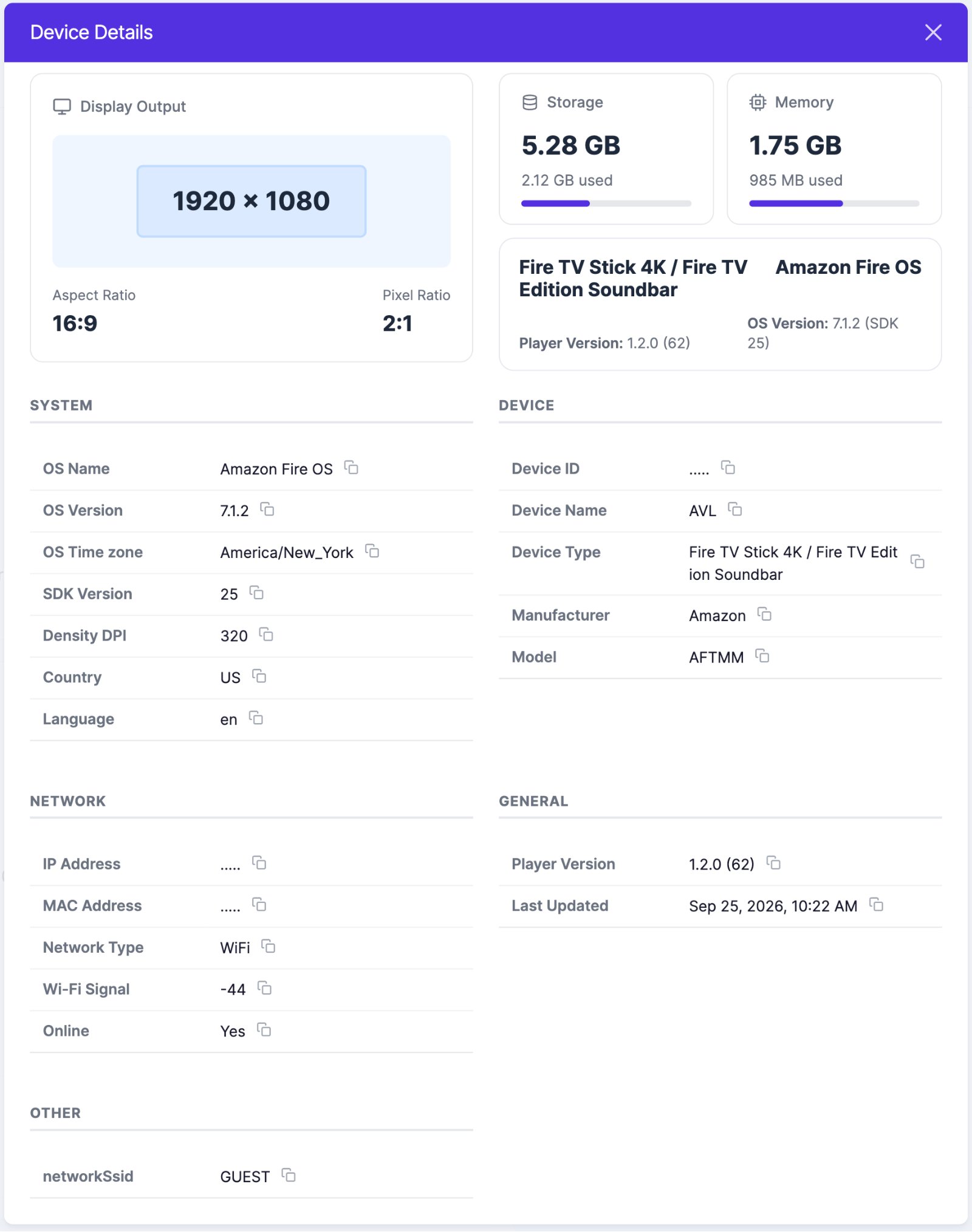
Device Details
Click View Details on the card. The Device Details window shows everything the device reports:
- Display Output: resolution, aspect ratio and pixel ratio.
- Storage and Memory: the total, and how much is used.
- System: OS name and version, time zone, country and language.
- Device: device name, type, manufacturer and model.
- Network: IP and MAC address, network type, Wi-Fi Signal and whether it's Online.
- General: player version, and Last Updated, when the device last reported its details.
Good to know
- Owners and Editors can both see device information.
- Some fields stay empty until the device first reports in. A just-paired device may show blanks for a minute.
- The Screens list shows a device icon for each screen. Hover over it for a short summary.
Related articles
Still need help?
Our support team can walk you through it.