

Screen settings reference
Every field on the screen form, what it does and its default.
Updated 2 min read
On this page
To change a screen's settings, go to Screens, open the menu next to Preview on the screen's row and click Edit, change the fields and click Save. The paired device picks up the change on its own; you don't need to re-pair or refresh.
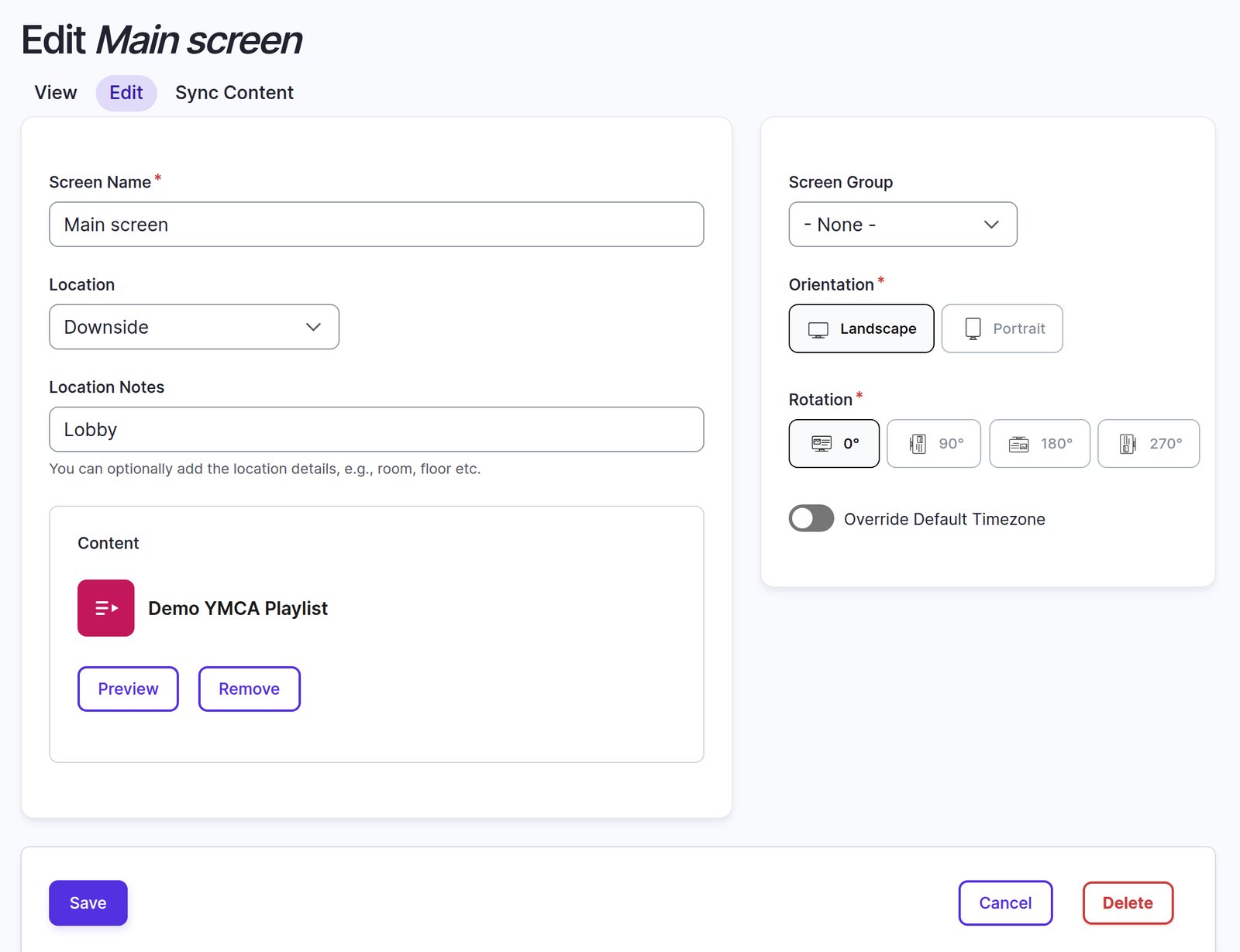
Fields
| Field | What it does | Default |
|---|---|---|
| Screen Name | The screen's name everywhere in Screen Pulse. Required. | — |
| Location | Which of your organization's sites the screen is at. Appears once your organization has at least one location. | None |
| Location Notes | Free text, such as room or floor. | Empty |
| Screen Group | The group the screen is listed under. | Ungrouped |
| Orientation | Landscape (wide) or Portrait (tall) layout for content. | Landscape |
| Rotation | 0°, 90°, 180° or 270° to match how the hardware is mounted. | 0° |
| Override Default Timezone | Lets this screen use its own timezone instead of your organization's. | Off |
| Timezone | The screen's own timezone. Only used when the override is on. | Organization's timezone |
Content isn't set on the form when you create a screen. You assign it afterwards, usually with Set to Screen on a playlist. On a screen's Edit page, Content shows what it plays: Remove clears it, and Add content picks one item instead (an image or video, an app, a playlist, or a Donor Recognition display); see Pick content with Add content.
Timezones
A screen follows your organization's timezone unless Override Default Timezone is on. If you changed your organization's timezone and a screen still shows the old time, its override is on: turn it off to follow the organization again, or set the right Timezone on the screen.
Settings only some people see
- Player URL appears on the screen's page for Owners. Opening it in a browser plays that screen's content; see Playing a screen in a web browser.
- Auto-pairing is set up by the Screen Pulse team. It lets a device connect by opening the Player URL instead of entering a code.
Also searched as: what is assigned, current content, what plays on a screen, screen content.
Related articles
Still need help?
Our support team can walk you through it.