

Default content: what shows when nothing is assigned
Set the image or video every screen shows when it has no content of its own.
Updated 1 min read
Default content is your organization's fallback: the image or video a screen shows when it has no content assigned, for example right after pairing, or after its playlist was deleted. Set one for landscape screens and one for portrait screens in Account Settings → Default Content.
Set it
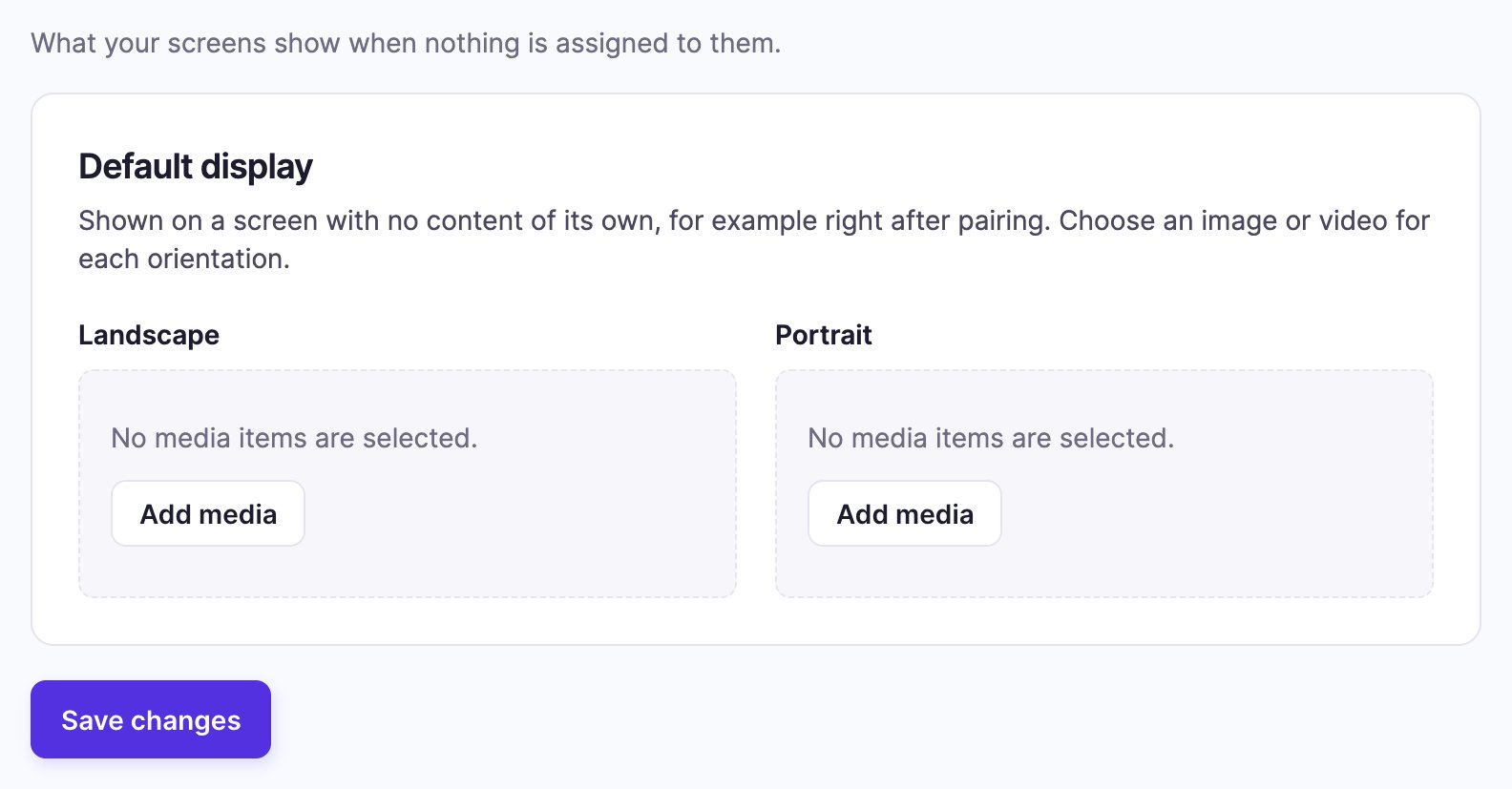
- Go to Account Settings → Default Content (click your name at the bottom of the left navigation, then Account Settings).
- In the Default display card, click Add media for each orientation, pick an image or video
and confirm with Add:
- Landscape for screens set to landscape.
- Portrait for screens set to portrait.
- Click Save changes.
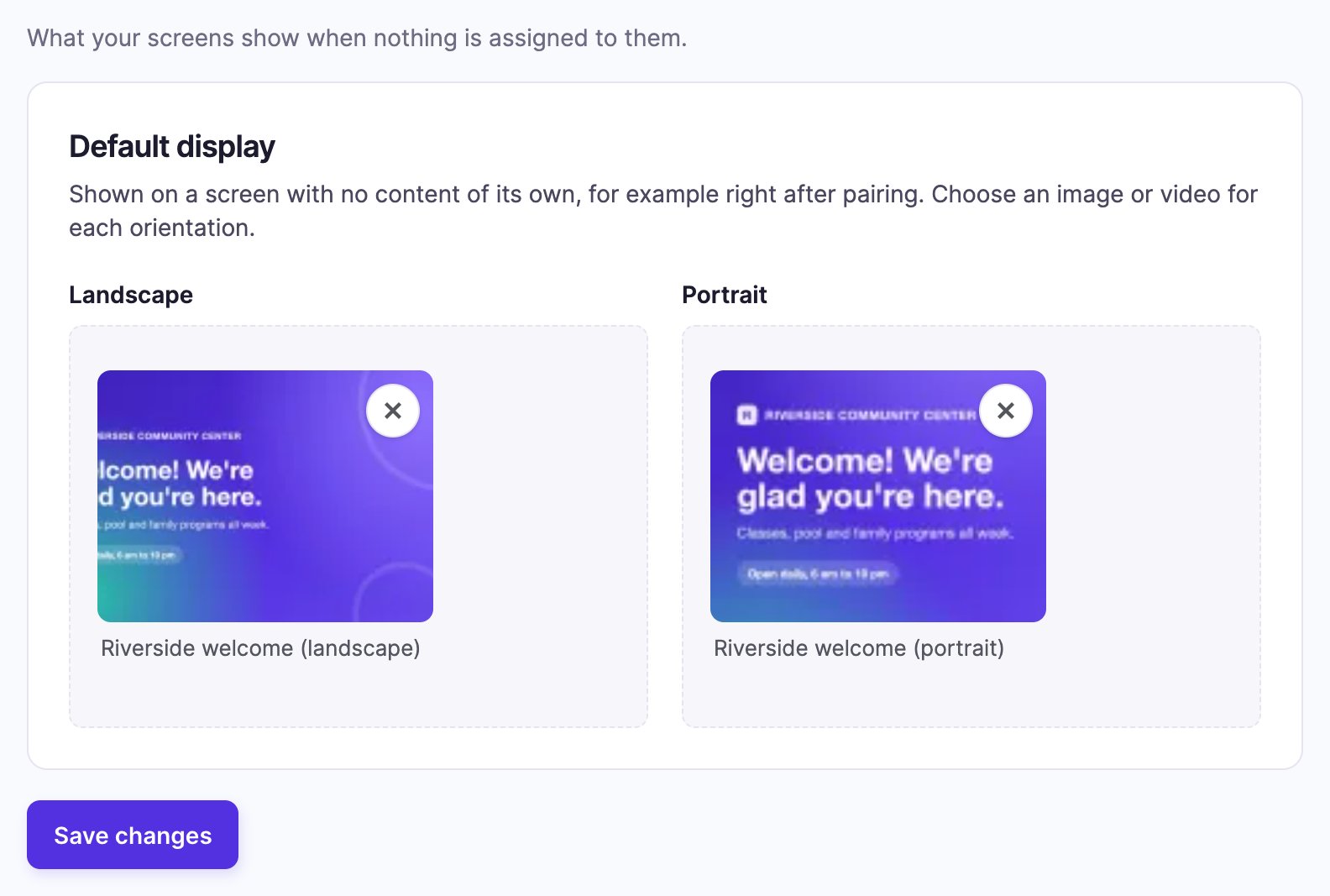
Once set, each orientation shows its image. Click the × to remove it and choose another. Default content plays as is, uncropped, so it has no Edit / Crop.
When it shows
- Only when a screen has nothing assigned. As soon as you assign a playlist, app or media to a screen, that takes over.
- It comes back if the screen's content is removed, for example when its playlist is deleted.
- Not while your screens are paused. If your trial has ended or your plan is cancelled, screens show "Subscription Not Active" instead of any content, default content included. See My screens show "Subscription Not Active".
Good to know
- Set both orientations so every screen looks right.
- A branded image works well: your logo and a welcome message on your brand colors.
If no default content is set
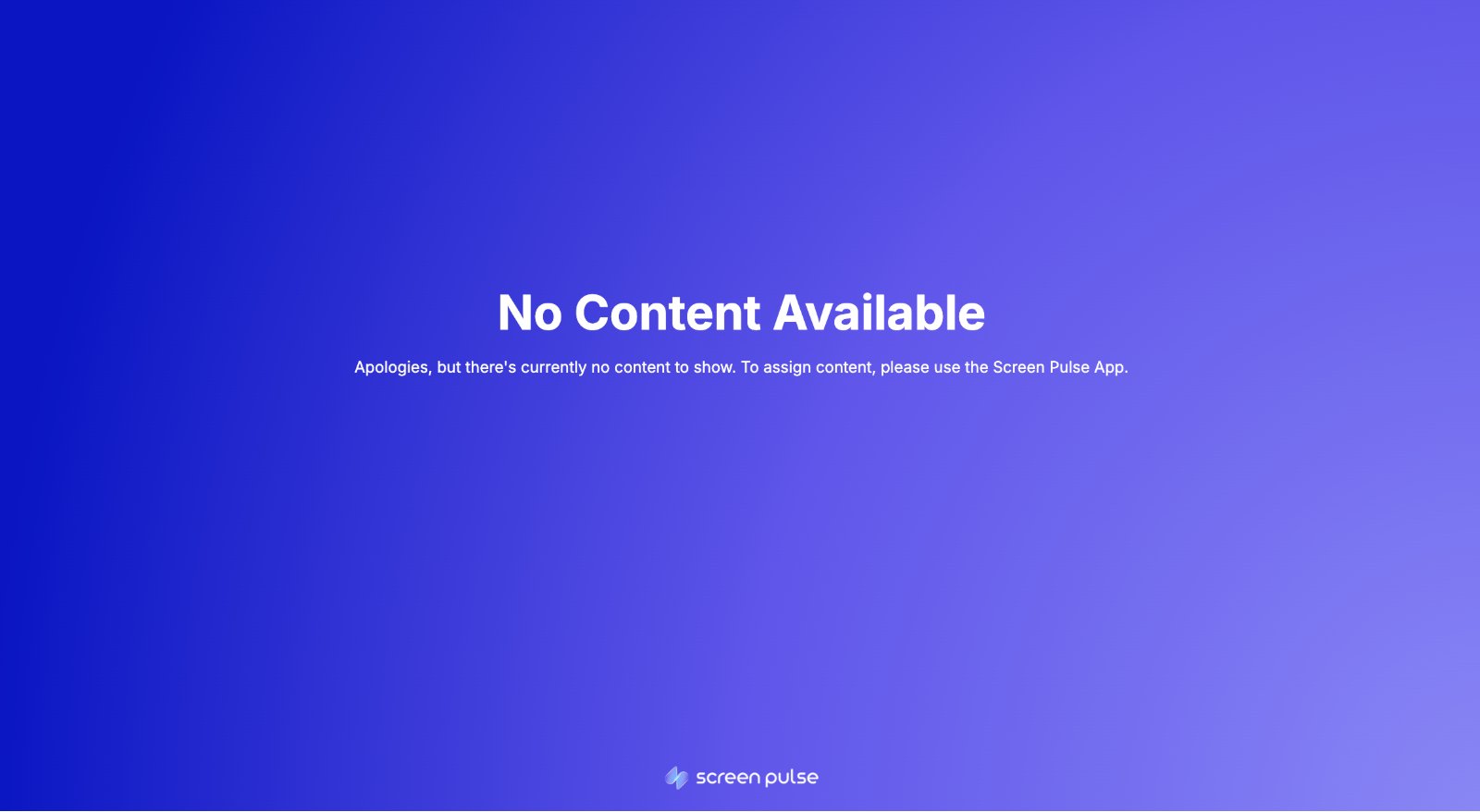
A screen with nothing assigned and no default content shows a Screen Pulse placeholder: No Content Available. Assign content to the screen, or set default content, to replace it.
Related articles
Still need help?
Our support team can walk you through it.