

Organization settings: name, logo, timezone and locations
Set your organization's logo, default timezone, default play lengths and physical locations.
Updated 2 min read
On this page
Your organization's settings live in Account Settings → Organization. On the left, Profile has its Name and Logo, and Locations lists your sites. On the right, Time and playback holds the defaults you set once: the Timezone and the play lengths for new playlist items. Changes to the logo and timezone reach your screens on their own.
Change them
- Go to Account Settings → Organization (click your name at the bottom of the left navigation, then Account Settings).
- Update the fields below.
- Click Save changes.
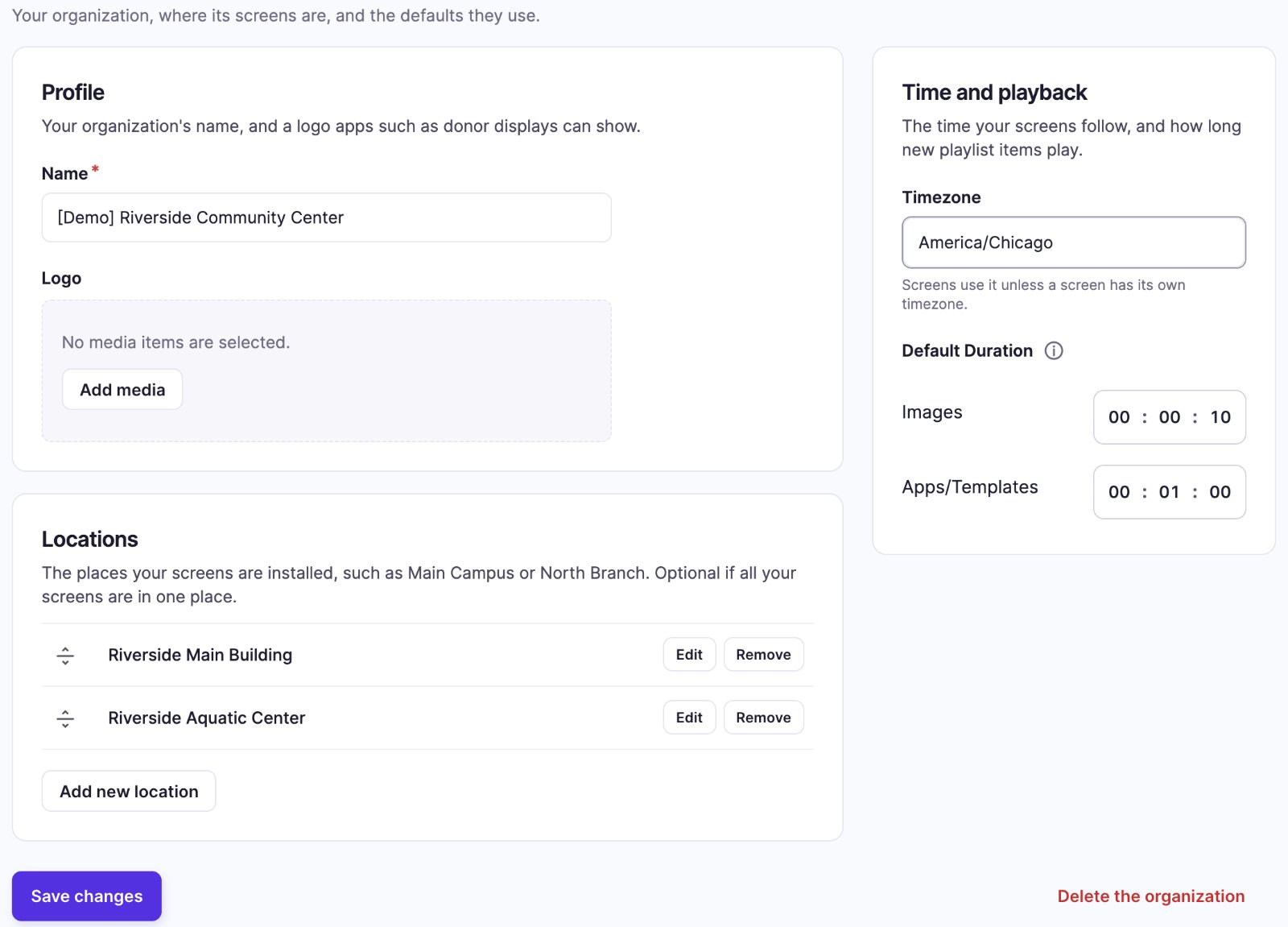
| Card | Field | What it does |
|---|---|---|
| Profile | Name | Your organization's name. Required. |
| Profile | Logo | Your logo. Click Add media to choose it from Media. Apps such as the donor displays can use it. |
| Time and playback | Timezone | The timezone every screen uses, unless a screen has its own. |
| Time and playback | Default Duration: Images | How long new image items play in a playlist (hours : minutes : seconds), unless the playlist sets its own. |
| Time and playback | Default Duration: Apps/Templates | The same for new apps and Donor Recognition displays. |
| Locations | Your physical sites. See below. |
Locations
Locations are the places your screens are installed, such as "Main Campus" or "North Branch". They're optional: if all your screens are in one building, skip them.
- In the Locations card, Add new location creates one: type its Name and click Create location. Edit and Remove change existing ones; drag the handles to reorder them. Then click Save changes.
- Once you have a location, screens get a Location field and the Screens list shows where each one is.
- Donors can be limited to locations too.
- Removing a location that screens or donors use affects them, so check first.
Timezone changes and screens
A screen with its own timezone (Override Default Timezone on) ignores the organization's timezone. If a screen still shows the old time after you change it here, see Screen settings reference.
Closing your organization
Delete the organization, at the bottom right of the page, is shown to Owners. It doesn't delete anything straight away: it opens Contact Support, and our team handles the closure with you.
Also in Account
- Default content: what a screen shows when nothing is assigned; see Default content.
- People: your team, and the SSO tab for single sign-on; see Roles and Single sign-on.
- Billing: Owners only; see Your Billing page.
Related articles
Still need help?
Our support team can walk you through it.