

Your Billing page and invoices
What your plan includes, how to get a quote, W-9 or invoice copy, your charges and invoices, and the billing contact email.
Updated 3 min read
On this page
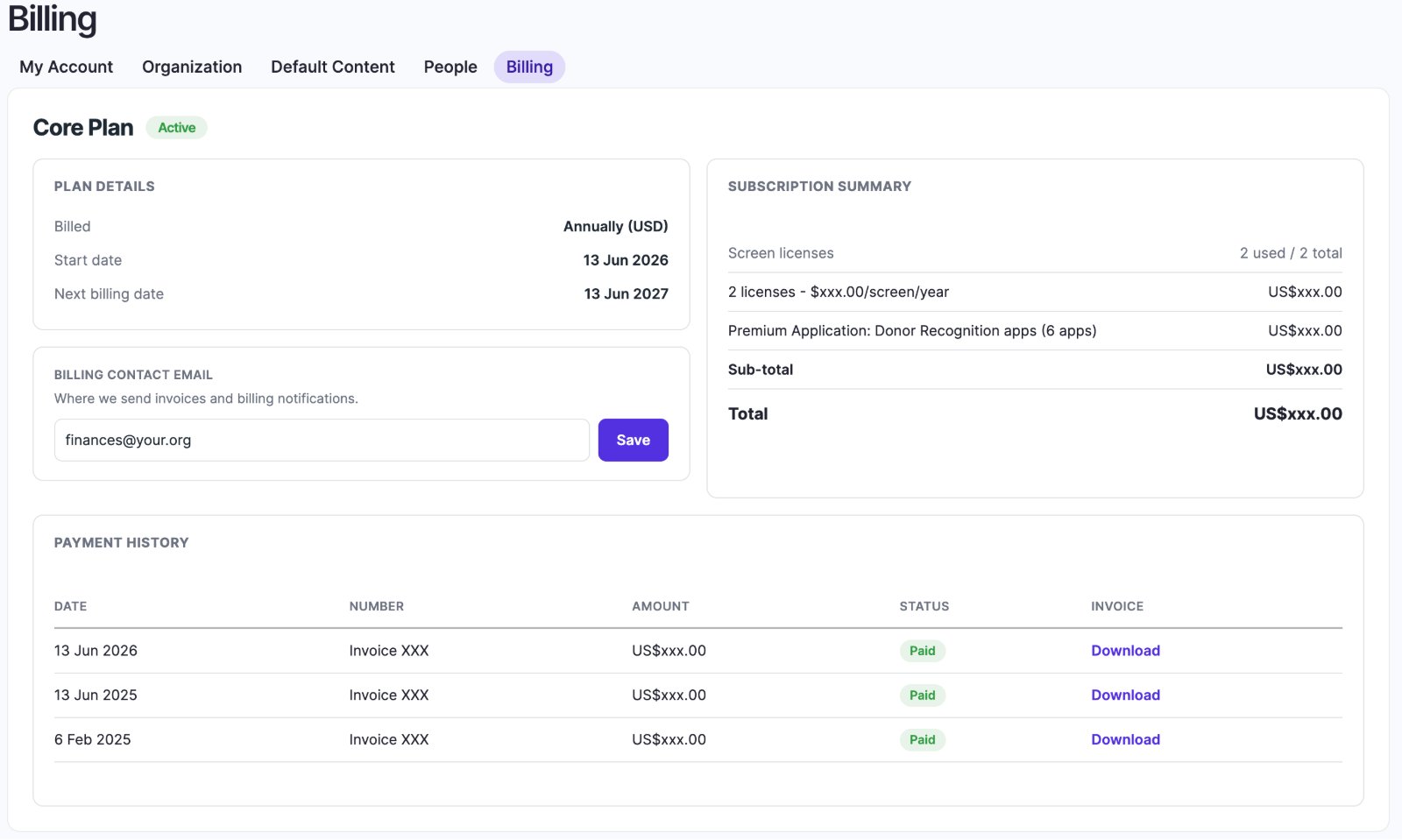
Account Settings → Billing shows your plan, what it costs, how many screen licenses you're using, and your past invoices as PDFs. It's a record of the plan we set up with you, not a checkout: there's nothing to pay here. Only Owners can see it.
What's on the page
| Section | What it shows |
|---|---|
| Plan | The plan name, such as Core Plan, and its status: Active, In Trial, Past due or Cancelled. |
| Plan details | How you're Billed (monthly or annually, and the currency), the Start date and the Next billing date. |
| Billing contact email | Where we send invoices and billing notifications. You can change this. |
| Subscription summary | Screen licenses used out of your total, each charge (licenses, premium apps), the Sub-total, any discount and the Total. |
| Payment history | Past invoices with date, number, amount, status (Paid, Pending, Failed) and a Download link. |
What your plan includes
Plans are billed annually. The Core plan includes:
- managing your screens, media and playlists,
- every Free app in the App Store.
These are added to a plan separately:
- Donor Recognition. Priced per organization: one subscription covers every screen you show it on.
- Data from your other systems, such as the schedule apps (Today's Schedule, Programs Schedule and Room Entry) that show classes from your scheduling system. See Connect your scheduling system.
- Single sign-on. See Single sign-on (SSO).
Your Subscription summary lists exactly what's in your plan. To add something, contact us.
Quotes, agreements and paperwork
- A quote, or next year's price: ask us, and we'll send a subscription order for you to sign. The signed subscription order is your agreement with us; it's separate from the invoice.
- Costs per screen or per department: we can break your costs down this way for your budget. Ask when you request the quote.
- Volume discounts are available for larger numbers of screens. Contact us for details.
- A W-9 or another copy of an invoice: contact our support team. You can also download every invoice yourself, under Payment history.
- A question about an invoice or its amount: contact us and quote the invoice Number.
The banner at the top of every page
While your organization is on a free trial, everyone in it sees a banner counting down the days left, with a Contact us button. When the trial ends or the plan is cancelled, the banner turns red and your screens pause. See Trials, renewals and payment.
Download an invoice
In Payment history, click Download on the invoice's row to get the PDF. If a row has no download, no PDF has been attached yet; ask us for it. Quote the invoice Number when you contact us about it.
Invoice downloads are private: a link only works for Owners of your organization.
Change the billing contact email
Edit the Billing contact email and click Save. It's the only thing you can change on this page. It can be any address, such as a finance mailbox; it doesn't need a Screen Pulse account. If it's empty, billing emails go to your organization's Owner.
Don't see Billing?
Billing is for Owners only, and the tab is hidden for Editors. Ask an Owner, or ask them to make you one. If you are an Owner and still don't see it, check you're in the right organization.
"No billing information yet" means we haven't set up your plan in Screen Pulse yet. That's normal for a new organization.
Also searched as: Core plan, pricing, price, included apps, quote, W-9, renewal, discount, contract.
Related articles
- Trials, renewals and payment What the trial banner, renewal reminders, Overdue and Cancelled mean, when screens pause, how to pay, and what adding screens mid-year costs.
- Screen licenses: how many screens you can have How screen licenses are counted, what happens at the limit, and how to free one up.
Still need help?
Our support team can walk you through it.