

Connect your scheduling system
Show live classes and programs from Daxko, GroupExPRO, Mindbody, TractionRec, Upace or YMCA 360, or from several of them at once.
Updated 4 min read
On this page
Screen Pulse can show live classes and programs from Daxko, GroupExPRO, Mindbody, TractionRec, Upace and YMCA 360, and from several of them at once, for example Upace and TractionRec on one schedule. The Screen Pulse team connects your system for you. To do that we need API credentials from your scheduling system: ask your contact at that company for them, send them to us, and once we confirm the connection, set up a schedule app.
1. Request API credentials
Contact your point of contact at your scheduling system's company, such as your account manager or their support team, and ask for API credentials for Screen Pulse. Here's what each system needs:
| System | Used for | What to ask for |
|---|---|---|
| Daxko | Programs | Access to the Daxko Partners API: a client ID, client secret and OAuth scope, and the API base URL to use. |
| GroupExPRO | Classes | A client ID, client secret and OAuth scope. |
| Mindbody | Classes | An API key, and your site ID. |
| TractionRec | Classes and programs | A Salesforce connected app for Screen Pulse that signs in with a certificate (JWT): its client ID and client secret, the username of the Salesforce user it signs in as, and the private key that matches the app's certificate. Also your Salesforce API URL, your TractionRec community URL (the address of your member site), and whether it's a sandbox. |
| Upace | Classes | A client ID and client secret. |
| YMCA 360 | Classes | A client ID and client secret, and the API base URL to use. |
| Amilia | Programs | An API key and API secret (Amilia support issues them as a pair), your organization ID or the store name in your Amilia store address (the "acme" in app.amilia.com/store/en/acme), and whether your catalog is in English or French. |
Amilia: we can connect it, but no Screen Pulse app shows Amilia programs yet. Let us know if you'd like to use it.
Your provider says API access isn't included in your plan? Some providers sell API access separately, or need a request from you before they issue credentials. Ask them what it takes to enable it, and tell us: we can join the conversation with them, or suggest another way to show the schedule.
You don't have to wait for this to start. Pair your screens and put playlists, apps and donor displays on them now; add the schedule apps once the connection is ready.
2. Send them to us
Send the credentials through Support → Contact Support in Screen Pulse, or to your Screen Pulse contact. Say which system they're for. We connect the system to your organization and tell you when it's ready.
Using more than one system? Send the credentials for each one. Everything is set up by our team, so there's nothing to change in your account until we confirm.
If you later change those credentials in your scheduling system, or revoke them, send us the new ones, or the schedule apps stop updating.
3. Set up a schedule app
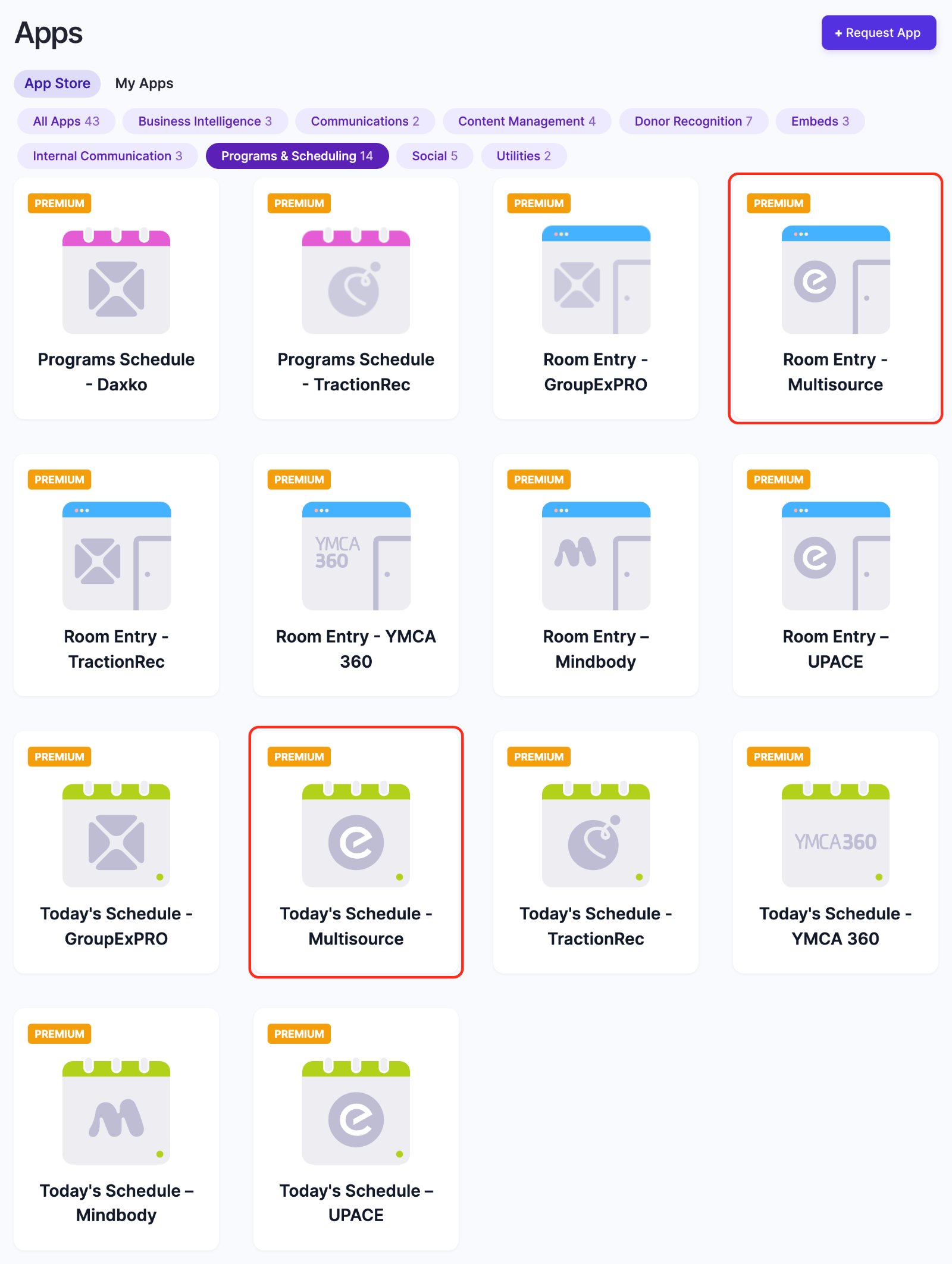
Once we've confirmed the connection, turn on and set up the app that fits your screen. Each comes in a version per system, named after it, such as Today's Schedule - YMCA 360. In the App Store they're under Programs & Scheduling.
| App | Shows | Versions |
|---|---|---|
| Today's Schedule | Today's and upcoming classes | GroupExPRO, Mindbody, TractionRec, UPACE, YMCA 360, and Multisource |
| Room Entry | What's on in one room now, and what's next | GroupExPRO, Mindbody, TractionRec, UPACE, YMCA 360, and Multisource |
| Programs Schedule | Program listings | Daxko, TractionRec |
Classes in more than one system? Use the Multisource version of Today's Schedule or Room Entry. It shows the classes from every system connected to your organization in one schedule, for example Upace and TractionRec together.
See Today's Schedule, Programs Schedule and Room Entry: which to use for the settings.
Donor data from Daxko or another CRM
Donor lists don't come through this connection. Export your donors from your system as a spreadsheet, match its columns to the donor file format and import it; see Import donors from a spreadsheet and the CSV file format. To ask for a direct CRM connection, use Request an integration under Donor Recognition → Integrations.
How fresh is the data?
Screen Pulse copies your schedule from your system regularly, every 25 minutes unless we've set it up differently for you, and screens check for changes every few minutes. A change in your system, such as a cancelled class, can take up to about half an hour to reach your screens. To ask for a different schedule, contact us through Support → Contact Support.
Also searched as: integration, API credentials, later, Daxko, GroupEx, launch.
Related articles
Still need help?
Our support team can walk you through it.