

Today's Schedule, Programs Schedule and Room Entry: which to use
Pick the right schedule app and version for your system, and set it up.
Updated 3 min read
On this page
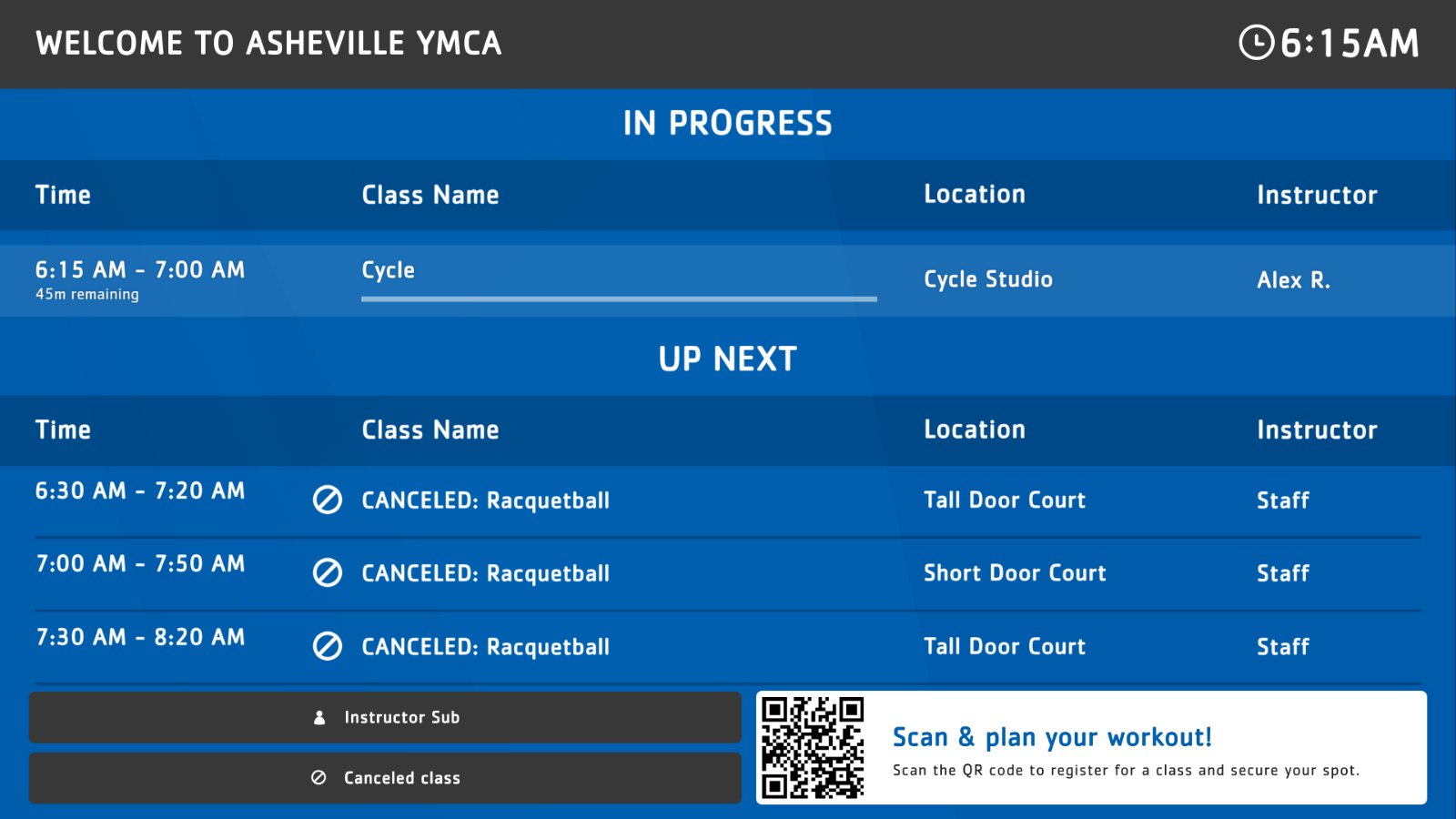
Use Today's Schedule for a list of today's and upcoming classes, Room Entry for a screen outside one room, and Programs Schedule for program listings. Each comes in a version per scheduling system, such as "Today's Schedule – Mindbody". Pick the version named for your system. Your system must be connected first; see Connect your scheduling system.
Which app and version
| App | For | Versions |
|---|---|---|
| Today's Schedule | A lobby list of classes | GroupExPRO, Mindbody, TractionRec, UPACE, YMCA 360, and Multisource, which combines every system you've connected |
| Room Entry | What's on in a room now, with a timer to the next session | GroupExPRO, Mindbody, TractionRec, UPACE, YMCA 360, and Multisource |
| Programs Schedule | Program listings | Daxko, TractionRec |
Classes in more than one system? The Multisource versions of Today's Schedule and Room Entry show them all in one schedule, for example Upace and TractionRec together. Programs Schedule always needs the version for one system.
Set one up
- Turn on the version you need in Apps → App Store (only once).
- Go to Apps → My Apps, open it and click Create Instance.
- Fill in the settings below, check the live preview, and save.
- In My Apps, open the menu next to Preview on its row and click Add to playlist or Set to Screen. You can also add it from the playlist, with Add content (on its Apps tab).
The Branch, Room and Schedule lists fill in from your scheduling system, so they only appear once it's connected.
Today's Schedule settings
| Setting | What it does |
|---|---|
| Branch, Room, Schedule | Limit the list to one branch, room or schedule. Leave empty to show everything. |
| Message | A line above the schedule, such as a welcome or a reminder. |
| Theme | The colors. |
| Period | How far ahead: Today, Today and Tomorrow or Next week. |
| Auto Scroll | Scrolls when there are more classes than fit. |
| Show canceled classes | Lists canceled classes, marked as canceled. Turn off to leave them out. On by default. |
| QR code → URL | Page the QR code opens, for example online booking. A full address. |
| QR code → Text | Short call to action next to the code, such as "Scan to register". |
| QR code → Details | Optional line under the code. |
On the Multisource version, a room that exists in two systems appears twice in the Room list.
Room Entry settings
| Setting | What it does |
|---|---|
| Branch | The branch the room is in. |
| Room | The room, or All rooms. |
| Style | Timer as a Linear or Circular progress bar. |
| Theme | Blue, Orange or Purple. |
Programs Schedule settings
| Setting | What it does |
|---|---|
| Header message, Footer message | Optional lines above and below the list. |
| Theme | Green, Blue, Orange or Purple. |
Good to know
- These are premium apps. They show Contact Support to Install App instead of Install App: click it to open Contact Support and ask us to turn the app on.
- Need the data changed before it's shown? For example, room names that start with the branch name, or classes you'd rather leave out. There's no setting for this in Screen Pulse, but we can set it up for you: tell us what you'd like through Support → Contact Support.
- "Can't connect" on screen? See Schedule data is out of date or can't connect.
Related articles
- Connect your scheduling system Show live classes and programs from Daxko, GroupExPRO, Mindbody, TractionRec, Upace or YMCA 360, or from several of them at once.
- See how often your QR codes are scanned The Metrics page counts every scan of the QR codes your apps show. See scans per day, compare codes and download the numbers.
Still need help?
Our support team can walk you through it.