

See how often your QR codes are scanned
The Metrics page counts every scan of the QR codes your apps show. See scans per day, compare codes and download the numbers.
Updated 4 min read
On this page
Every QR code your apps show on screen is counted automatically: nothing needs turning on. Click Metrics in the left navigation to see how many times your codes were scanned, which ones people scan most, and the scans per day for each code. Download CSV gives you the same numbers as a spreadsheet.
Open Metrics
Click Metrics in the left navigation. It opens on the QR Codes tab. Owners and Editors can both open it.
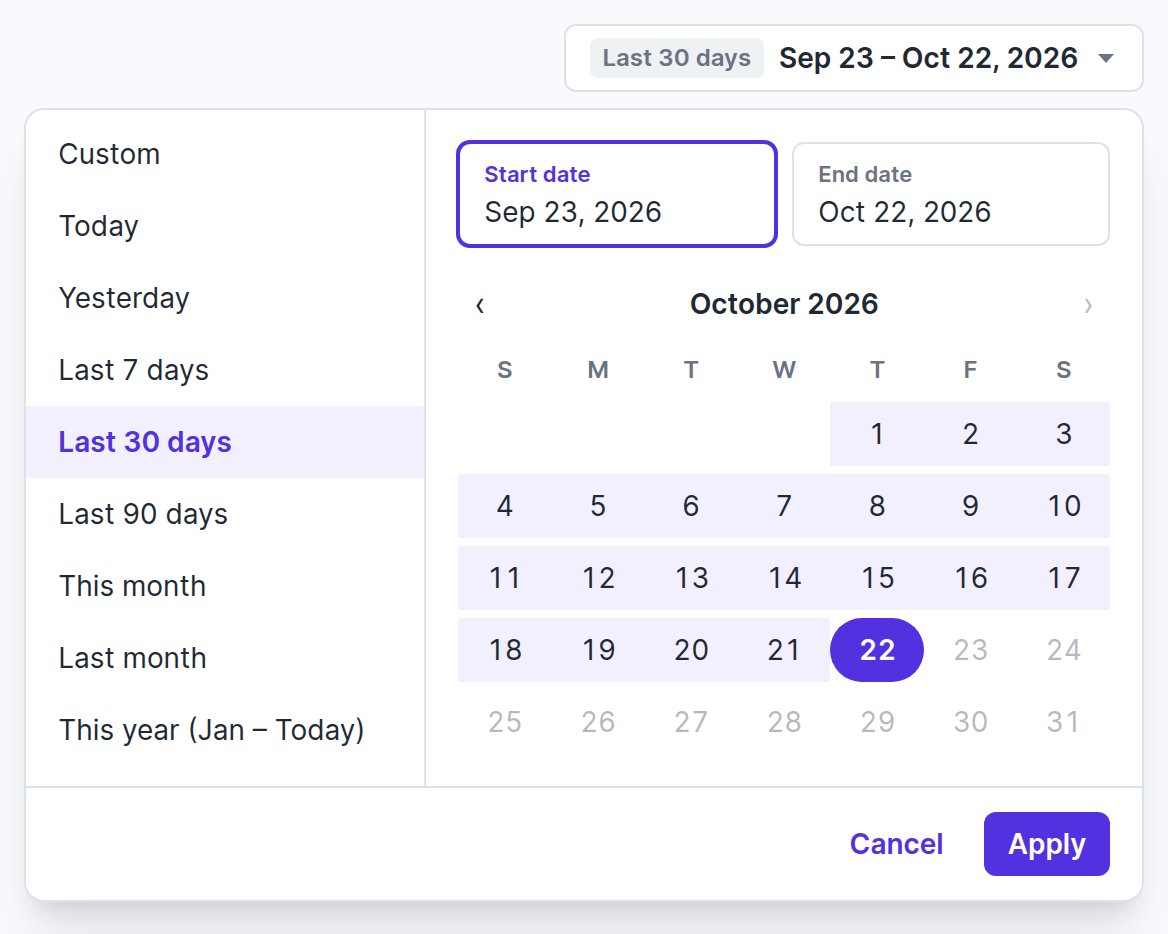
Choose a period
Click the date range at the top right. Pick a preset (Today, Yesterday, Last 7 days, Last 30 days, Last 90 days, This month, Last month or This year (Jan – Today)), or choose your own start and end days in the calendar (Custom). Then click Apply. Cancel keeps the period you had.
The page opens on the last 30 days. A period can be up to a year long and can't include future days. Days follow your organization's timezone.
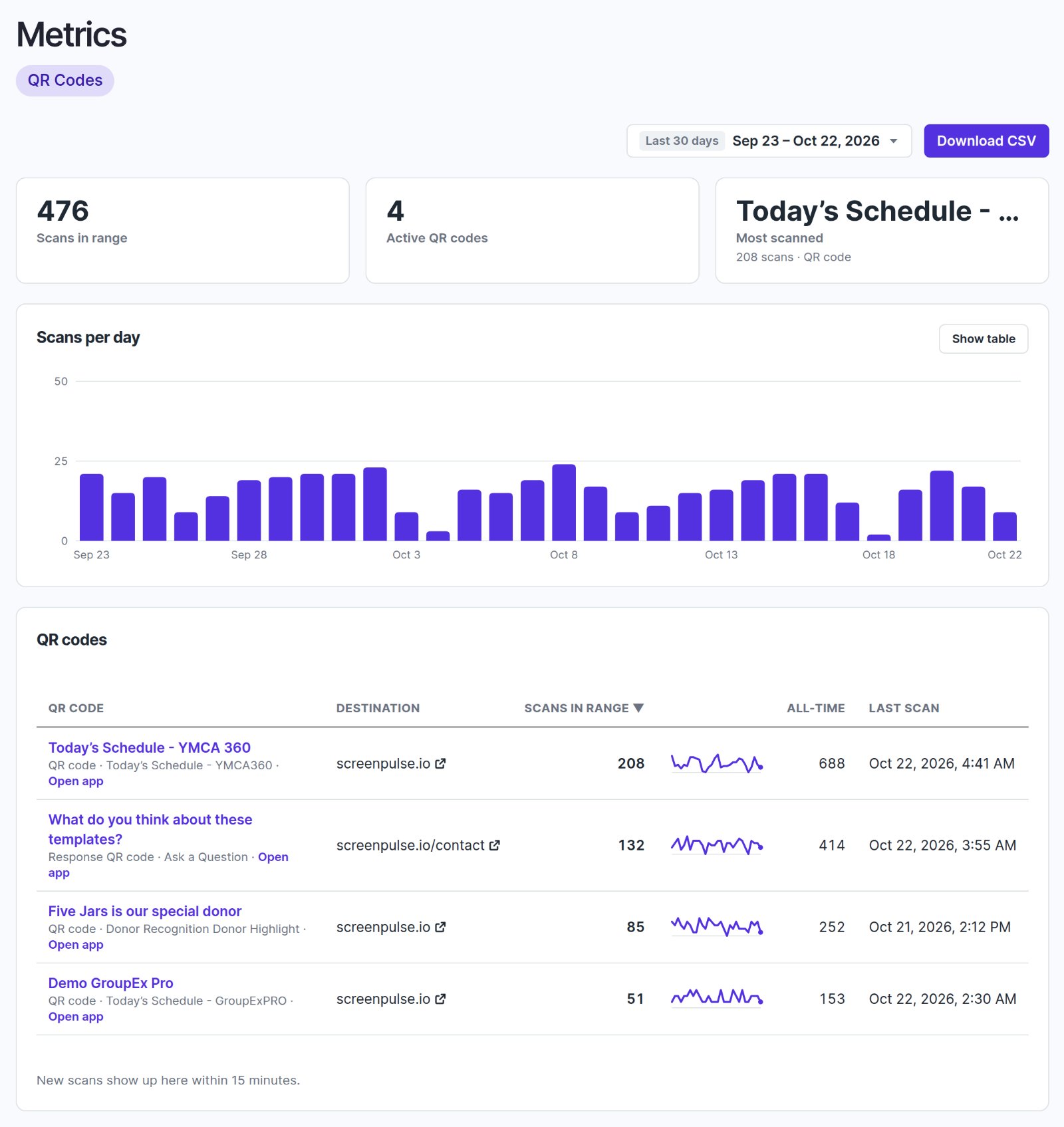
What the page shows
- Scans in range: all scans in the period, across every code.
- Active QR codes: how many codes your apps show right now, plus how many are inactive.
- Most scanned: the app whose code was scanned most in the period, and how many times.
- Scans per day: a chart of every code's scans together. Show table lists the same numbers by day.
Below them, the table has one row per QR code:
| Column | What it shows |
|---|---|
| QR code | The app's name, and under it which code it is (such as an Instagram account in Follow Us) and the app type. Inactive codes are marked Inactive. |
| Destination | The page the code opens. Click it to open the page. |
| Scans in range | Scans in the period you chose, with a small trend line. |
| All-time | Every scan since the code was created. |
| Last scan | When it was last scanned. |
Click a column heading to sort by it. Open app, under the app's name, takes you to the app's settings. For a QR code on a Donor Recognition display, the link reads Open Donor Recognition display and opens the display in Donor Recognition.
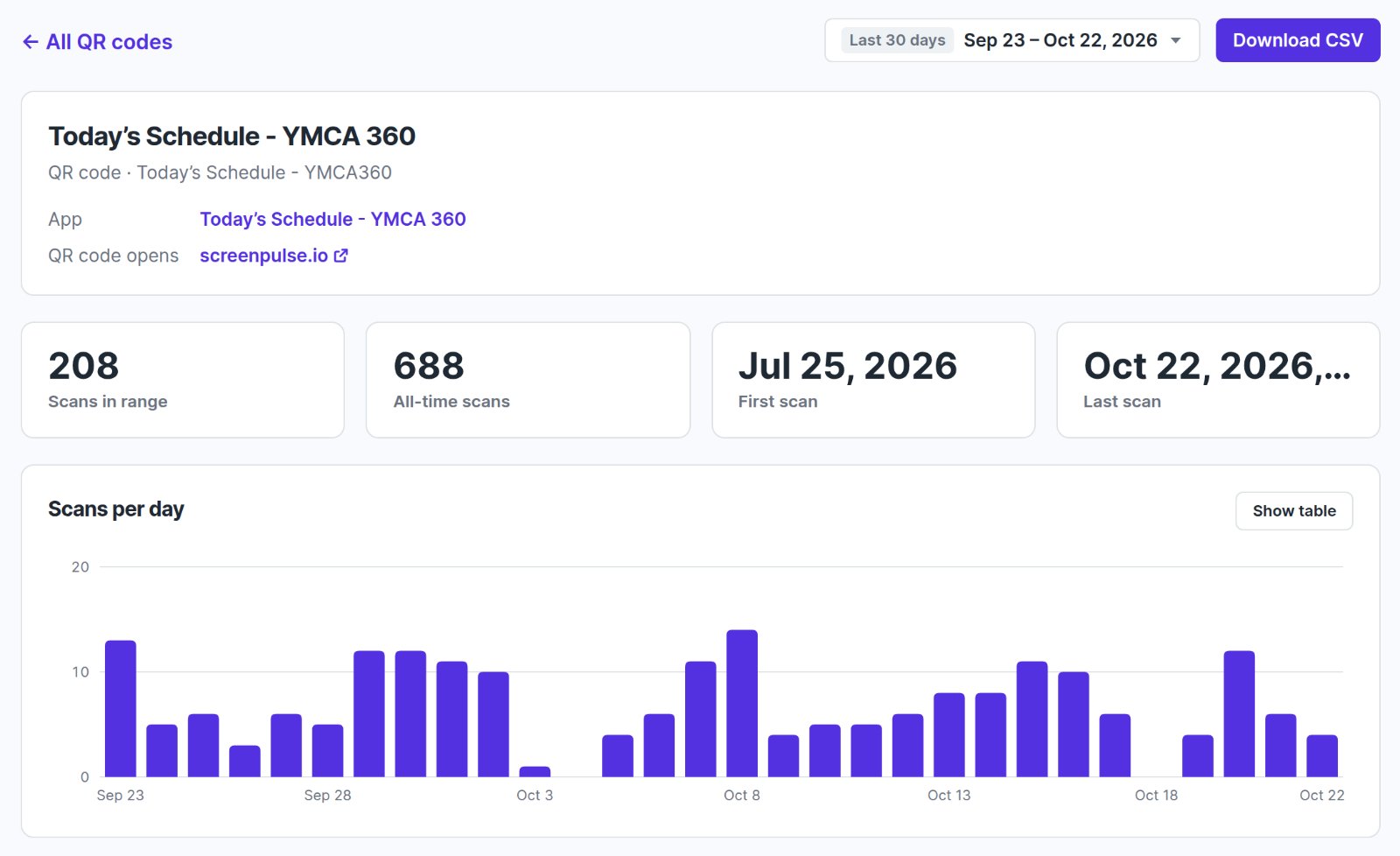
One QR code in detail
Click the app's name in a row to see that QR code on its own:
- QR code opens: the page the code opens.
- Scans in range, All-time scans, First scan and Last scan.
- Its own Scans per day chart, or a table with Show table.
Download the numbers
Click Download CSV:
- On the main page, you get the table as you see it: one row per QR code, with its app, app type, destination, status, scans in the period, all-time scans and last scan. Inactive codes are included when Show inactive is ticked.
- On a QR code's detail, you get that code's scans for every day of the period, zeros included.
The files open in Excel, Numbers or Google Sheets.
Which QR codes are counted
The QR codes shown by Ask a Question, Today's Schedule, Donor Highlight, Featured Donors, Donor Recognition Classic stories, Follow Us and Follow Us on Facebook. A code starts counting once its app is saved.
Inactive QR codes
A code becomes Inactive when its app no longer shows it: the app was deleted, its link was cleared, or the row was removed (for example a social account in Follow Us). Inactive codes are hidden until you tick Show inactive.
An inactive code still works: printed copies keep opening its last page, and their scans are still counted.
Printed QR codes keep working
Each QR code opens a short Screen Pulse link that counts the scan and then opens your page.
- Changing the link in a single-link app, such as Ask a Question or Today's Schedule, keeps the same QR code. It now opens the new page, and copies you've already printed follow.
- Editing a row in a list, such as a social account in Follow Us or a donor story, gives that row a new QR code. Copies printed earlier keep opening the old page. Reprint them if they should open the new one.
- Codes printed before scan counting started still open their page.
- If your organization's account is closed, its QR codes stop working.
Good to know
- New scans show up within 15 minutes.
- Automated visits aren't counted, such as a chat app or a search engine previewing the link. Only real scans are.
- No personal data is collected. Metrics counts scans; it doesn't record who scanned.
- "No QR codes yet" means none of your apps shows a QR code. "No QR codes were in use in this period" means your codes didn't exist yet in the period you chose.
Related articles
Still need help?
Our support team can walk you through it.