

Follow Us on Facebook
Fill a screen with your Facebook page and a QR code visitors scan to follow it.
Updated 1 min read
On this page
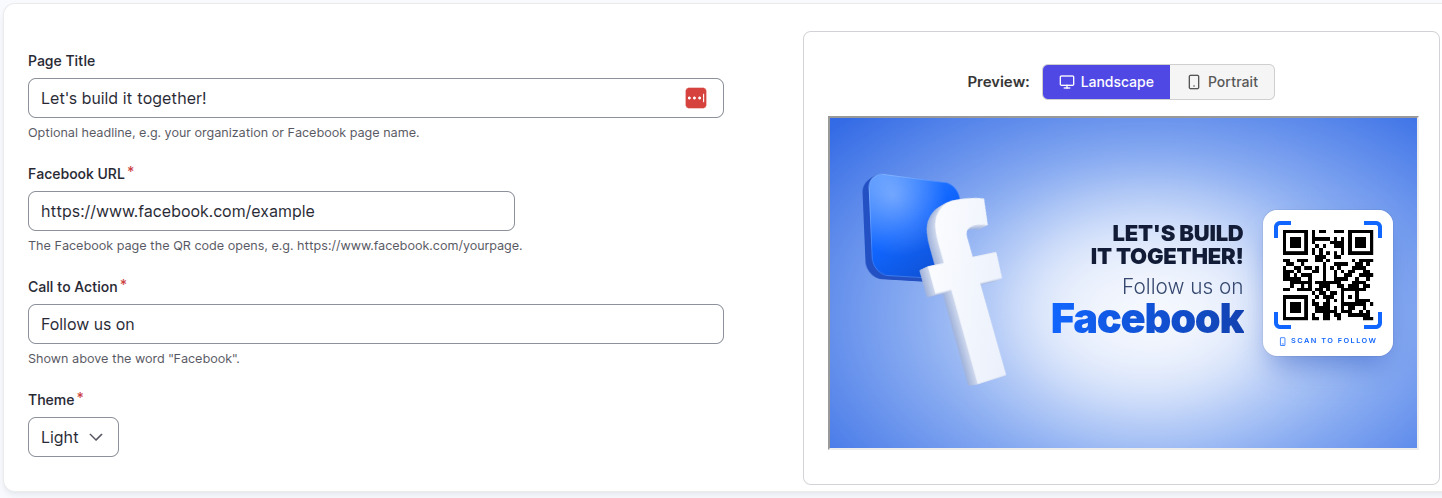
The Follow Us on Facebook app fills the screen with your Facebook page's name and a QR code that opens the page on a visitor's phone. Scans are counted under Metrics. For several social networks on one screen, use Follow Us instead.
Set it up
- Turn on Follow Us on Facebook in Apps → App Store (only once).
- Go to Apps → My Apps → Follow Us on Facebook and click Create Instance.
- Fill in the settings below, check the live preview, and save.
- In My Apps, open the menu next to Preview on its row and click Add to playlist or Set to Screen. You can also add it from the playlist, with Add content (on its Apps tab).
Settings
| Setting | What it does | Default |
|---|---|---|
| Name | Your name for this app in Screen Pulse. Not shown on screen. | — |
| Page Title | The headline, up to 60 characters. Leave empty to hide it. | — |
| Facebook URL | Your page's address, for example https://www.facebook.com/yourpage. Required. |
— |
| Call to Action | The line above the word "Facebook", up to 30 characters. | "Follow us on" |
| Theme | Light or Dark. | Light |
Good to know
- Only Facebook addresses work (facebook.com, fb.com, fb.me). Anything else shows "Enter a Facebook address" when you save.
- Long page names shrink to fit on two lines.
Related articles
Still need help?
Our support team can walk you through it.