

Schedule data is out of date or can't connect
Why class changes take up to about half an hour to reach screens, and what the schedule messages mean.
Updated 4 min read
On this page
Schedule apps don't read your scheduling system at the moment they show it: Screen Pulse copies your schedule from it regularly, and screens show that copy. So a change you make there, such as a cancelled class, can take up to about half an hour to appear on screen. That's normal. If a schedule app's setup form says it can't connect, the connection to your scheduling system has failed and we need to check it.
A change hasn't appeared yet
Your schedule is copied from your system every 25 minutes, unless we've set it up differently for you, and screens check for a new copy every few minutes. Give a change up to about half an hour to appear.
Need changes to show up faster, for example because classes are often cancelled at short notice? Contact us through Support → Contact Support and we can copy your schedule more often.
Clicking Refresh on a screen doesn't help here: it reloads the screen, which then shows the same copy.
What the messages on screen mean
| Message | What it means | What to do |
|---|---|---|
| There are no classes right now (There are no programs right now on Programs Schedule) | Your schedule was read, and it has nothing upcoming for the branch, room or schedule the app is set to. Nothing was cancelled in Screen Pulse. | Check the class exists in your system, in that branch and room, and that the app's Branch, Room and Schedule settings match. A class added in the last half hour may not have arrived yet. |
| Schedule is updating | The screen can't get a fresh copy of your schedule right now, and the classes it saved earlier have all ended (or only cancelled ones are left). | Nothing. The screen tries again about every 30 seconds and goes back to normal on its own. If it lasts longer than half an hour, contact us. |
| Schedule is not available at this time | The screen can't get your schedule, and it has no saved copy to show, for example because it has never loaded one. | If it doesn't clear within a few minutes, check the setup form as described below, then contact us. |
While a screen can't get a fresh copy, it keeps showing the classes it saved earlier for as long as they're current, so a short outage often goes unnoticed.
Classes show in Preview, but not on the screen
The schedule app decides which classes are still to come by the clock of the device it runs on: Preview uses your computer's clock, the screen uses the player's. Classes are shown in the screen's timezone. So when Preview lists classes and the screen says There are no classes right now, or today's evening classes are missing while tomorrow's appear, the screen's time is usually off:
- Check the player's clock. Turn on automatic date and time (network time) in the device's settings. A clock that's hours ahead treats this evening's classes as over.
- Check the timezone of your organization and of the screen; see My screen shows the wrong time.
- Click Refresh on the screen's page after fixing either.
If the times are right and the screen still differs from Preview after half an hour, contact us with the screen's name and the app's name.
The setup form says it can't connect
When you create or edit a schedule app and Screen Pulse can't reach your scheduling system, the form shows "Something went wrong. The app can't connect to the API. Please contact support for more information." instead of the settings.
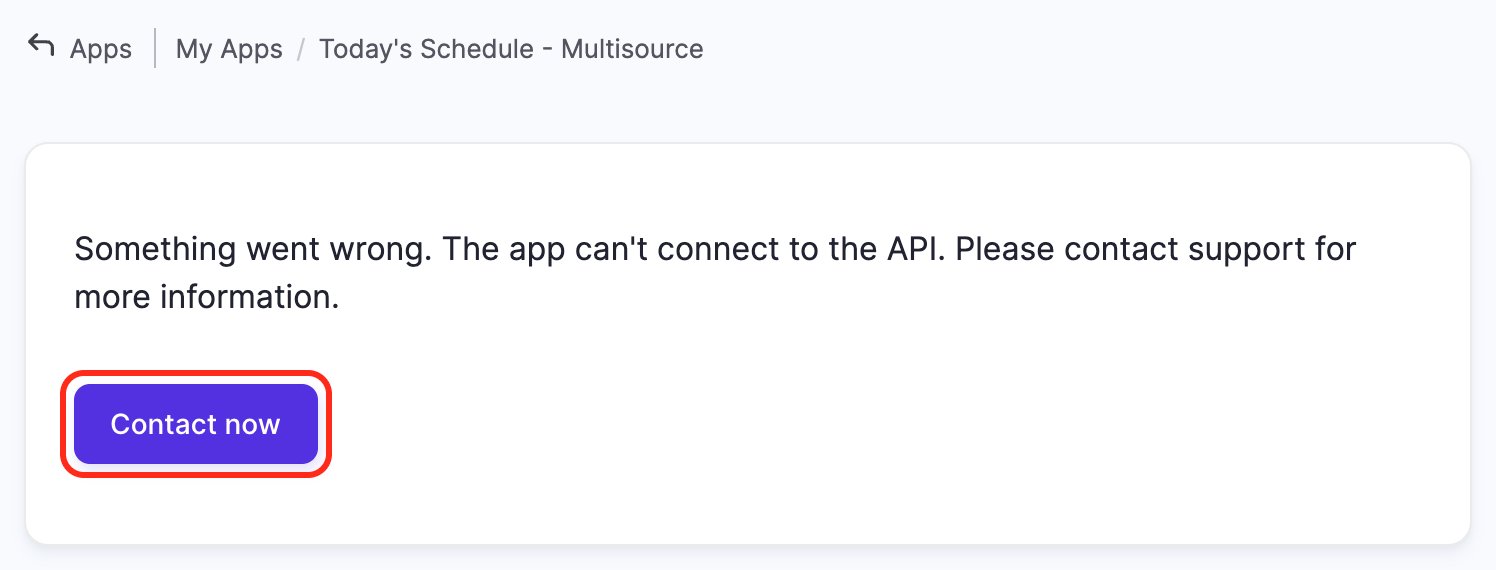
Check, in order:
- Is your scheduling system connected yet? The Screen Pulse team connects it for you; until we confirm it's ready, schedule apps can't be set up. See Connect your scheduling system.
- Is it the right version of the app? A Mindbody schedule needs a Mindbody version, or Multisource, and so on. See Which schedule app to use.
- Did the API credentials change? If your scheduling system's API key or secret was changed, revoked or expired, the connection stops working. Request new credentials from your contact at that company and send them to us.
- Still failing? Click Contact now (it opens Contact Support) and tell us the app's name. We'll check the connection with you.
Related articles
Still need help?
Our support team can walk you through it.