

My screen shows the wrong time
Fix a clock, schedule or scheduled playlist item that's off by an hour or more, including after a daylight saving change.
Updated 2 min read
On this page
A wrong time on a screen almost always comes from one of three settings: your organization's timezone, a screen that has its own timezone, or a Clock app set to a fixed timezone. Less often, the player device's own clock is wrong. Daylight saving time is handled for you: once the timezone is right, clocks and schedules change on the right day without you doing anything.
Check these, in order
Your organization's timezone. Go to Account Settings → Organization and check Timezone. Every screen uses it unless the screen has its own. See Organization settings.
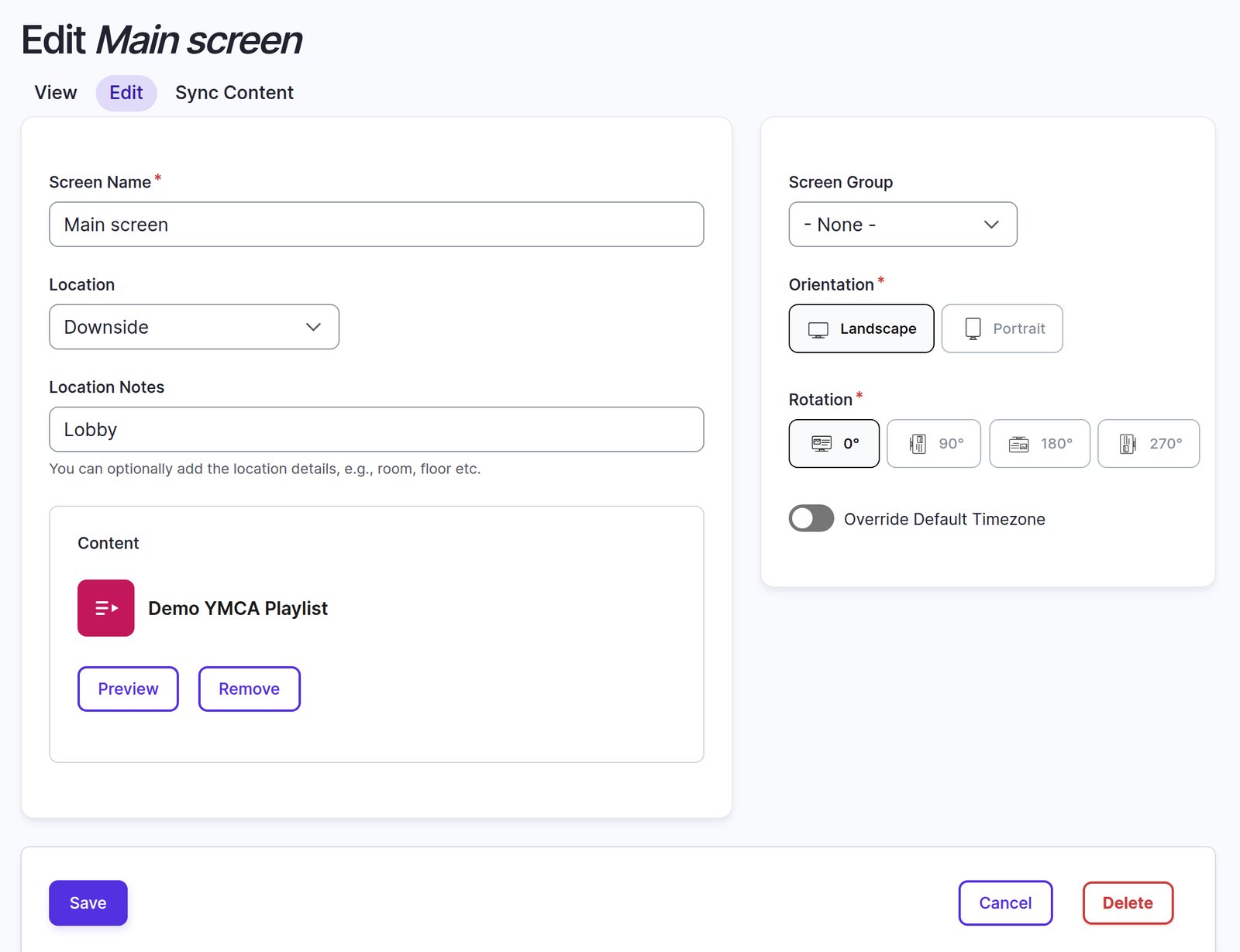
The screen's own timezone. In Screens, open the menu next to Preview on the screen's row and click Edit. If Override Default Timezone is on, the screen ignores your organization's timezone and uses the Timezone below it. Turn the override off, or pick the right timezone, and click Save. See Screen settings reference.
The Clock app's timezone. If only a clock is wrong, edit the Clock app: with Use Screen Location and Timezone off, it always shows the Timezone you picked, whatever screen it's on. See Clock.
The device's clock. The player keeps time with the device it runs on. If the time is off by a few minutes, or by a whole day, open the device's settings and turn on automatic date and time (network time). The device's time zone is listed under System in Device information.
Off by exactly one hour?
That's daylight saving. Check that the timezone in steps 1 to 3 is your region, such as America/New_York or America/Chicago. A region switches for daylight saving on the right day; UTC never does. Then check the device's own clock (step 4): some devices only switch for daylight saving when automatic date and time is on.
Scheduled items start at the wrong time
Playlist items with an availability window open and close by your organization's timezone, not the screen's. If an item appears an hour early or late on one screen, check the organization's timezone first. See Schedule content.
After you change a setting
Screens pick up timezone changes on their own; you don't need to re-pair or restart anything. If a screen still shows the old time a few minutes later, use Refresh on the screen's page.
Related articles
- Screen settings reference Every field on the screen form, what it does and its default.
- Organization settings: name, logo, timezone and locations Set your organization's logo, default timezone, default play lengths and physical locations.
- Clock Show the current time, digital or analog, with the date and your own colors.
Still need help?
Our support team can walk you through it.