

Clock
Show the current time, digital or analog, with the date and your own colors.
Updated 1 min read
On this page
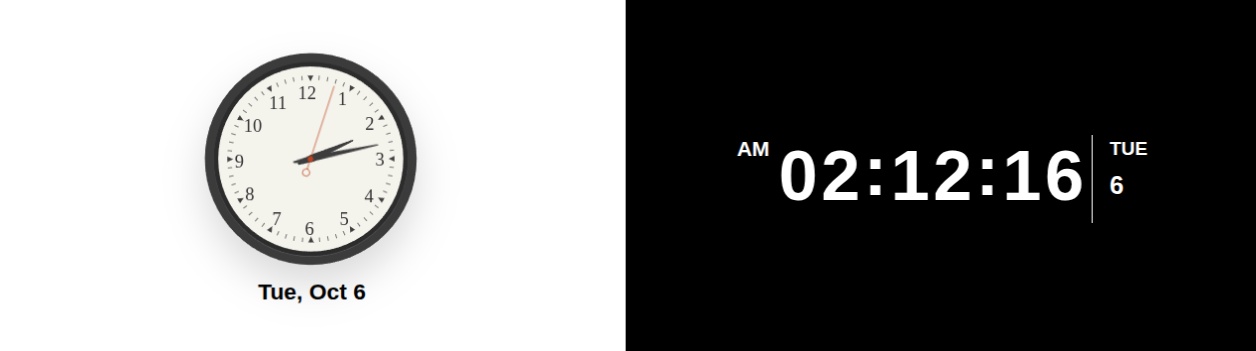
The Clock app shows the current time as a digital readout or an analog face, optionally with the date and seconds. By default it uses the timezone of the screen it's playing on, so one clock works across screens in different timezones.
Set it up
- Turn on Clock in Apps → App Store (only once).
- Go to Apps → My Apps → Clock and click Create Instance.
- Fill in the settings below, check the live preview, and save.
- In My Apps, open the menu next to Preview on its row and click Add to playlist or Set to Screen. You can also add it from the playlist, with Add content (on its Apps tab).
Display tab
| Setting | What it does | Default |
|---|---|---|
| Clock Style | Digital or Analog. | Digital |
| 12-Hour Format | AM/PM instead of 24-hour time. Digital only. | Off |
| Display Seconds | Shows seconds. | Off |
| Display Date | Shows the date with the time. | Off |
| Use Screen Location and Timezone | Uses the timezone of the screen the clock plays on. | On |
| Timezone | A fixed timezone. Appears when the setting above is off. | — |
Appearance tab
| Setting | What it does | Default |
|---|---|---|
| Font Size | Small, Medium, Large or Extra Large. Digital only; the analog face always fills the screen. | Medium |
| Background Color | Fills the screen behind the clock. | Black |
| Text Color | Color of the time and date. The analog face keeps its own colors. | White |
| Background Image | Shown over the background color, filling the screen. | None |
Tips
- Showing a fixed city's time, for example "London" in a New York lobby? Turn off Use Screen Location and Timezone and pick the Timezone.
- A clock works well as a short item between slides, for example 10 seconds in a playlist.
Related articles
Still need help?
Our support team can walk you through it.