

Apps explained: turn on, set up, use
How apps work in Screen Pulse, from the App Store to a screen, and how to edit, copy and remove them.
Updated 3 min read
On this page
Apps add live content to your screens: a clock, a countdown, a class schedule, a YouTube video. Using one takes three steps. Turn it on once in the App Store, set up a copy with your own text, colors and data, then use that copy in a playlist or straight on a screen.
Donor displays are the exception: they aren't in the App Store, and you make them on the Donor Recognition page; see Manage your Donor Recognition displays.
1. Turn an app on
- Go to Apps → App Store.
- Click an app's tile to see its description, examples and a preview.
- Click Install App.
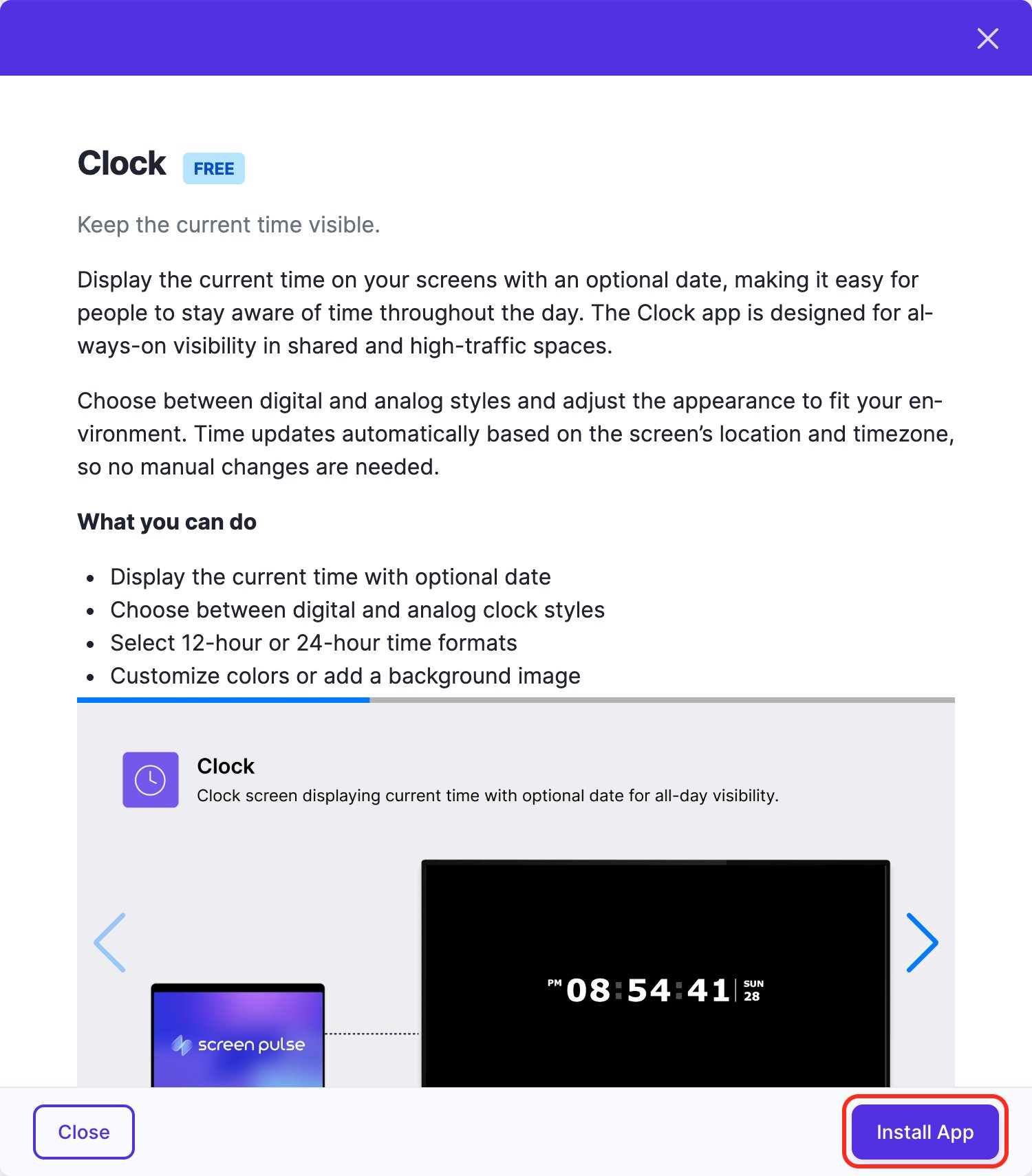
The app gets an Installed badge and appears under My Apps. Nothing shows on screens yet.
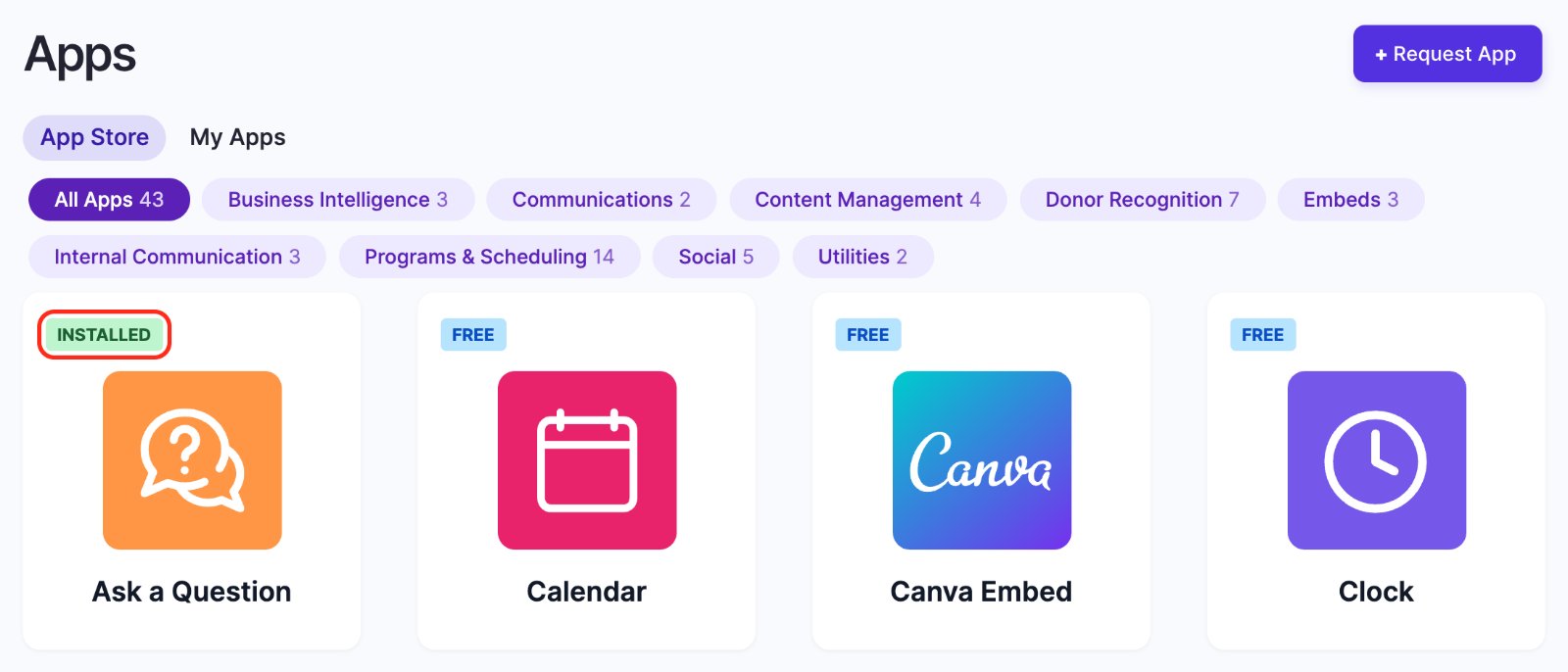
Use the category filters above the tiles to narrow the list, or the search box at the top of the page.
2. Set up a copy
- Go to Apps → My Apps and click the app.
- Click Create Instance.
- Give it a name you'll recognize in Application name. The name is for you; most apps don't show it on screen.
- Fill in the settings. The Preview updates as you type; switch it between Landscape and Portrait to check both.
- Click Save & Close.
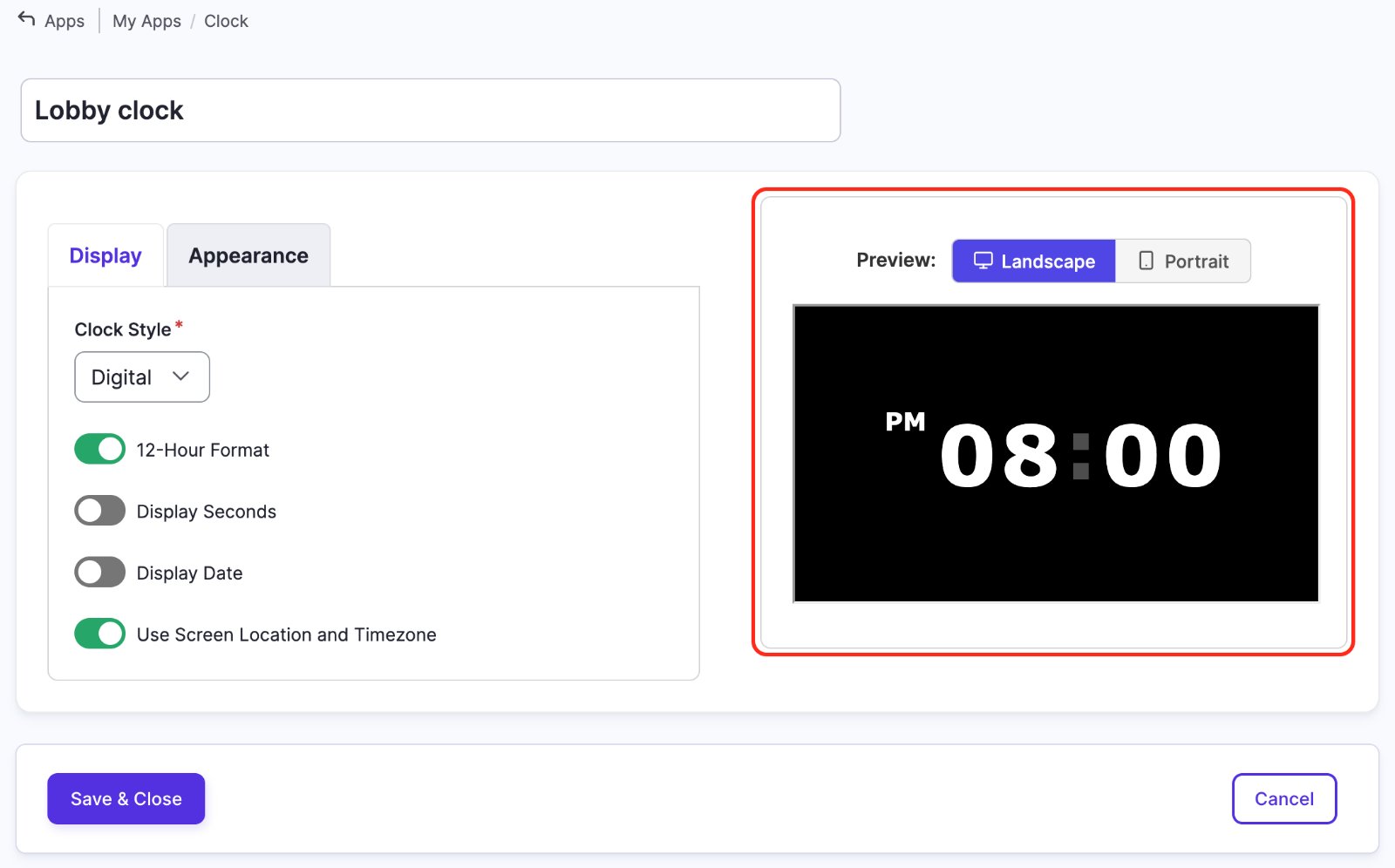
You can set up as many copies of one app as you need, for example one clock per timezone.
3. Use it
- In a playlist: on the copy's row in My Apps, open the menu next to Preview, click Add to playlist, tick the playlists and click Add to N playlists. It goes at the end of each one, for that playlist's default duration. Or start from the playlist: click Add content, open Apps, click the app, tick your copy and click Add 1 item.
- On a screen by itself: in the same menu, click Set to Screen, tick the screens and click Set to N screens.
Change, copy or remove
| To | Do this |
|---|---|
| Change a copy's settings | Edit it in My Apps. Every screen and playlist using it updates. |
| See where a copy is used | Edit it and read the Used in card. |
| Make a variation | List additional actions → Duplicate, then edit the copy. |
| Delete one copy | List additional actions → Delete on its row. The confirmation shows Used in first. |
| Turn the whole app off | Remove App at the top of the app's page. |
Remove App deletes every copy of that app and can't be undone. If a copy is still on a screen or in a playlist, take it off there first.
Can't find an app, or it says "Contact support"?
Which apps you see depends on your organization's plan. Apps marked Premium show a Contact Support to Install App button instead of Install App, because we switch them on for you. Use that button, or Request App at the top of the store, and we'll help.
Apps marked Under development are on their way: you can read about them, but they can't be installed yet.
Related articles
Still need help?
Our support team can walk you through it.