

Manage your Donor Recognition displays
Create and edit a display with a live preview, put it on screens or in a playlist, see where it is shown, and duplicate or delete it.
Updated 5 min read
On this page
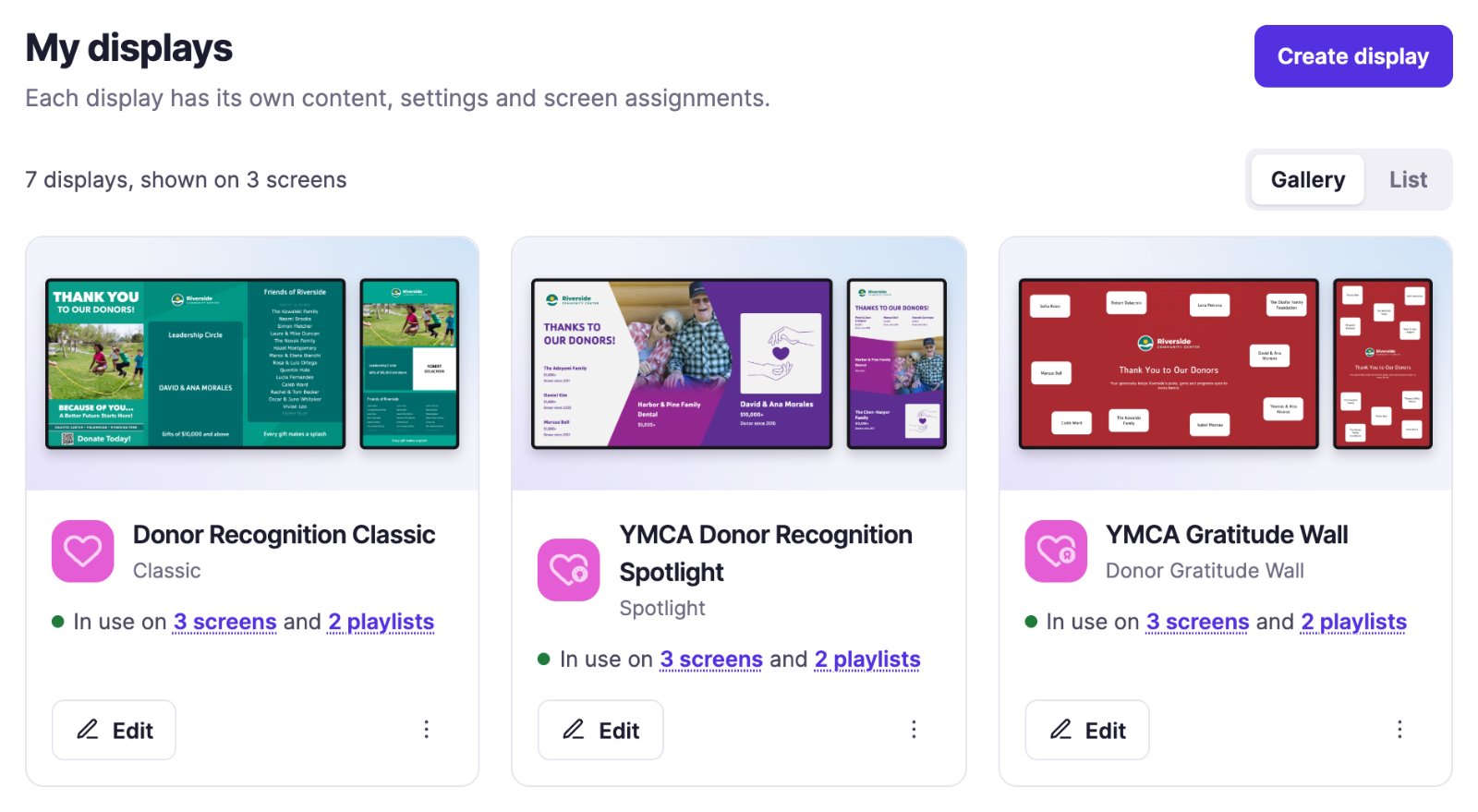
A display is one Donor Recognition screen design: a template plus your own title, message, filters and branding. You can have as many displays as you like, even several from the same template, and each one keeps its own settings and screens. Donor Recognition → My displays lists them all, the ones in use first: those on screens, then those only in playlists, then the rest.
Create a display
- Click Create display, or go to Templates.
- Click Use template on the style you want.
- Give the display a Display name; only you see it, in My displays and when assigning screens.
- Go through the steps, one per tab of the style (for example Message, Donors and Branding), and click Continue after each. The Preview beside them shows the display with your current donors, in Landscape or Portrait, as you type. Template guide at the top opens the style's guide.
- Click Create display. You're back in My displays, and the new display is there, not yet on any screen.
Edit a display
Click Edit on the display's card, or at the end of its row in the List view. The settings are on tabs you can switch freely, and the preview follows your changes. Click Save display: the change reaches every screen that shows it. If you leave with unsaved changes, you're asked whether to discard them.
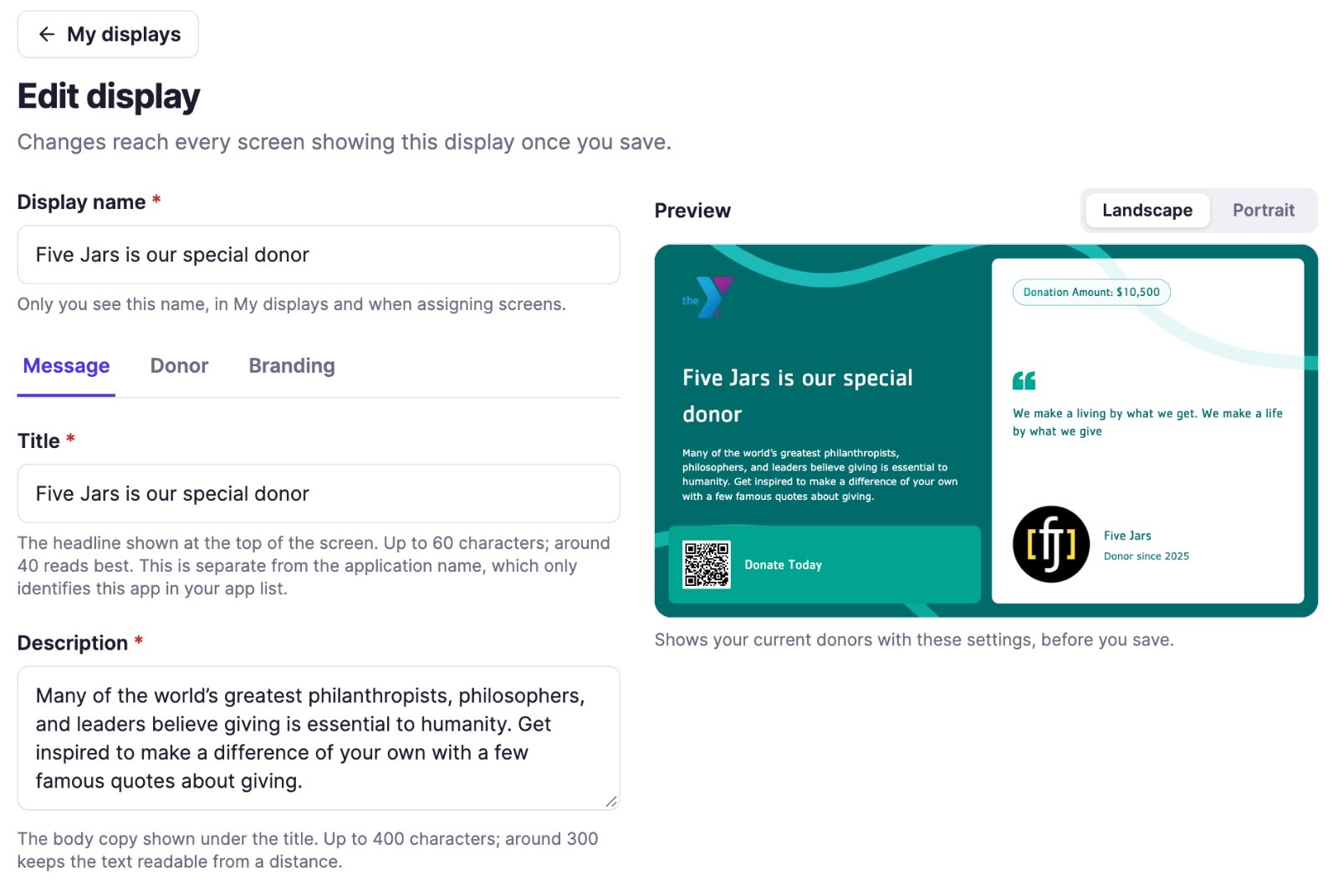
No donors in the preview? When a display that lists donors from your list has nobody to show, a note above the preview says why: every matching donor's recognition period has ended, none has started yet, or no donor matches the filters. Extend the periods under Donors, or change the filters.
Put a display on screens or in a playlist
Open the display's ⋮ menu and click Set to Screen to show it on screens, or Add to playlist to put it in playlists.
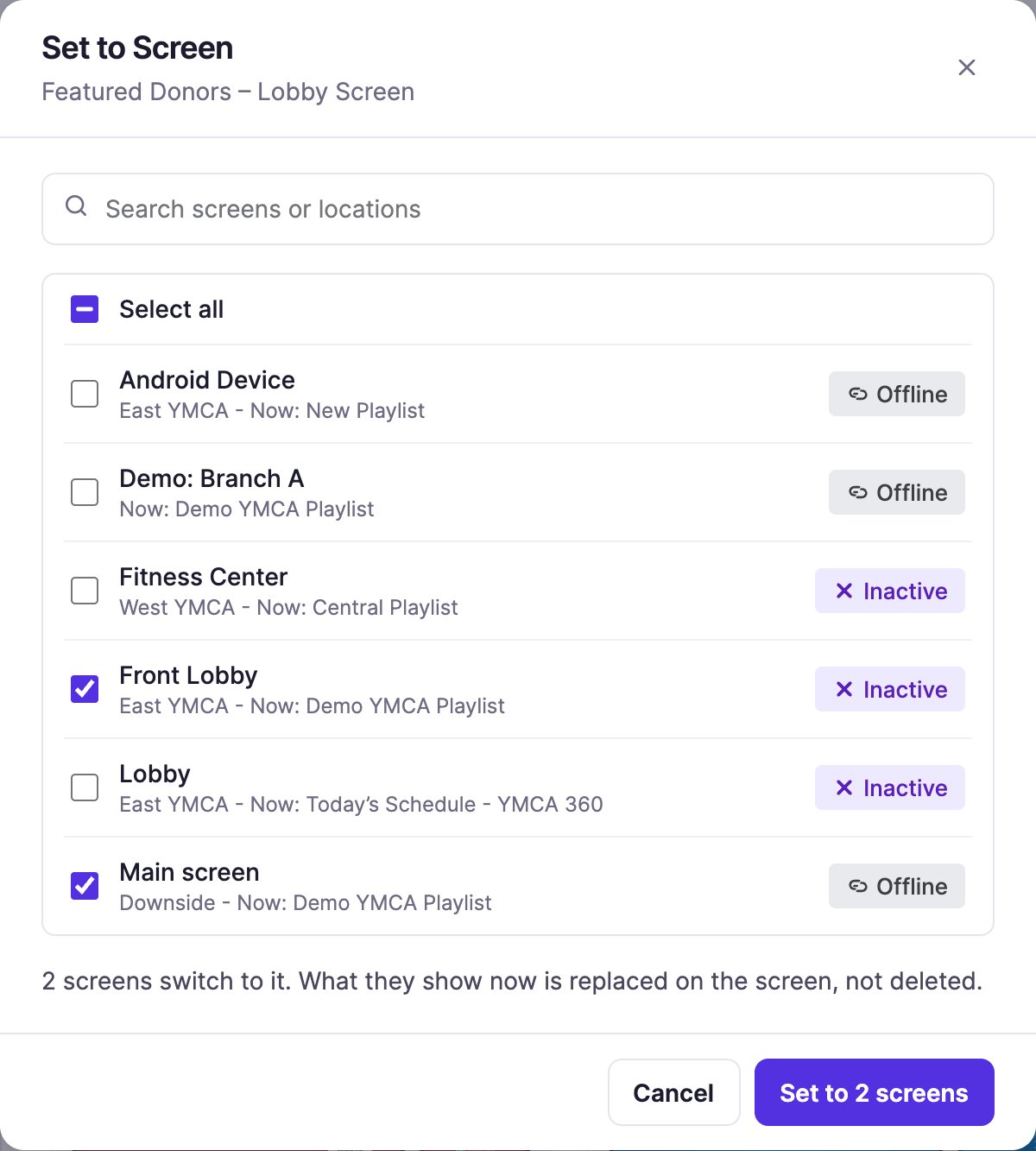
Set to Screen: tick the screens that should show the display (Select all ticks every screen the search shows), then click Set to N screens. Each screen shows its location, what it shows now and whether it is Live, Offline or Inactive. A screen that already shows the display is ticked and greyed out. The screens you tick switch to the display; what they showed before (a playlist, for example) isn't deleted.
Add to playlist: tick the playlists, then click Add to N playlists. The display goes at the end of each one, for that playlist's default duration; open the playlist to change its order or duration. A playlist that already has it reads Already in it, and one you can't edit is greyed out. Adding to a playlist needs access to Apps, so not every role sees Add to playlist.
In both, Search finds a screen by its name or location, or a playlist by its name. When you save, the window closes and the display's line in My displays shows where it is now.
You can also start from the playlist: in its editor, click Add content, open Donor Recognition, click the template, and tick the display. See Pick content with Add content.
See where a display is shown
Under each display:
- In use on N screens: the display is on screens. When it's also in playlists, the line goes on with and N playlists. Click a number to open Where this display is used on that tab.
- In N playlists, not on any screen: the display is in playlists that no screen shows yet. Click the number to see them.
- Not assigned: no screen or playlist uses it.
- Won't play: no donor matches the display, so it's skipped wherever it's shown, with When no donors match set to Skip the display in Donor Recognition settings. Point at (or focus) the mark to see why. Check the display's donors and filters, and the donors' recognition periods; the mark goes away once a donor matches again.
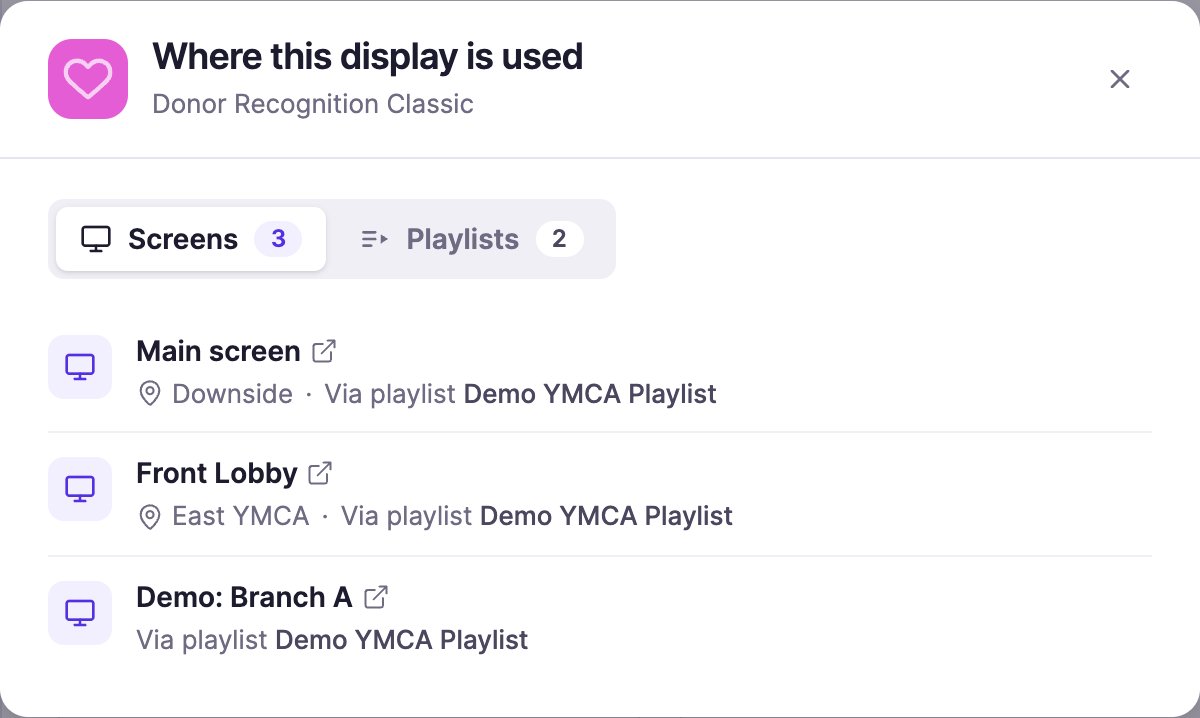
In Where this display is used:
- Screens lists every screen that shows the display, by location. Under each one: Set directly when the display was set to that screen, or Via playlist and the name of the playlist the screen shows.
- Playlists lists every playlist that holds the display, and every playlist that holds one of those. Each says on how many screens it plays, for example On 3 screens (counting the screens of a playlist it sits in), or Not on a screen.
- Once a list is long, a search box finds a screen by its name, location or playlist, or a playlist by its name. Esc clears the search.
- Select a name to open that screen or playlist in a new tab. Click outside the window, press Esc or click × to close it.
Preview, edit and more
- Preview: point at a display and its picture reads Preview; click the picture to play the display with your current donors, in landscape or portrait. In the List view, Preview is in the ⋮ menu.
- Edit opens the display's settings (see Edit a display).
- The ⋮ menu has Set to Screen, Add to playlist, Duplicate and Delete. You only see the ones your role allows.
- Duplicate makes an independent copy named "Copy of …". It isn't on any screen until you assign it.
- Delete first tells you what changes: the playlists it leaves, and the screens that show it directly, which then have no content until you assign something else. The template and your donors stay. This can't be undone.
Use Gallery or List at the top right to switch views; your choice is remembered in this browser.
Related articles
Still need help?
Our support team can walk you through it.