

Donor Recognition settings
Set a default donor image, where new displays start, and how every display treats recognition periods and donation amounts.
Updated 2 min read
On this page
Donor Recognition → Settings holds the defaults for every display in your organization: the image shown for a donor without one, where new displays start, and two rules every display follows. Only Owners can change them; Editors can see them.
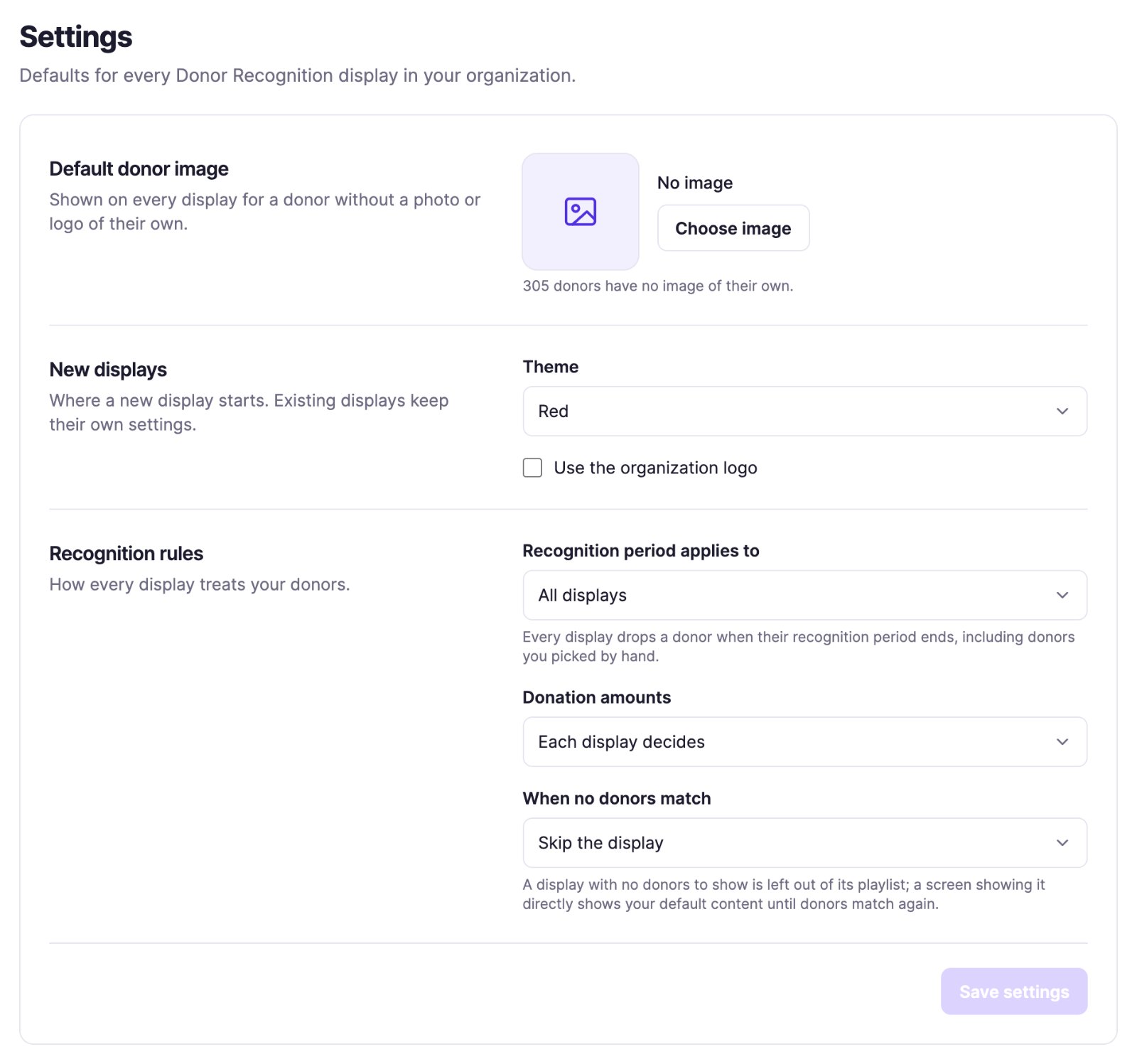
Change what you need and click Save settings. When you change the default donor image or a recognition rule, every screen showing a Donor Recognition display reloads right away to show it; it starts its content from the beginning. Your other screens aren't touched.
Default donor image
Choose an image from your media library. Every display that shows donor images uses it for a donor without a photo or logo of their own. A donor's own image always comes first. The line under the picker tells you how many donors have no image of their own.
New displays
- Theme: the theme a new display starts with. You can still change it on the display.
- Use the organization logo: whether a new display starts with your organization's logo.
These only apply to displays you create from now on. Existing displays keep their own settings.
Recognition rules
- Recognition period applies to:
- Lists only (the default): lists such as Classic, Spotlight, Listing, the Donor Gratitude Wall, Sponsor Reel and an automatic Donor Wall drop a donor when their recognition period ends. Donors you picked by hand, in Donor Highlight, Individual Spotlight, Featured Donors, Sponsor Showcase and a hand-picked Donor Wall, stay until you remove them.
- All displays: every display drops a donor when their recognition period ends, donors you picked by hand included.
- Donation amounts:
- Each display decides (the default): each display's own Hide donation amount applies.
- Hidden on every display: no display shows donation amounts, whatever its own setting.
- When no donors match: what happens to a display with nobody to show, for example when every
donor it lists has an expired recognition period, or no donor fits its filters.
- Skip the display (the default): it's left out of its playlist, and a screen showing it directly shows your default content. It comes back on its own when donors match again, after you add or import donors, or when a recognition period starts. While it's skipped, My displays marks it Won't play, and Playlists marks it with a red warning icon, both in the playlist list and on its item inside the playlist; point at the mark to see why.
- Show it anyway: it stays on screen with an empty donor area.
See Recognition periods for how the period works.
Related articles
- Manage your Donor Recognition displays Create and edit a display with a live preview, put it on screens or in a playlist, see where it is shown, and duplicate or delete it.
- Recognition periods: why a donor appears or disappears How long a donor is shown, and what to check when a donor is missing from a screen.
- Choose a donor display style and theme The ten Donor Recognition styles side by side, and how themes and logos work.
Still need help?
Our support team can walk you through it.