

Recognition periods: why a donor appears or disappears
How long a donor is shown, and what to check when a donor is missing from a screen.
Updated 3 min read
On this page
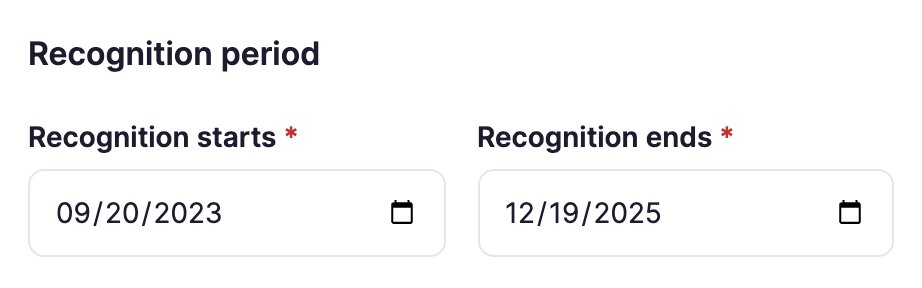
Every donor has a Recognition period: a Recognition starts and a Recognition ends date. The donor is shown from the start date up to and including the end date, then drops off the list-based donor apps on their own. If a donor is missing from a screen, the recognition period is the first thing to check.
Set the period
- Go to Donor Recognition → Donors and click Edit on the donor.
- Under Recognition period, set Recognition starts and Recognition ends.
- Click Save donor.
Both dates are required. To recognize someone indefinitely, set an end date far in the future.
The Recognition column on Donors shows each donor's dates and whether they are Active, Scheduled (not started yet) or Expired. Filter by Recognition period to list one group.
A donor is missing from a screen
Check these, in order:
- Recognition period. Is the donor Expired or Scheduled on Donors? Adjust the dates.
- Amount. Each panel of a donor app shows a gift range (its Minimum and Maximum on the Donors tab). A donor whose Amount is outside every range doesn't appear.
- Type and level filters. If the app shows only some relationship types or sponsorship levels, check the donor has one of them. A donor with no level only shows when the filter includes No level assigned.
- Locations. If the display's Locations setting is set, a donor limited to other locations doesn't appear. With Inherit screen location, check the screen's location on its edit form.
Every donor vanished at once? Usually they all shared the same end date, and it has passed.
A donor is still showing after they should have gone
- Importing a new file doesn't remove anyone. Donors who aren't in the new file keep their old recognition period. End it, or delete them, in Donors.
- Recognition period. Check the donor's Recognition ends date: they show up to and including that day.
- A display where you picked them. Featured Donors, Sponsor Showcase, Individual Spotlight and Donor Highlight keep showing a donor you picked, even after their period ends; see below.
Which apps drop expired donors
Only the styles that show donors from your list: Classic, Classic Spotlight, Listing, Donor Gratitude Wall, Sponsor Reel, and Donor Wall set to Automatic list. Featured Donors, Sponsor Showcase, Individual Spotlight, Donor Highlight and a Hand-picked Donor Wall show the donors you picked and keep showing them after their period ends. Remove those donors from the app yourself, or set Recognition period applies to to All displays in Donor Recognition settings so every display drops them. A display left with no donor to show is then skipped on your screens, unless When no donors match says otherwise. When a display that lists donors has nobody to show because their periods have ended, a note above its preview says so.
When you pick donors for one of these displays, the search list shows each donor's amount and recognition status (Active, Scheduled or Expired), and a donor you've picked shows its status too, so an expired donor is easy to spot. With All displays, a donor you pick outside their period gets a note under it saying they're left out on screen, which is why the preview doesn't show them.
Also searched as: old sponsors, remove donors, expired donors, donor still showing, missing donor.
Related articles
- Show each location its own donors Tag donors with your sites, then let each display show only the donors of the screen's location, or of the locations you pick.
- Donor recognition: from donor list to screen How your donor list feeds your Donor Recognition displays, and how to add, edit and find donors.
- Choose a donor display style and theme The ten Donor Recognition styles side by side, and how themes and logos work.
Still need help?
Our support team can walk you through it.