

Donor recognition: from donor list to screen
How your donor list feeds your Donor Recognition displays, and how to add, edit and find donors.
Updated 3 min read
On this page
Donor recognition has two parts. Your donor list, under Donor Recognition → Donors, holds each donor's name, gift amount, type and the dates they should be recognized. Your displays, under Donor Recognition → My displays, decide how donors look on screen. You keep one list, and every display reads from it, so there's nothing to connect.
1. Add your donors
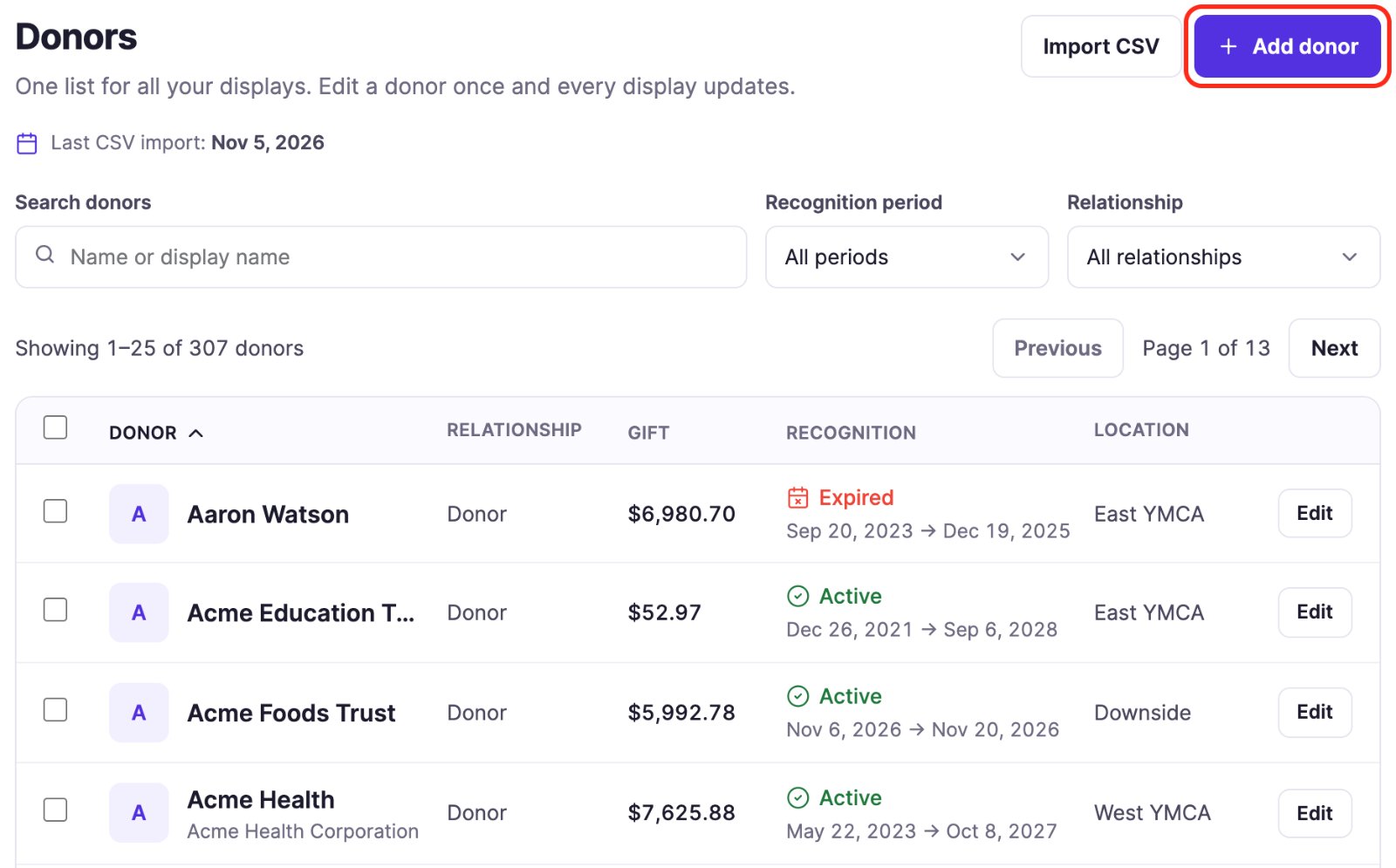
Click Donor Recognition in the left navigation, then Donors. Click Add donor to add one donor, or Import CSV to add many at once from a spreadsheet; see Import donors from a spreadsheet. Last CSV import under the title shows when a spreadsheet was last imported.
Fill in the donor and click Save donor.
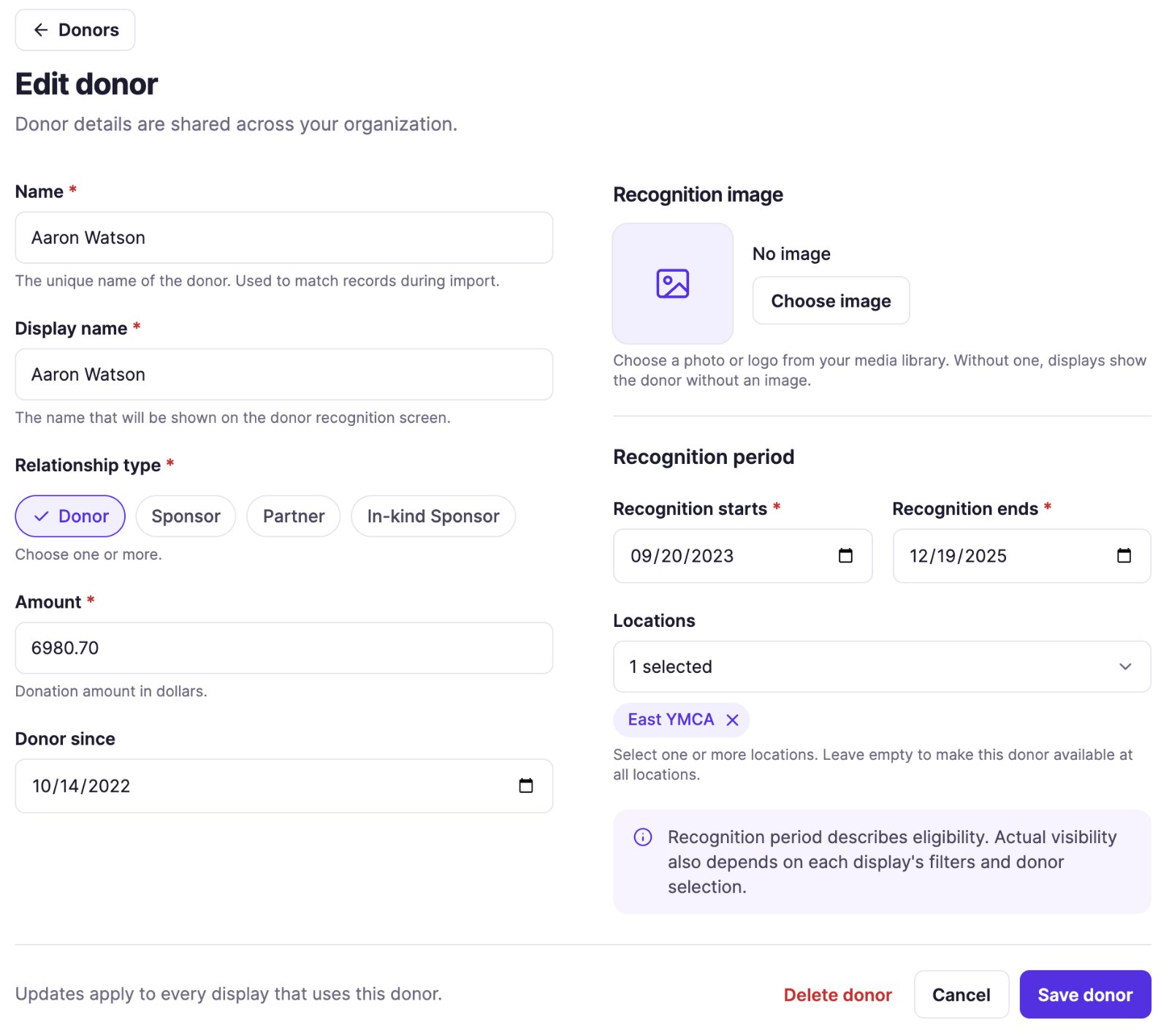
| Field | What it's for |
|---|---|
| Name | A unique name for the record. Never shown on screen. Required. |
| Display name | The name shown on screen. Required. |
| Amount | The total gift. Decides which panel the donor appears in. Required. |
| Relationship type | Donor, Sponsor, Partner or In-kind Sponsor; one or more. Default Donor. |
| Recognition period | Recognition starts and Recognition ends: the dates the donor is shown. Required. |
| Donor since | Date of the first gift. For the Donor, Sponsor and In-kind Sponsor types; Sponsor Reel shows its year as "Giving since". |
| Sponsorship level | Free text such as "Gold", up to 60 characters. Only for Sponsor and In-kind Sponsor. |
| Recognition image | A photo or logo shown above the name, chosen from your media library with Choose image. Works best on a white background. |
| Locations | The sites the donor is recognized at. Empty means all locations. A display whose Locations setting names a site, or Inherit screen location, shows the donor only there. |
Changing the type can clear a field. Leave only Partner and Donor since is cleared when you save; remove Sponsor and In-kind Sponsor and Sponsorship level is cleared.
2. Create a display
Go to Donor Recognition → Templates, click Use template on a style and set it up; see Manage your Donor Recognition displays. On the display's Donors tab you set which donors it shows:
- Gift range: a Minimum and Maximum amount per panel. Leave one empty for no limit.
- Relationship type and Sponsorship level filters (list-based styles only).
Then put it on a screen with Set to Screen in its ⋮ menu, or add it to a playlist with Add to playlist. Choosing between the seven styles is covered in Choose a donor display style and theme.
Find, edit and remove donors
- Find: use Search donors, Recognition period (Active, Scheduled or Expired) and Relationship at the top of Donors. Click the Donor, Gift or Recognition column heading to sort by it.
- Edit: click the donor's name or Edit on their row, change what you need and click Save donor. Apps pick up the change on their next refresh. If you leave with changes you haven't saved, you're asked whether to discard them.
- Delete: open the donor and click Delete donor, or tick several rows and click Delete selected. Tick the box in the column heading to select the whole page, then Select all … donors across all pages to include every donor that matches your filters; untick any you want to keep. If more donors match by the time you confirm, for example ones added in another tab, nothing is deleted: check the list and try again. This can't be undone. To stop showing a donor but keep the record, end their recognition period instead.
A deleted donor leaves the apps that picked them by hand. Featured Donors drops them from its list. Donor Highlight and Individual Spotlight show one donor you picked, so with that donor deleted they show nothing until you pick another one.
Keep levels consistent
Apps build their Sponsorship level filter from the levels your donors use, so "Gold" and "Golld" become two options. The Level column in Donors helps you spot typos.
Related articles
- Show each location its own donors Tag donors with your sites, then let each display show only the donors of the screen's location, or of the locations you pick.
- Import donors from a spreadsheet Add or update many donors at once with a CSV file, what the import preview tells you, and where to see past imports.
- Choose a donor display style and theme The ten Donor Recognition styles side by side, and how themes and logos work.
- Recognition periods: why a donor appears or disappears How long a donor is shown, and what to check when a donor is missing from a screen.
Still need help?
Our support team can walk you through it.