

Countdown
Count down to an event, then show a message when the moment arrives.
Updated 1 min read
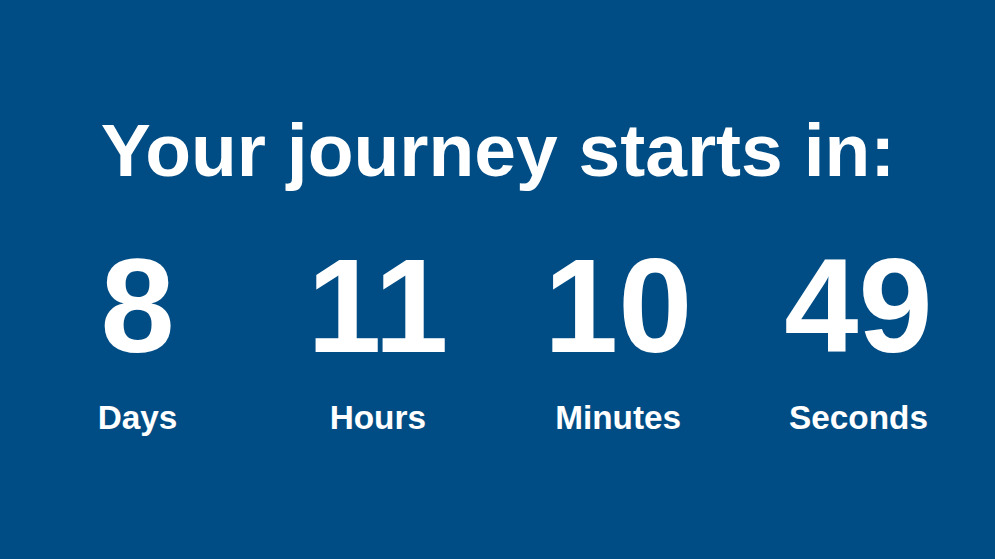
The Countdown app counts down to a date and time, such as an opening, a fundraiser deadline or the new year, and replaces the counter with your message once that moment arrives.
Set it up
- Turn on Countdown in Apps → App Store (only once).
- Go to Apps → My Apps → Countdown and click Create Instance.
- Fill in the settings below, check the live preview, and save.
- In My Apps, open the menu next to Preview on its row and click Add to playlist or Set to Screen. You can also add it from the playlist, with Add content (on its Apps tab).
Settings
| Setting | What it does |
|---|---|
| Name | Your name for this countdown in Screen Pulse. |
| Title | The heading above the countdown. |
| Date and Time | The moment to count down to. |
| Completion message | Shown in place of the counter once the moment has passed. |
| Years, Days, Hours, Minutes, Seconds | Which units to show. |
| Hide empty units | Hides a unit once it reaches zero. |
| Animation | How the numbers change: Fade, Flip, Scale or Slide. |
| Text Color, Background Color | The colors. |
| Background Image | Optional image behind the countdown. |
Tips
- Counting down weeks away? Turn off Seconds; it's distracting from a distance.
- Take it down afterwards. Give the playlist item an end date so the countdown and its completion message stop showing after the event; see Schedule content.
Related articles
Still need help?
Our support team can walk you through it.