

Single sign-on (SSO)
Let your team sign in with your organization's own accounts, through SAML 2.0. An add-on we set up with you.
Updated 2 min read
With single sign-on, your team signs in to Screen Pulse with your organization's own accounts, through your identity provider, such as Okta or Microsoft Entra ID, instead of a separate Screen Pulse password. SSO isn't included in the Core license: it's set up separately, and our team configures it with you. Contact us to add it.
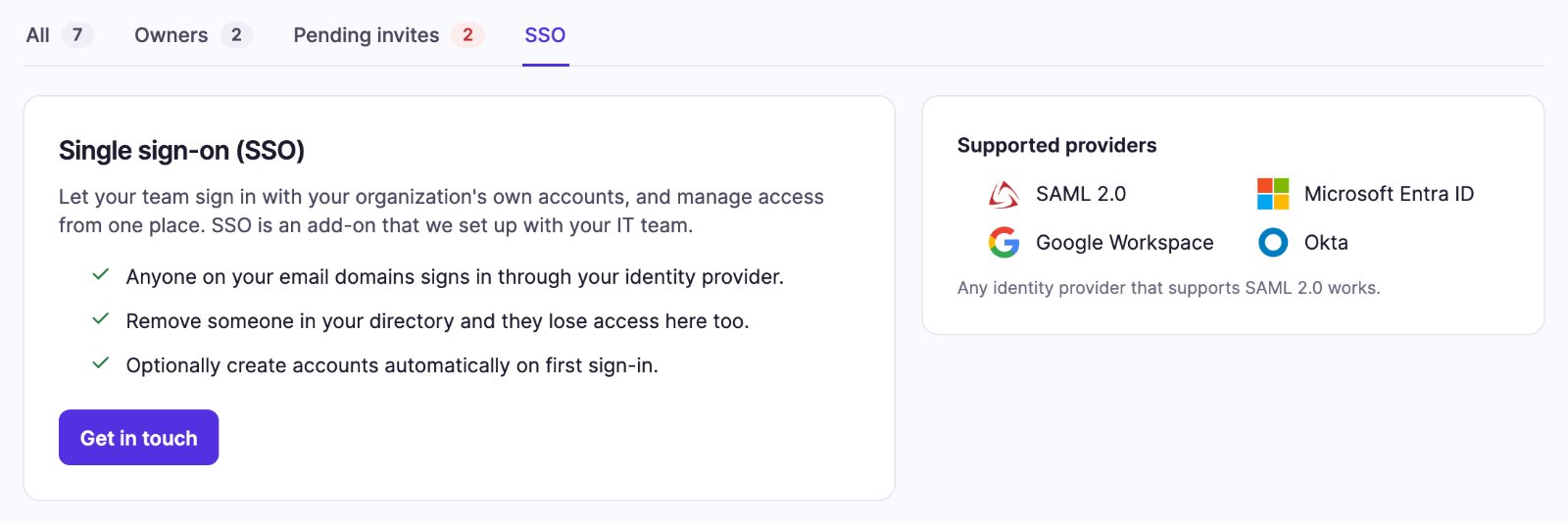
You'll find an overview in Account Settings → People → SSO, which every member can open. Before SSO is set up it lists the supported providers, and Get in touch sends us a message to start. Once it's on, the tab shows Single sign-on On, your email domains and how new people are handled; Request a change sends us a message.
How it works
- Screen Pulse uses SAML 2.0, so it works with any identity provider that supports SAML 2.0.
- SSO is tied to your email domains, such as
yourcompany.com. Anyone signing in with an address on those domains is sent to your identity provider. - Standard sign-in keeps working. People can still sign in with their email and password.
Setting it up
Our team configures SSO for your organization. Your IT team will:
- Create a SAML 2.0 application in your identity provider, using the sign-in (ACS) URL and entity ID we send you. Set the Name ID format to the user's email address.
- Send us your identity provider's details: its Entity ID (issuer), SSO URL and x509 certificate, plus the email domains that should use SSO.
- Assign the people who need Screen Pulse to the application.
We then turn SSO on and confirm it works with you.
New people signing in with SSO
Choose how to handle someone who signs in with SSO but has no Screen Pulse account yet:
- Invite people first (the default): only people who already have an account can sign in. Others see "No active account found for this identity. Please contact your administrator." See Invite your team.
- Create accounts automatically: their account is created on first sign-in, as an Editor. An Owner can change their role in People.
Signing in with SSO
- On the Sign In page, open the SSO tab.
- Enter your Work email and click Continue with SSO.
- Sign in with your identity provider. You're taken back to Screen Pulse, signed in.
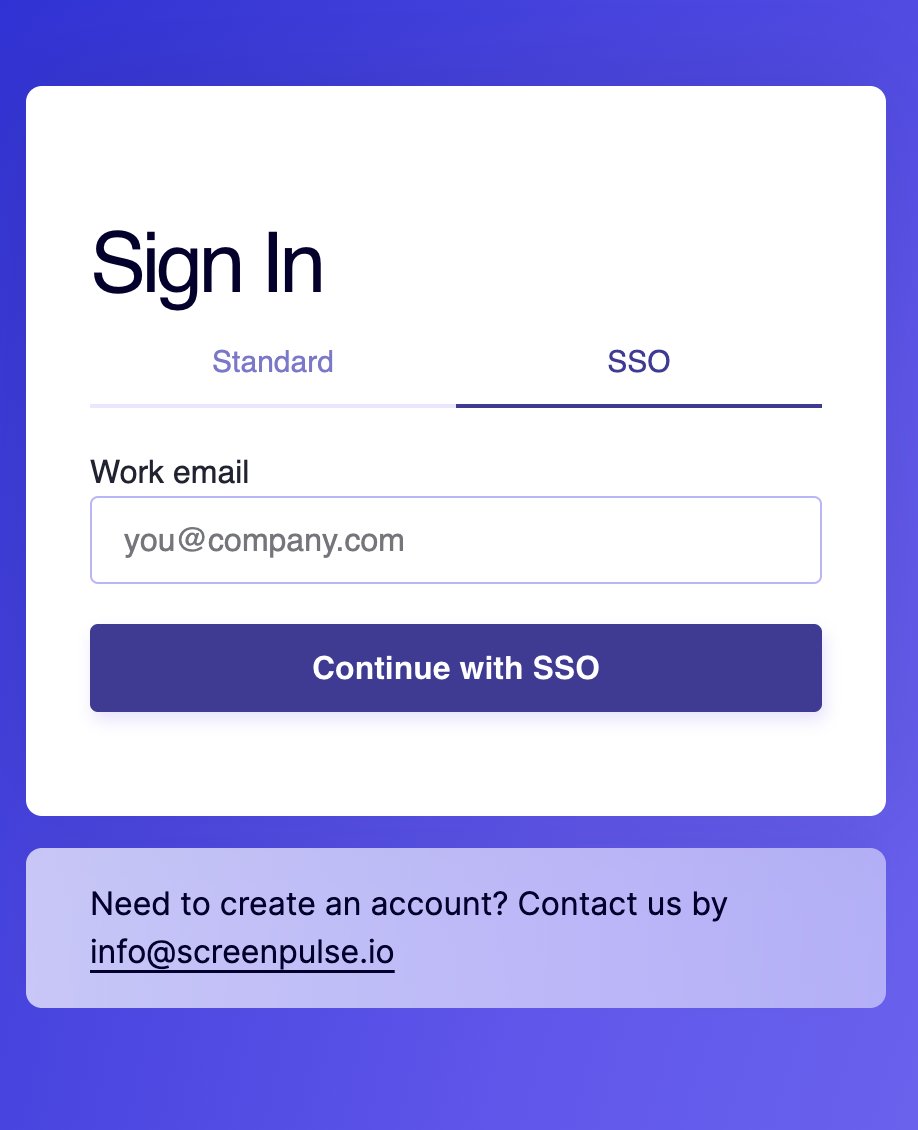
If you see "SSO is not configured for your email domain", SSO isn't set up for your address. Use the Standard tab, or ask your administrator.
Related articles
Still need help?
Our support team can walk you through it.