

YouTube
Play a YouTube video, playlist or live stream on your screens.
Updated 1 min read
The YouTube app plays a YouTube video, playlist or live stream. Paste the link, choose where to start, and decide whether to show subtitles. Leave Mute on: with sound on, the video loads but stays paused on the screen.
Set it up
- Turn on YouTube in Apps → App Store (only once).
- Go to Apps → My Apps → YouTube and click Create Instance.
- Fill in the settings below, check the live preview, and save.
- In My Apps, open the menu next to Preview on its row and click Add to playlist or Set to Screen. You can also add it from the playlist, with Add content (on its Apps tab).
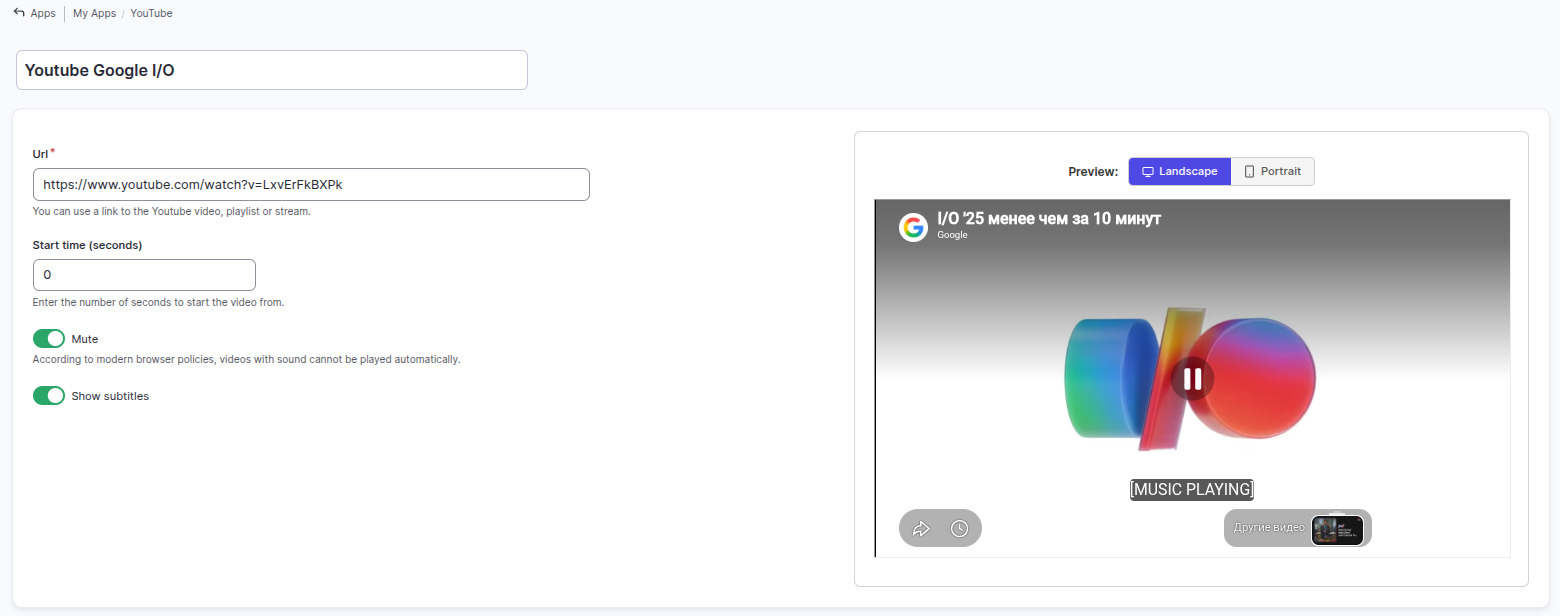
Settings
| Setting | What it does |
|---|---|
| Name | Your name for this app in Screen Pulse. |
| Url | The YouTube link: a video, a playlist or a stream. |
| Start time (seconds) | Where playback starts, for example 30 to skip an intro. |
| Mute | Plays without sound. Leave it on. |
| Show subtitles | Shows captions, when the video has them. Off hides them even if the uploader turned them on. |
Tips
- Use your own copy for important videos. If you have the video file, upload it to Media instead: it plays without depending on YouTube and works when the internet is down.
- In a playlist, set the item's duration to the video's length, or to how much of it you want to show.
- Real screens run slightly longer than the preview, because each video takes a moment to load.
- Need sound? Upload the video to Media and turn on Play video sound in its playlist; see Play videos with sound.
Related articles
Still need help?
Our support team can walk you through it.