

What's new: keep up with product updates
Where Screen Pulse announces new features, improvements and fixes, how unread updates are marked, and how to react or send feedback.
Updated 2 min read
On this page
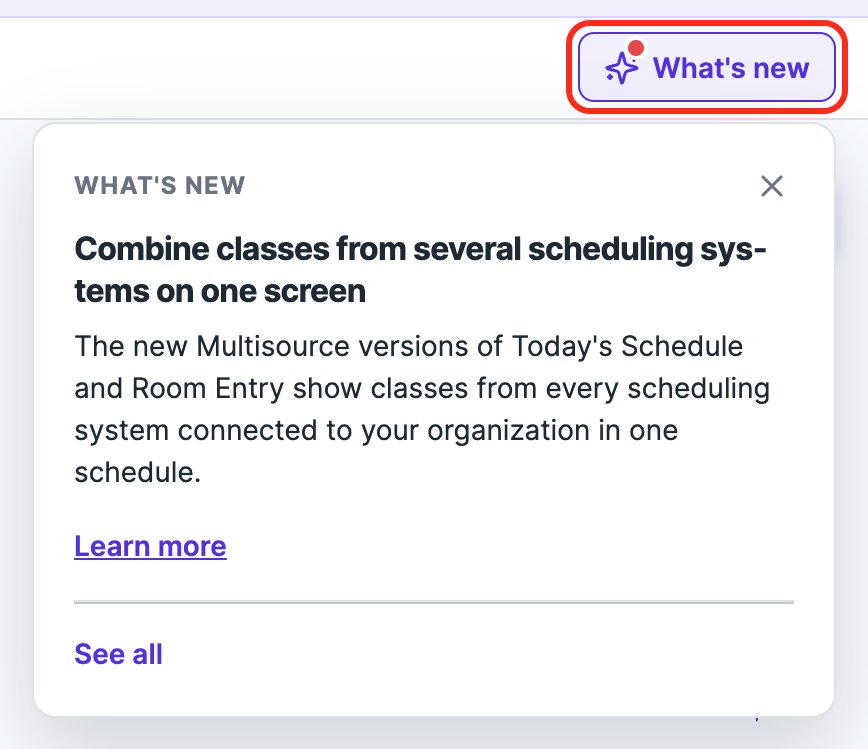
Screen Pulse announces new features, improvements and fixes in What's new, the button at the top right of every page. A red dot on it means there's an update you haven't read. Hover over it for the latest one, or click it for the full list, where you can search, filter, react to an update and tell us what you think.
See the latest update
Hover over What's new. A window shows the newest update you haven't read, with Learn more to read it in full and See all for the full list. With nothing unread, it says "You're all caught up."
Browse all updates
Click What's new to open What's new in Screen Pulse: every update from the last six months, newest first, grouped by date.
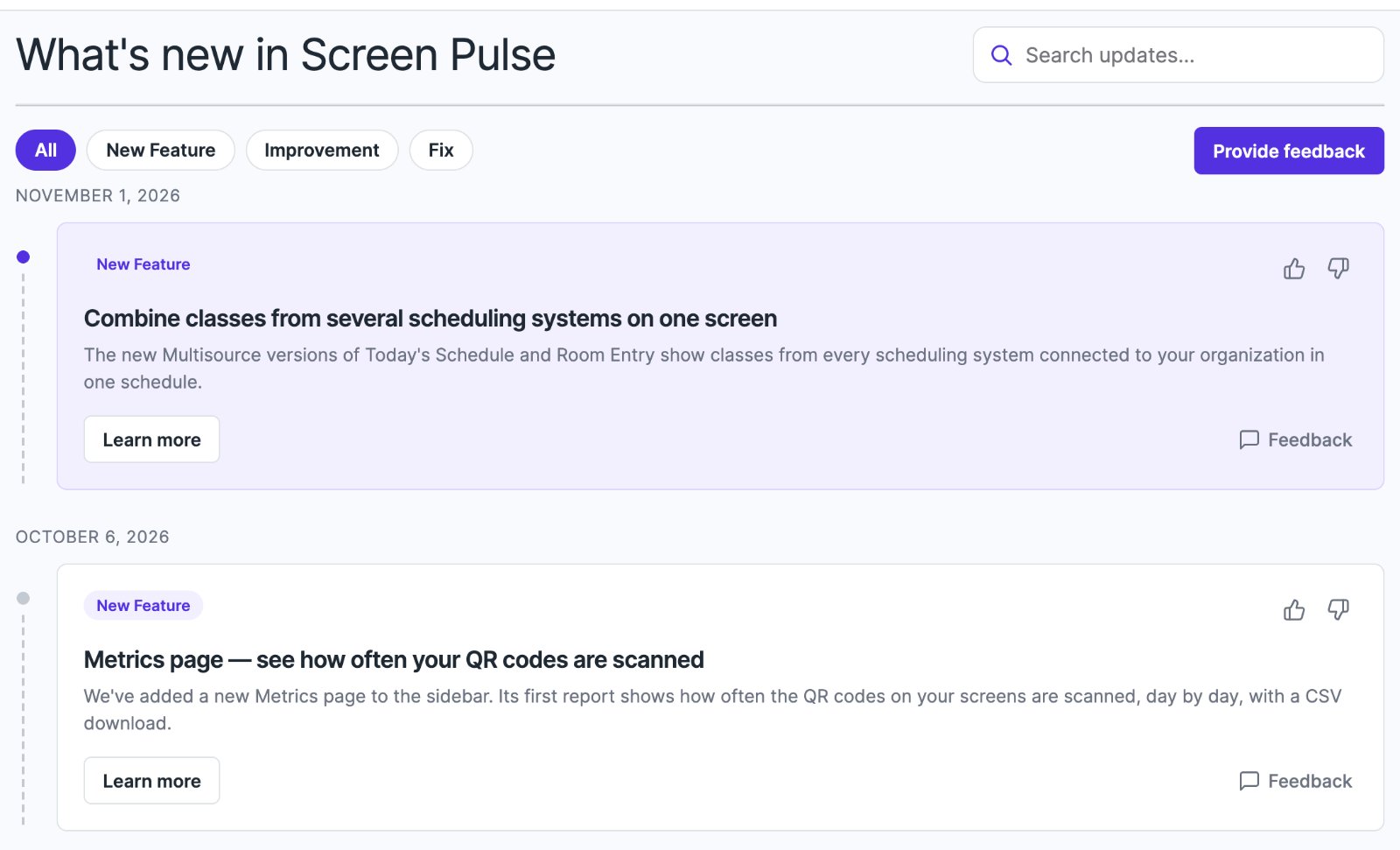
- Filter with All, New Feature, Improvement or Fix.
- Search with Search updates… at the top right.
- Learn more opens an update in full. ← Back to all updates returns to the list.
- Load more at the bottom shows older updates.
Read and unread
Updates you haven't read are highlighted, with a filled dot beside them, and the red dot on What's new stays until you've read them all.
- An update with more to say is marked read once you open it with Learn more.
- A short update that fits on its card is marked read as soon as you see it in the list.
Read status is your own: each teammate has theirs. When you join Screen Pulse, or your organization is new, you start with nothing unread; you don't inherit a backlog.
React and send feedback
Every update has two ways to tell us what you think:
- Thumbs up or down in the card's top right corner. Click the same one again to take it back, or the other one to change your mind.
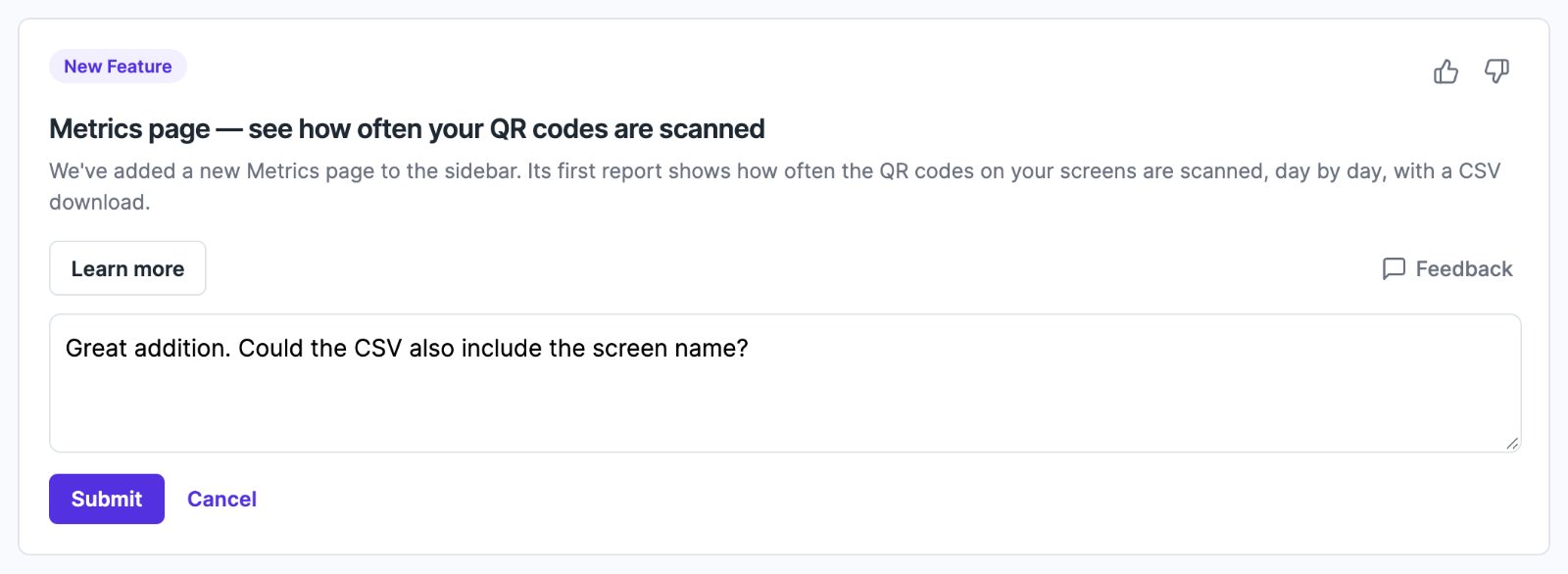
- Feedback opens a box on the card. Write your comment and click Submit; the card thanks you when it's sent. Feedback goes to the Screen Pulse team along with the update it's about.
For feedback that isn't about one update, use Provide feedback at the top of the page. It opens the general feedback form; see Getting help.
Good to know
- Owners and Editors see What's new.
- Some updates are only for some organizations, for example about an app that's only available to certain organizations, so someone in another organization may see a different list.
- Need something an update doesn't cover yet? Tell us in the feedback, or see Custom apps, design and expert help.
Related articles
- Getting help: how to contact Screen Pulse support Where to find answers, training for your team, how to reach us, and what to include so we can help quickly.
- Custom apps, design and expert help Need an app we don't have, a custom theme, content design or help planning your screens? The Screen Pulse team can help.
Still need help?
Our support team can walk you through it.