

Getting help: how to contact Screen Pulse support
Where to find answers, training for your team, how to reach us, and what to include so we can help quickly.
Updated 4 min read
On this page
Everything you need is under Support at the bottom of the left navigation in Screen Pulse: this Help Center, Contact Support to send our team a question, and Feedback for ideas. You can also email support@screenpulse.io. Our team answers Monday to Friday, 9:00 AM to 6:00 PM Eastern Time, and responds to critical outages around the clock.
The Support menu
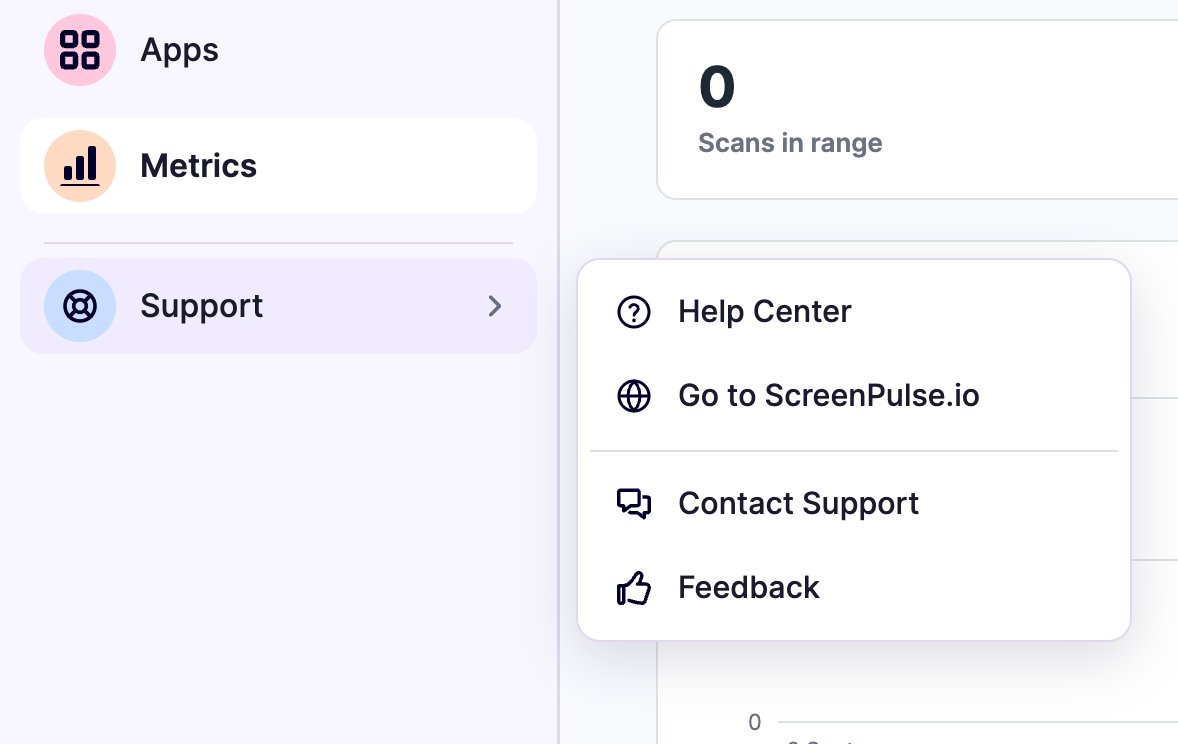
Click Support in the left navigation:
| Option | Use it to |
|---|---|
| Help Center | Find step-by-step guides. Opens in a new tab. |
| Go to ScreenPulse.io | Visit our website. Opens in a new tab. |
| Contact Support | Send a question or report a problem to our team. |
| Feedback | Suggest an improvement or tell us what you think. |
Training for your team
Every new organization gets a training session with our team as part of onboarding: we walk you through Screen Pulse and the way your screens will work, from content to pairing. To set it up, or to ask about a recording of a past session, use Contact Support.
When a new colleague joins later, start them here:
- Welcome to Screen Pulse: the words and the places in Screen Pulse.
- Put your first content on screen: the whole path from a playlist to a screen.
- The Glossary, for terms such as screen, device, playlist and app.
- For donor screens: From donor list to screen.
Installing screens without an IT team? The Amazon Signage Stick is set up from a phone and needs only power, an HDMI port and Wi-Fi. If your network is managed by someone else, send them Network requirements.
Send a message to support
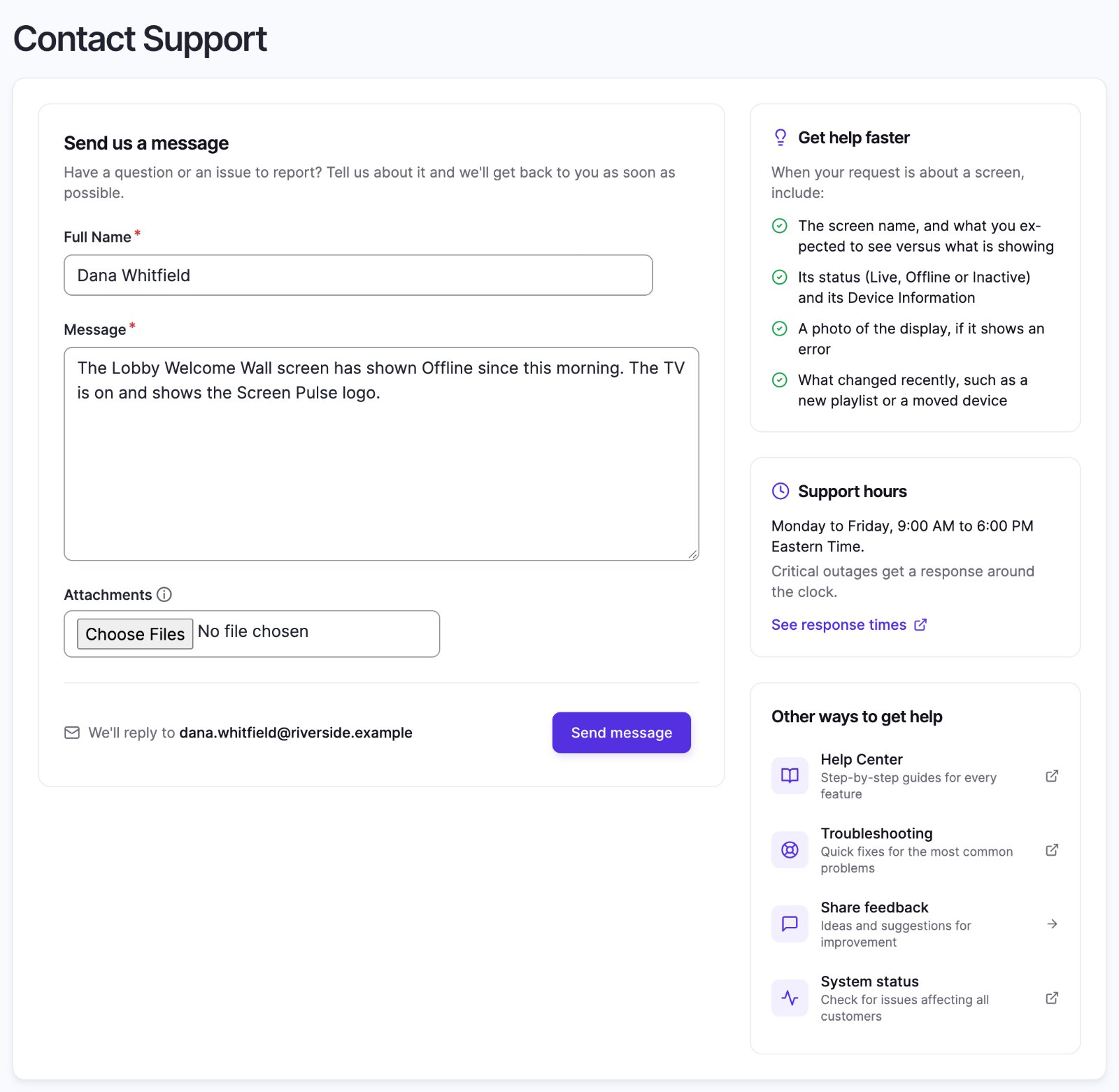
Click Support → Contact Support. Give your Full Name, describe the question or problem in Message, and click Send message. We reply to the email address you sign in with; the form shows it next to the button. If you came from an app in the Apps store, the form says which app your message is about.
The column beside the form lists what to include so we can help faster, our support hours, and links to this Help Center, the troubleshooting guides and the system status page.
Share feedback
Click Support → Feedback to tell us what you think. Rate your experience from one to five stars (Poor to Excellent), choose what it's about (General, Ease of use, Feature request, Bug report or Other), add your Comments, and click Submit Feedback. Feedback goes straight to the Screen Pulse team. For a problem that needs a reply, use Contact Support instead.
Support hours and response times
Support is by email, at support@screenpulse.io or through Support → Contact Support. Our business hours are Monday to Friday, 9:00 AM to 6:00 PM Eastern Time (ET), excluding public holidays. Critical outages get a response around the clock.
How fast we respond depends on how serious the problem is:
| Severity | For example | First response | Updates |
|---|---|---|---|
| Critical | Screen Pulse is down, or screens can't play scheduled content | Within 1 hour, 24/7 | Hourly until it's fixed |
| High | Serious problems affecting many screens, or failures that come and go | Within 4 business hours | Every business day |
| Medium | A feature not working properly, non-critical bugs | Within 1 business day | Weekly |
| Low | Cosmetic issues, questions and requests | Within 2 business days | As needed |
The full details are in our Service Level Agreement.
Help us help you faster
When you contact us about a screen, include:
- The screen's name, and what you expected to see versus what's showing.
- Its status (Live, Offline or Inactive) and the details from its Device Information card. See Check which device is connected to a screen.
- A photo of the display, if it shows an error.
- What changed recently, such as a new playlist, a network change or a moved device.
Attach screenshots and files
The Contact Support form has an optional Attachments field. Use it to send a screenshot of an error, a photo of what a screen is showing, or the file that won't import. You can attach up to 5 files, 10 MB each and 20 MB in total: images, PDFs, documents, spreadsheets, text and log files, zip archives, and short MP4 or MOV videos. Hover the (i) icon next to Attachments to see the full list.
If the form shows an error when you submit, your files are removed. Select them again before you submit once more.
Is it just us?
Check status.screenpulse.io for anything affecting all customers.
Also searched as: training, onboarding, new staff, walkthrough, tutorial, manual, recording, support ticket.
Related articles
Still need help?
Our support team can walk you through it.