

Google Slides
Play a Google Slides presentation on your screens, and keep it up to date by editing the deck in Google.
Updated 5 min read
On this page
The Google Slides app plays a presentation from Google Drive on your screens, one slide at a time. Edit the deck in Google Slides and your screens follow on their own - you don't need to come back here. You sign in with Google once, from the app's own setup form.
Set it up
- Turn on Google Slides in Apps → App Store (only once).
- Go to Apps → My Apps → Google Slides and click Create Instance.
- Click Sign In With Google and allow Screen Pulse to read your presentations.
- Open the presentation in Google Slides, copy the address from your browser, and paste it into Presentation URL.
- Set the timing and appearance below, check the live preview, and save.
- In My Apps, open the menu next to Preview on its row and click Add to playlist or Set to Screen. You can also add it from the playlist, with Add content (on its Apps tab).
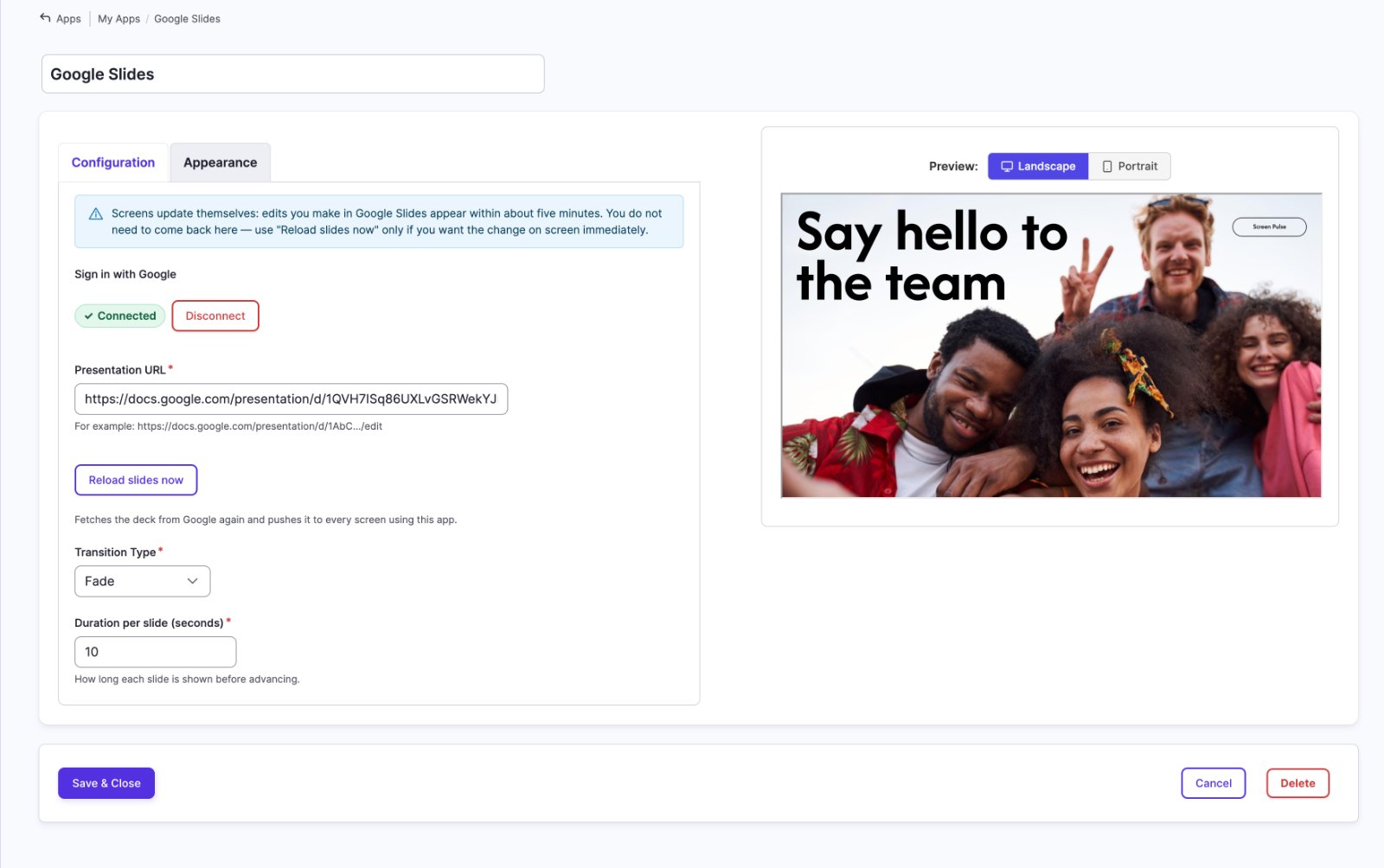
Settings
| Setting | What it does |
|---|---|
| Name | Your name for this app in Screen Pulse. It isn't shown on screen. |
| Sign in with Google | The Google account the presentation is read through. |
| Presentation URL | The deck to play. The address from your browser while the presentation is open, like https://docs.google.com/presentation/d/1AbC.../edit. |
| Transition Type | How one slide gives way to the next: Fade, Slide from Left, Slide from Right, Dissolve or Flip. |
| Duration per slide (seconds) | How long each slide shows before advancing. Default 10. |
| Reload slides now | Fetches the deck from Google straight away instead of waiting for the next check. Appears once you've entered a presentation URL. |
| Slide sizing (Appearance) | Fit the whole slide shows all of it and may leave bars on a screen of a different shape. Fill the screen covers the screen and crops the edges. |
| Background Color (Appearance) | Fills the screen around the slide, so it shows when Fit the whole slide leaves bars. |
Hidden slides are skipped. A slide you've hidden in Google Slides isn't shown on screen.
How quickly changes appear
Screens refresh themselves, and how fast depends on the signed-in account's access to that deck:
- Edit access - changes appear within about five minutes.
- View-only access - changes are picked up within the hour.
The setup form tells you which applies to your deck, so you don't have to guess. If updates matter quickly, give the signed-in account edit access. Either way, Reload slides now applies a change immediately.
Whose Google account an app uses
Your Google connection belongs to you, not to the organization, and you hold one per organization. A colleague setting up their own app signs in themselves, possibly with a different Google account.
So an app set up by someone else keeps reading through their account, even while you edit it. The setup form says so: it shows Connected as <name> in amber, with a note naming them.
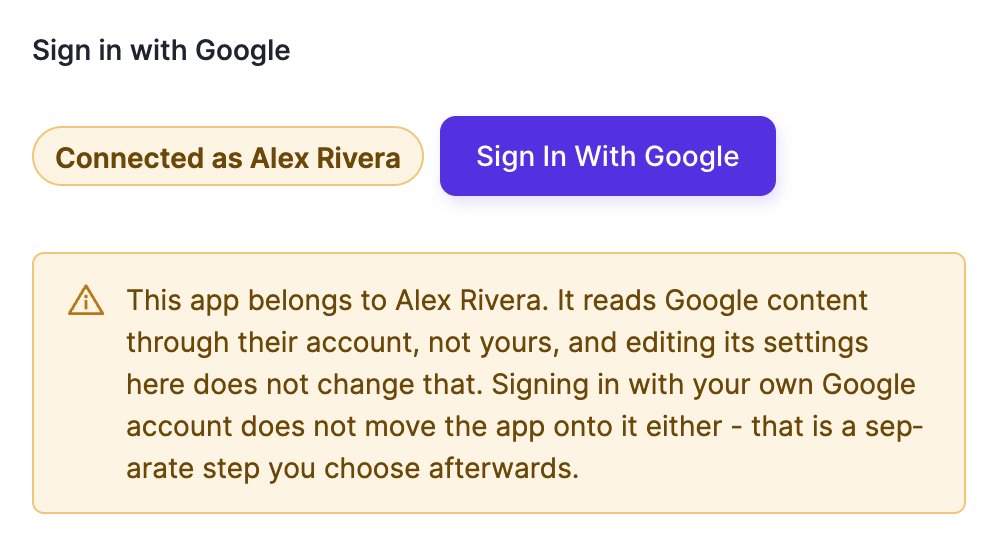
That's deliberate. If editing someone's app quietly moved it onto your account, an ordinary change to the slide duration could blank every screen showing it - your account may not be able to open that presentation at all.
- Signing in doesn't take their app over. If you have no Google connection yet, you'll see their name and a Sign In With Google button. Connecting gives you a connection to use for your own apps; it leaves this app where it is.
- To move the app onto your account, connect your own first, then tick Use my Google account for this app instead and save. Only do that if your Google account can open the same presentation, or the app will stop working.
- Changing the presentation URL does move it. Point an existing app at a different deck and it's read through your connection from then on. Appearance-only edits leave that alone.
Using a different Google account
Click Disconnect and sign in again. You hold one Google connection per organization, so there's nothing to switch between until the first one is dropped.
The button is on any Google app's form once you have a connection of your own, including apps set up by someone else - there it reads Disconnect my account, because it only ever drops yours.
Disconnecting stops your apps straight away. Every app of yours that read through that connection goes to "This presentation is not available at the moment" until someone connects again, so you're asked to confirm first. Apps running on a colleague's connection aren't affected.
If the presentation stops being available
If the deck stops being shared with the signed-in account - someone removes access, or the presentation is moved or deleted - screens don't go blank immediately. They keep showing the copy they already hold for about a day, then display "This presentation is not available at the moment".
That delay is deliberate: sharing gets changed by accident and put back minutes later, and a lobby screen going blank over a slip is worse than a slightly old deck. Restore access within the day and the screens carry on with nothing to fix.
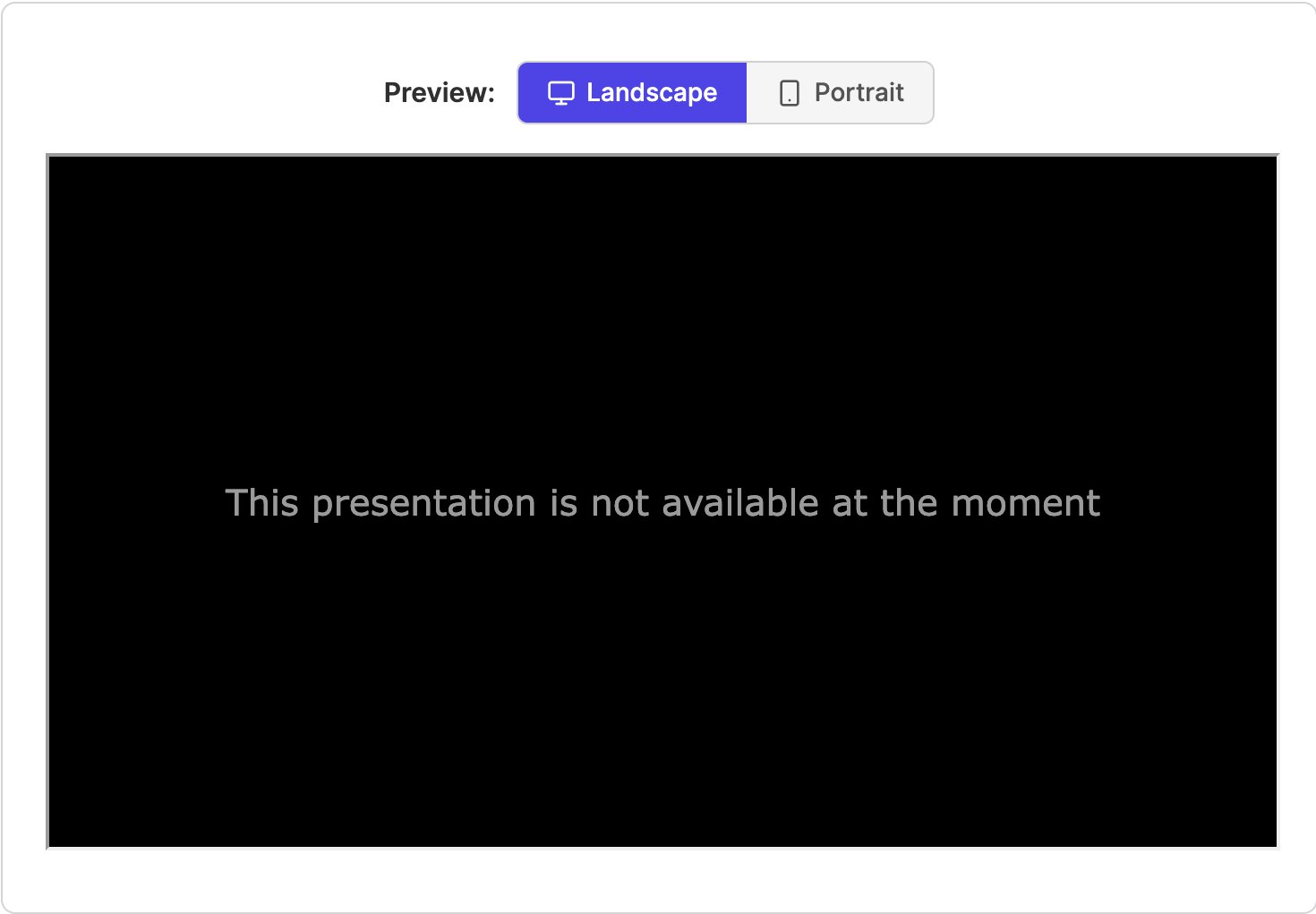
The setup form tells you when this is happening, so you don't have to wait for someone to notice the screen. To fix it, either share the presentation with the signed-in account again, or sign in with an account that can already open it.
A Google outage behaves the same way - screens keep playing what they have rather than going blank.
Tips
- Design at screen size: 1920 × 1080 for landscape screens, 1080 × 1920 for portrait.
- In a playlist, set the item's duration to slide duration × number of slides, so every slide gets its turn.
- Use a deck that's shared with the whole team, not a personal one, so the app keeps working when the person who set it up is away.
Related articles
Still need help?
Our support team can walk you through it.