

Walls.io
Show a live social media wall from Walls.io on your screens.
Updated 1 min read
The Walls.io app shows a social wall from your Walls.io account: posts about your hashtag or from your accounts, updated as they come in. You set up the wall in Walls.io, then paste its address here and choose a layout.
Set it up
- Create your wall in your Walls.io account and copy its address.
- Turn on Walls.io in Apps → App Store (only once).
- Go to Apps → My Apps → Walls.io and click Create Instance.
- Fill in the settings below, check the live preview, and save.
- In My Apps, open the menu next to Preview on its row and click Add to playlist or Set to Screen. You can also add it from the playlist, with Add content (on its Apps tab).
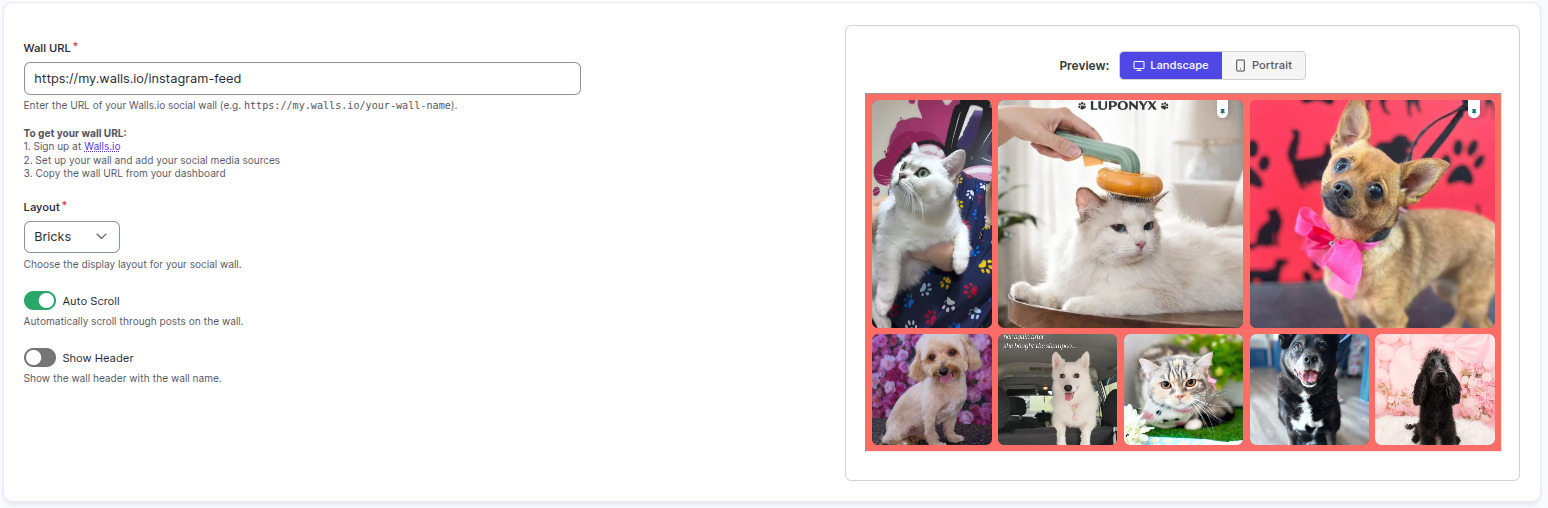
Settings
| Setting | What it does |
|---|---|
| Name | Your name for this app in Screen Pulse. |
| Wall URL | Your wall's address, for example https://my.walls.io/your-wall-name. |
| Layout | Fluid, Bricks, Grid, Carousel, Billboard, Kiosk or Map. |
| Columns | A fixed number of columns. Fluid and Grid only; leave empty to fit the screen. |
| Rows | A fixed number of rows. Grid only; leave empty to fit the screen. |
| Auto Scroll | Scrolls through posts by itself. |
| Show Header | Shows the wall's name at the top. |
Tips
- Moderate the wall in Walls.io. What appears there appears on your screens.
- Fewer, bigger posts read better from a distance. Try Billboard or Carousel.
Related articles
Still need help?
Our support team can walk you through it.