

Webpage Embed
Show any public web page on your screens, with auto-scroll and automatic refresh.
Updated 1 min read
The Webpage Embed app shows a web page on your screens: your website's events page, a published dashboard, a sheet published to the web. Long pages can scroll by themselves. The page must open without a login, and some sites refuse to be shown inside other pages.
Set it up
- Turn on Webpage Embed in Apps → App Store (only once).
- Go to Apps → My Apps → Webpage Embed and click Create Instance.
- Fill in the settings below, check the live preview, and save.
- In My Apps, open the menu next to Preview on its row and click Add to playlist or Set to Screen. You can also add it from the playlist, with Add content (on its Apps tab).
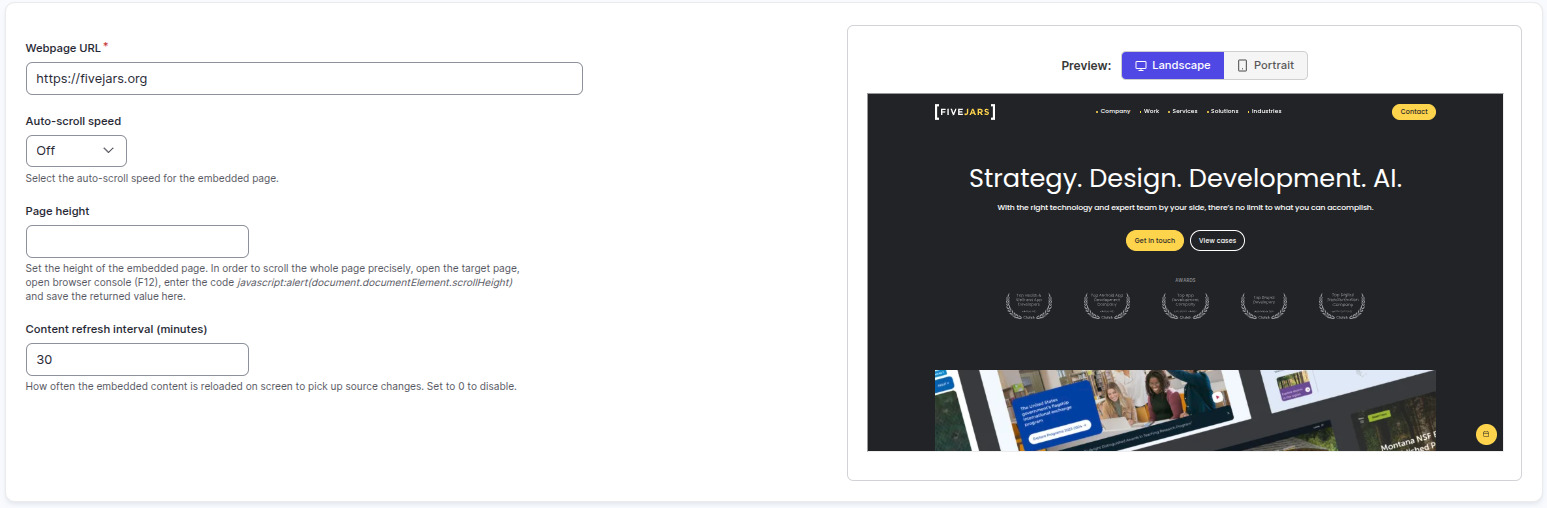
Settings
| Setting | What it does |
|---|---|
| Name | Your name for this app in Screen Pulse. |
| Webpage URL | The page's full address, starting with https://. |
| Auto-scroll speed | Scrolls the page: Off, Very slow, Slow, Normal, Fast or Very fast. |
| Page height | How tall the page is drawn. Set it so a long page scrolls all the way. |
| Content refresh interval (minutes) | How often the page reloads to show changes. 0 means never. |
Tips
- Check it on a real screen, not just in the preview. Some sites only block embedding there.
- Pages made for laptops can be hard to read from across a room. A purpose-made image or Canva design often looks better.
- Blank page? See My embedded webpage won't load.
Related articles
Still need help?
Our support team can walk you through it.