

Calendar
Show a month calendar with today highlighted and a date panel.
Updated 1 min read
On this page
The Calendar app shows the current month with today highlighted, next to a panel with today's date. Choose a light or dark grid, how today stands out, and an optional image for the date panel.
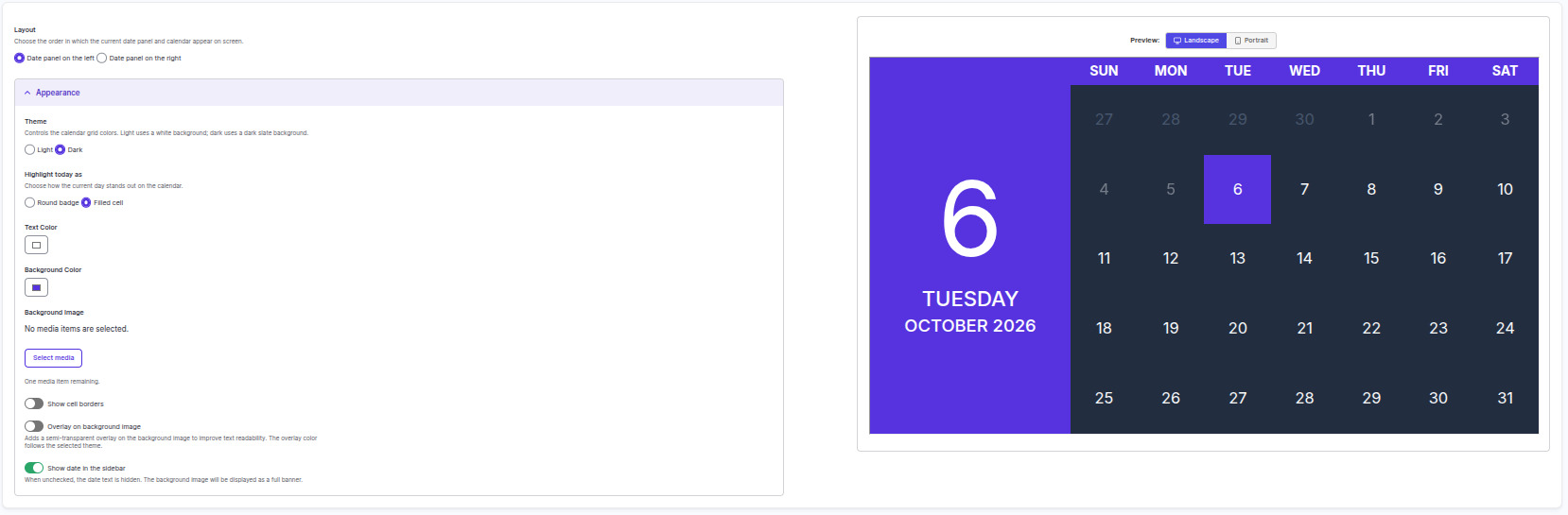
Set it up
- Turn on Calendar in Apps → App Store (only once).
- Go to Apps → My Apps → Calendar and click Create Instance.
- Fill in the settings below, check the live preview, and save.
- In My Apps, open the menu next to Preview on its row and click Add to playlist or Set to Screen. You can also add it from the playlist, with Add content (on its Apps tab).
Settings
| Setting | What it does |
|---|---|
| Name | Your name for this app in Screen Pulse. |
| Date panel position | Date panel on the left or on the right of the grid. |
| Theme | Light (white) or Dark (dark slate) grid. |
| Current day style | Today as a Round badge or a Filled cell. |
| Text Color, Background Color | The colors. |
| Background Image | An image for the date panel, in place of its color. |
| Show cell borders | Lines between the days. |
| Overlay on background image | A see-through tint over the image, so the date stays readable. |
| Show date in the sidebar | Off hides the date text, so the image shows as a full banner. |
Good to know
- This calendar doesn't show events. It's a month view. To show classes or programs, see Today's Schedule, Programs Schedule and Room Entry.
Related articles
Still need help?
Our support team can walk you through it.