

Dropbox Gallery
Connect your Dropbox and play a folder's images and videos as a slideshow that updates itself.
Updated 3 min read
On this page
The Dropbox Gallery app plays every image and video in a Dropbox folder, and its subfolders, as a slideshow. Add or remove files in Dropbox and your screens follow, without uploading anything to Screen Pulse. Your organization connects one Dropbox account, from the app's own setup form, and everyone on your team uses that connection.
Set it up
Turn on Dropbox Gallery in Apps → App Store (only once). See Apps explained.
Go to Apps → My Apps → Dropbox Gallery and click Create Instance.
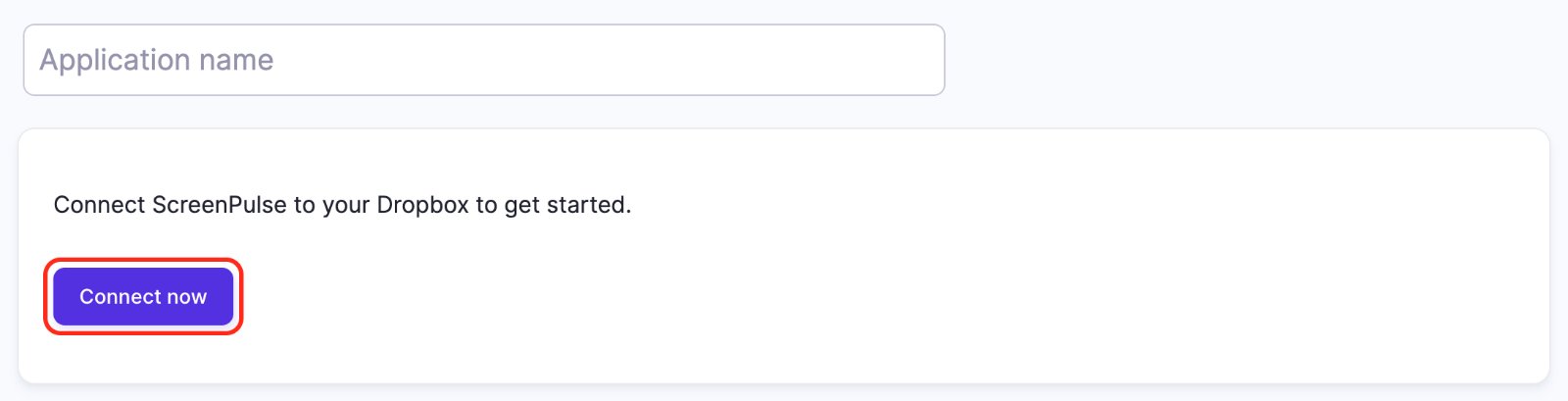
If your organization isn't connected to Dropbox yet, the form says "Connect ScreenPulse to your Dropbox to get started." Click Connect now. A Dropbox window opens: sign in and allow access. The window closes and the form reloads with the settings below.
Give the app a name in Application name.
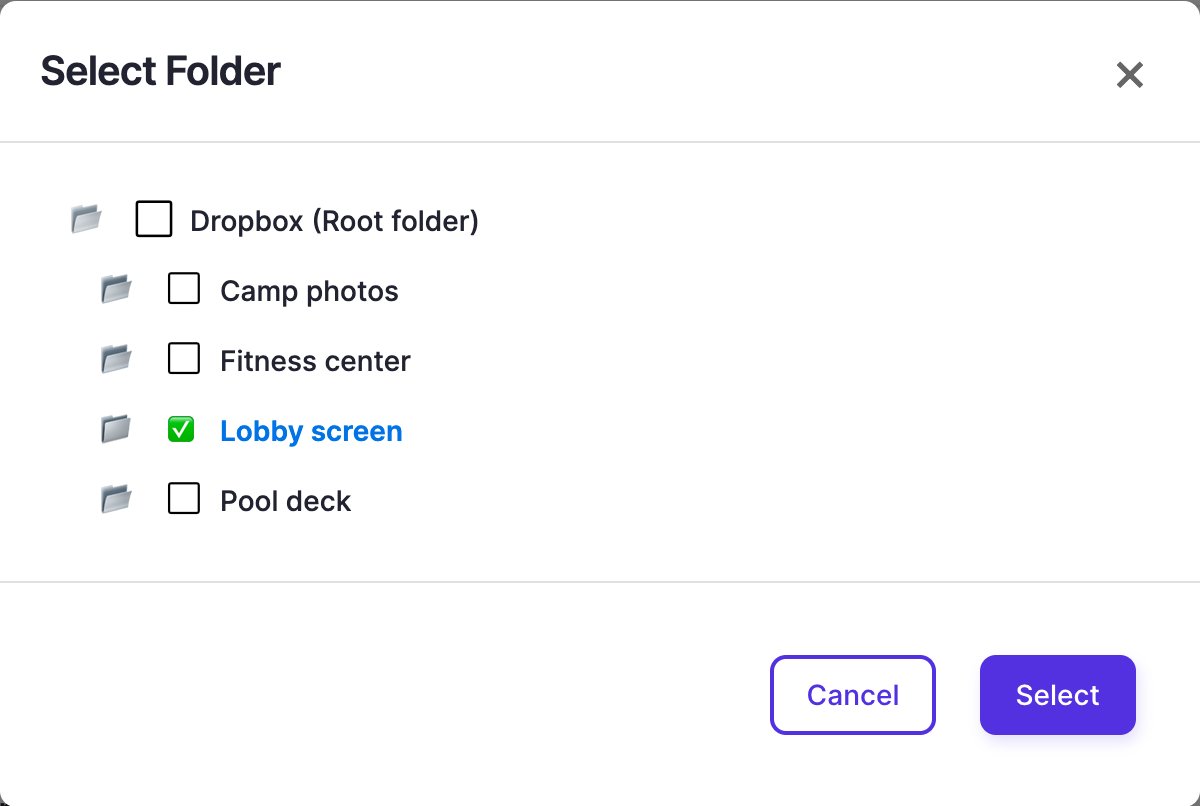
Click Select Folder, choose the folder to play and click Select. Dropbox (Root folder) plays your whole Dropbox.
Set the durations and appearance below, check the Preview, and click Save & Close.
In My Apps, open the menu next to Preview on its row and click Add to playlist or Set to Screen. You can also add it from the playlist, with Add content (on its Apps tab).
Settings
| Setting | What it does | Default |
|---|---|---|
| Folder | The Dropbox folder to play, including its subfolders. | - |
| Duration for images (in seconds) | How long each image shows. | 10 |
| Max duration for videos (in seconds) | The longest a video plays before moving on. | 20 |
| Animation (Appearance) | Fade, Flip, Scale or Slide between items. | Fade |
| Background Color (Appearance) | Shown around images that don't fill the screen. | Black |
| Shuffle (Appearance) | Plays the files in random order. | On |
| Stretch images to fill screen (Appearance) | Fills the screen instead of keeping the whole image visible. | On |
File types: images in JPG, JPEG, PNG, GIF, WEBP, SVG or AVIF, and videos in MP4, WEBM, OGG or OGV. Other files in the folder are skipped.
Whose Dropbox is it?
The connection belongs to your organization, not to the person who clicked Connect now:
- There is one Dropbox account per organization. Every Owner and Editor who sets up a Dropbox Gallery app sees that account's folders, and every Dropbox Gallery app in your organization plays from it.
- The folder list shows every folder in that Dropbox, so connect an account whose folder names your whole team may see. A Dropbox account set up for your screens works best.
- If you belong to several organizations, each one connects its own Dropbox.
Disconnect or switch to another Dropbox account
Screen Pulse has no Disconnect button. To connect a different Dropbox account, contact us through Support → Contact Support and we'll disconnect the current one, so the next person to click Connect now can sign in with the new account.
To cut off Screen Pulse's access yourself, remove it from the connected apps in your Dropbox account settings. Your Dropbox Gallery apps then stop picking up the folder's files until your organization connects again.
Good to know
- Changes take up to about 10 minutes to reach screens: the app checks the folder every few minutes, and Screen Pulse keeps a short-lived copy of the folder list.
- If Dropbox has a hiccup, screens keep playing the files they last loaded.
- Use a dedicated folder, such as "Lobby screen", so personal files never end up on display.
Related articles
- Google Slides Play a Google Slides presentation on your screens, and keep it up to date by editing the deck in Google.
- Upload and organize images and videos Add images and videos to your Media library, file them in folders, crop images and remove what you don't need.
- Apps explained: turn on, set up, use How apps work in Screen Pulse, from the App Store to a screen, and how to edit, copy and remove them.
Still need help?
Our support team can walk you through it.