

Replace or move a device
Swap broken hardware, or take a device away, without losing the screen's name and content.
Updated 3 min read
On this page
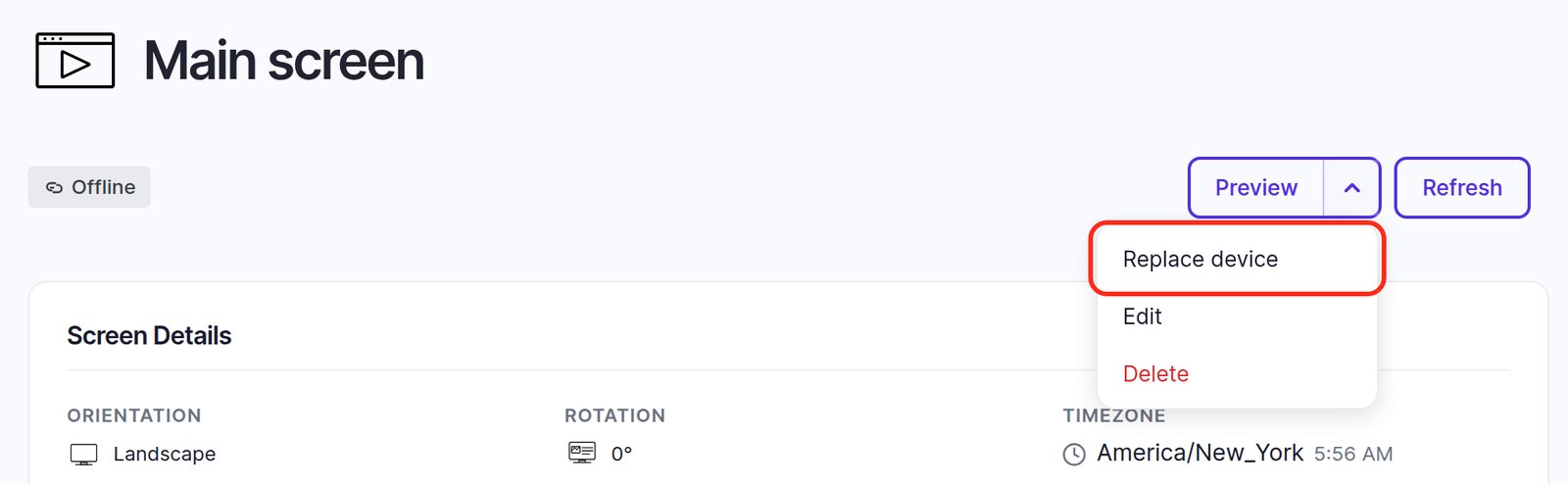
To swap the hardware behind a screen, open the screen, choose Replace device in the menu next to Preview, then pair the new device with its 6-character code. The screen keeps its name, location, orientation and content; only the hardware changes. Don't delete the screen to do this.
Swap a device for a new one
Use this when a streaming stick dies or you upgrade a TV.
- Go to Screens and open the screen.
- Open the menu next to Preview, click Replace device, and confirm with Confirm. The old device is disconnected, the screen shows as Inactive, and nothing plays on it until the next step.
- Start the Screen Pulse player on the new device. It shows a 6-character pairing code.
- On the screen's page, enter the code under Connect Device and click Continue.
The new device plays the same content the old one did.
Take a device away without a replacement
Use this when a device goes for repair or moves elsewhere and nothing replaces it yet.
- Go to Screens and open the screen.
- Open the menu next to Preview, click Replace device, and confirm with Confirm.
- The screen shows as Inactive until you pair a device to it again.
What stays and what changes
| Stays with the screen | Changes |
|---|---|
| Name, location, location notes, screen group | Which physical device is connected |
| Orientation, rotation, timezone | The device information shown on the screen page |
| The assigned playlist, app, image or video |
The old device goes back to showing a pairing code, so you can pair it to a different screen.
Move a device to a different screen
Unpair it from its current screen (above), then pair it to the other screen using the new code it shows.
Pairing codes
- A code works for one hour. The player then shows a new one by itself, so if a code is rejected, read the one on the display again.
- Someone has to read it off the display. The code only appears on the screen the device is plugged into, so pairing needs a person there, or a photo of the display.
- After Replace device, a device that's online switches to a pairing code within moments. If it keeps showing content, or nothing changes, it's offline: it gets the change, and shows a code, once it reconnects. See My screen shows Offline.
- No code at all, or an error instead? See The player shows an error, or no pairing code.
Deleted a screen by mistake?
A deleted screen can't be restored. Create it again with Add screen, give it the same name and settings, assign its content, and pair the device with the code it shows. The device's old pairing ended with the deleted screen.
Good to know
- An unpaired screen still uses a screen license. Only deleting a screen frees one. See Screen licenses.
- Pairing is unavailable while your plan isn't active. If your trial has ended or your plan is cancelled, the screen shows "Pairing unavailable" instead of the code field. Unpairing before then leaves the screen without a device until your plan is active again.
- Deleting a screen is permanent and loses its settings. Replace or unpair instead, unless you really want the screen gone.
Also searched as: unpair, re-pair, pairing code, disconnect device, new device, swap.
Related articles
Still need help?
Our support team can walk you through it.