

Featured Donors
Donors you pick, one at a time with their logo, level and an optional slogan.
Updated 2 min read
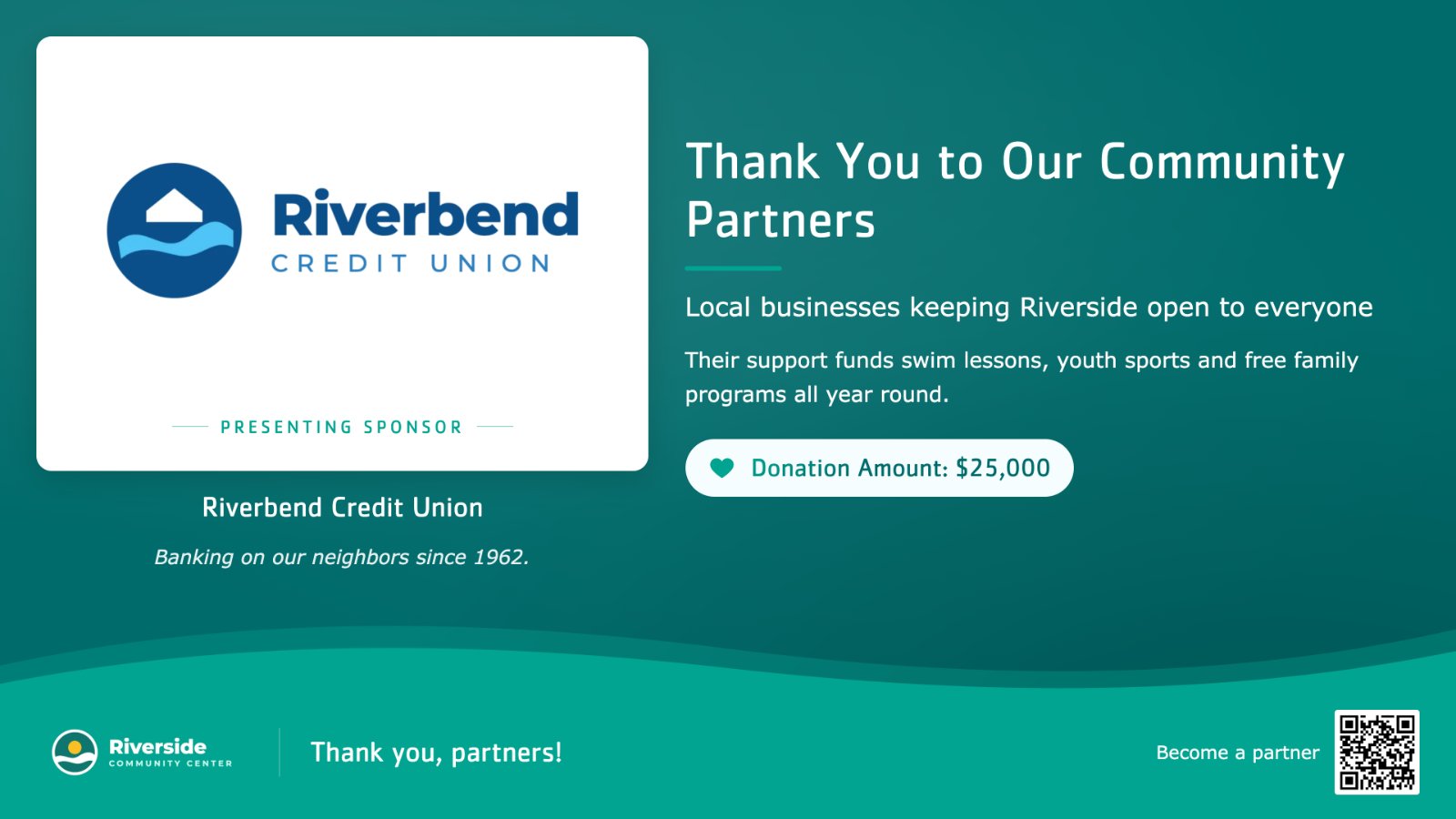
Featured Donors rotates through donors you pick, one at a time: each donor's logo or photo, name, sponsorship level and an optional slogan, beside your title and message. A footer carries your logo, a line of thanks and an optional QR code. It suits sponsors you want to thank by name.
Set it up
- Go to Donor Recognition → Templates and click Use template on Featured Donors.
- Give it a Display name, then fill in each tab and click Continue. The Preview shows the display as you type.
- Click Create display.
- In My displays, open its ⋮ menu and click Set to Screen, or add it to a playlist.
Message
| Setting | What it does |
|---|---|
| Title | The headline beside the donor. Up to 60 characters; about 40 reads best. Required. |
| Subtitle | Optional line under the title. Up to 90 characters. You can make words bold. |
| Description | The text under the subtitle. Up to 400 characters; about 300 stays readable from a distance. You can make words bold. Required. |
| Footer text | Shown next to your logo at the bottom, for example "Thank you for supporting our community and our mission." Up to 90 characters. You can make words bold. |
| Call to action (QR code) | URL turns into a QR code at the bottom right, for example your donation page; leave it empty for no QR code. Text is shown next to it, and can have bold words. |
Donors
| Setting | What it does |
|---|---|
| Donors | One row per donor. In each row pick the Donor, add an optional Slogan (up to 80 characters, bold words allowed) shown under their name, and tick Hide donation amount to hide that donor's amount. Drag the rows to set the order. |
| Rotation interval | How long each donor stays on screen, in seconds. Default 15. |
To make words bold, wrap them in double asterisks: Thank you for **ten years** of support shows
"ten years" in bold. An asterisk on its own shows as typed.
Branding
| Setting | What it does |
|---|---|
| Use the organization logo | Shows the logo from your organization's settings at the bottom left. Untick it to choose a Logo for this display only. |
| Theme | Default, Blue, Teal, Purple, Yellow or Red. |
Tips
- The level comes from the donor record. Set Sponsorship level on the donor, under Donor Recognition → Donors, and every display featuring them shows it.
- The slogan belongs to this display, so the same sponsor can carry a different line elsewhere.
- Picked donors stay until you remove them, even after their recognition period ends, unless Recognition period applies to is set to All displays in Donor Recognition settings. A deleted donor drops out of the rotation.
Related articles
- Choose a donor display style and theme The ten Donor Recognition styles side by side, and how themes and logos work.
- Manage your Donor Recognition displays Create and edit a display with a live preview, put it on screens or in a playlist, see where it is shown, and duplicate or delete it.
- See how often your QR codes are scanned The Metrics page counts every scan of the QR codes your apps show. See scans per day, compare codes and download the numbers.
Still need help?
Our support team can walk you through it.