

Install Screen Pulse on an Amazon Fire TV device
Install the Screen Pulse Player app on a Fire TV stick or cube, and pair it with a screen.
Updated 2 min read
On this page
On a Fire TV stick or cube with Fire OS 6 or newer, install the Screen Pulse Player app from the Amazon Appstore, open it, and pair it with a screen using the code it shows. For new screens we recommend the Amazon Signage Stick instead: it's built to run all day. See Set up an Amazon Signage Stick with the Amazon Signage app.
Check the device
Open Settings → My Fire TV → About and check the Fire OS version. Fire OS 6 is the minimum, and Fire OS 8 or newer is recommended. Fire TV devices with Vega OS can't run the player; see Devices and operating systems that don't work with Screen Pulse.
Install the app
Either:
- On the Fire TV: search for Screen Pulse and install Screen Pulse Player.
- From a computer or phone: open the Screen Pulse Player page on Amazon, sign in with the Amazon account the Fire TV uses, and send the app to the device.
Answer the player's setup questions
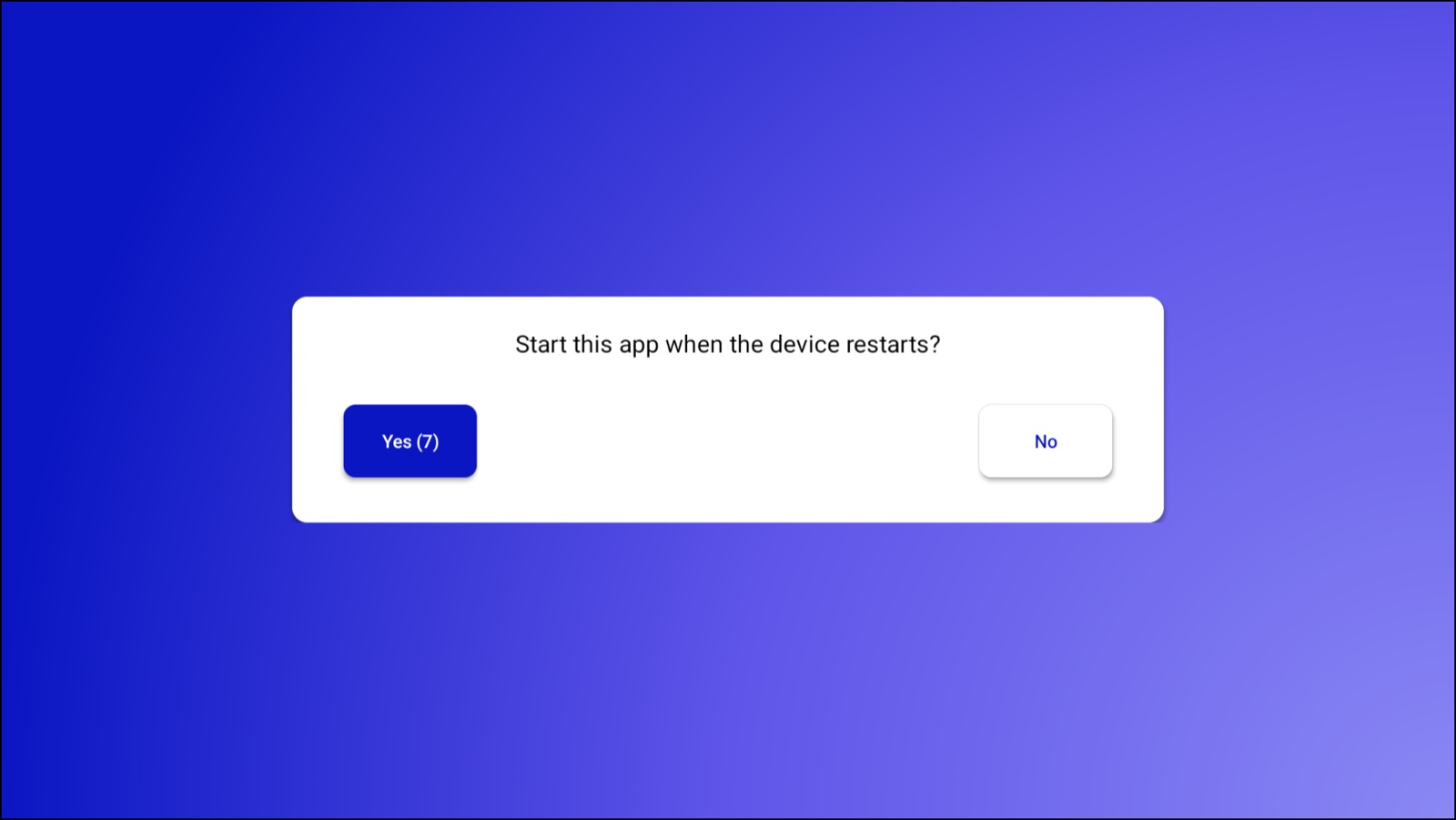
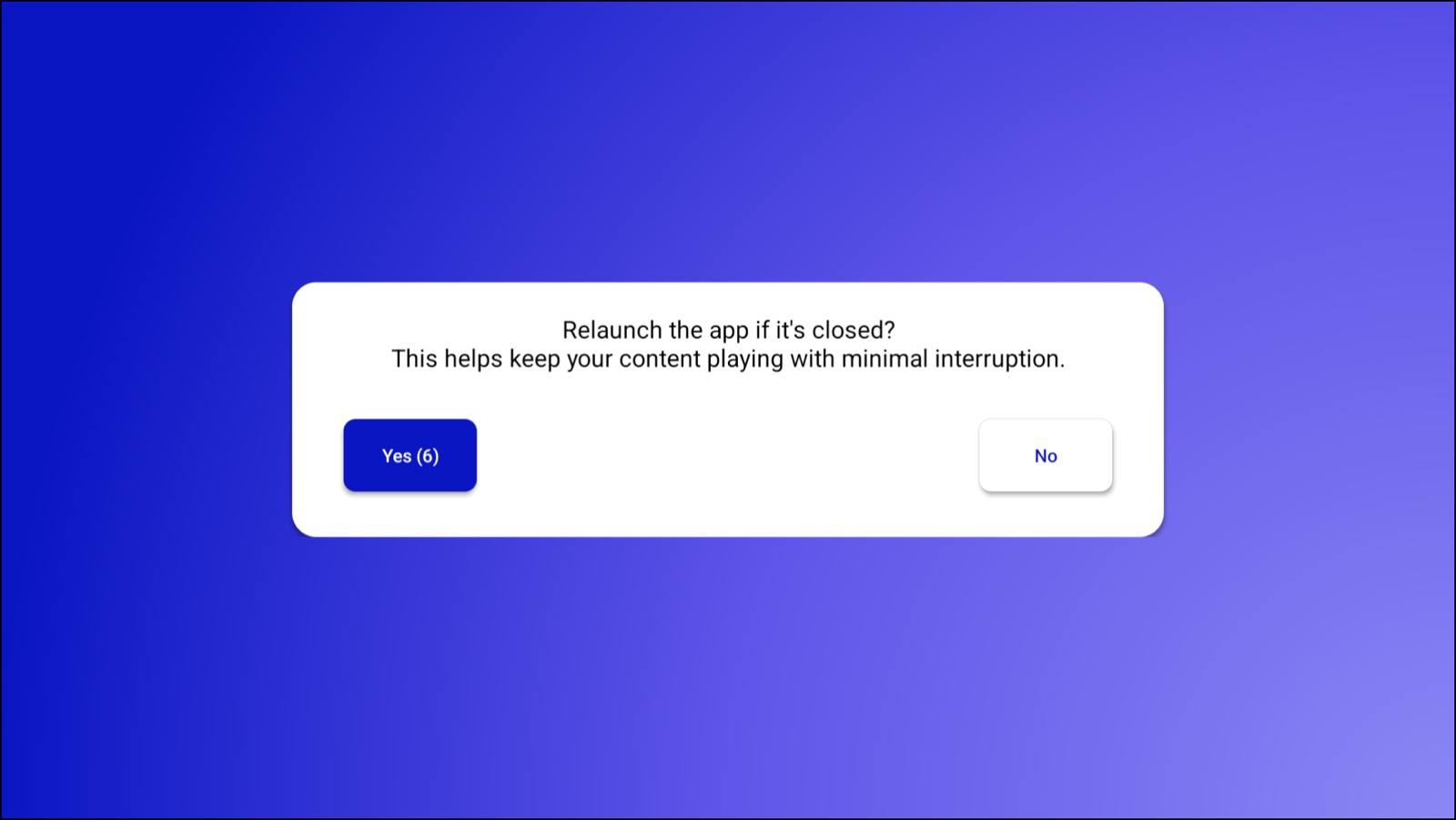
Open Screen Pulse Player. The first time, it asks two questions before showing the pairing code. Choose Yes for both with the remote. If you don't answer, each one picks Yes by itself after 10 seconds.
Start this app when the device restarts? Screen Pulse then opens whenever the Fire TV turns on.
Relaunch the app if it's closed? Screen Pulse then reopens if it's closed, so your content keeps playing.
Pair it with a screen
Then the display shows Activate this device with a 6-character Pairing Code. In Screen Pulse, go to Screens, click + Add screen and enter the code. The steps are in Install the player and connect your first screen.
Check the player's status and settings
While Screen Pulse is playing, press Back on the remote: a settings gear appears in the top-right corner. Press OK on it to open the player's Settings. Press Back again to hide the gear; the player never closes.
- Status shows the Internet Connection, the Platform Connection (whether the player reaches Screen Pulse) and Device Pairing (Paired or Not Paired). It's the first place to look when a screen doesn't play.
- Settings has Start on device restart and Auto-relaunch if closed, the same choices as the setup questions, and Keep screen awake, which wakes the screen again if Fire OS turns it off. Keep all three on.
Choose Back to return to the player.
Good to know
- Screen Pulse keeps the screen awake while it plays, and wakes it again if Fire OS turns it off.
- A wired connection is more reliable than Wi-Fi for screens that run all day. Fire TV devices take an Ethernet adapter.
Related articles
- Install the player and connect your first screen Start the player on your device, pair it with a 6-character code and check that it is live.
- Which devices and operating systems can I use, and what are the minimum requirements? The players Screen Pulse runs on, the minimum versions for each, and what to check before you buy.
- Devices and operating systems that don't work with Screen Pulse Players and systems that can't run Screen Pulse, or that we don't recommend, and what to use instead.
Still need help?
Our support team can walk you through it.