

Sponsor Reel
Major sponsors one at a time, then supporting sponsors tier by tier, picked automatically by level or amount.
Updated 4 min read
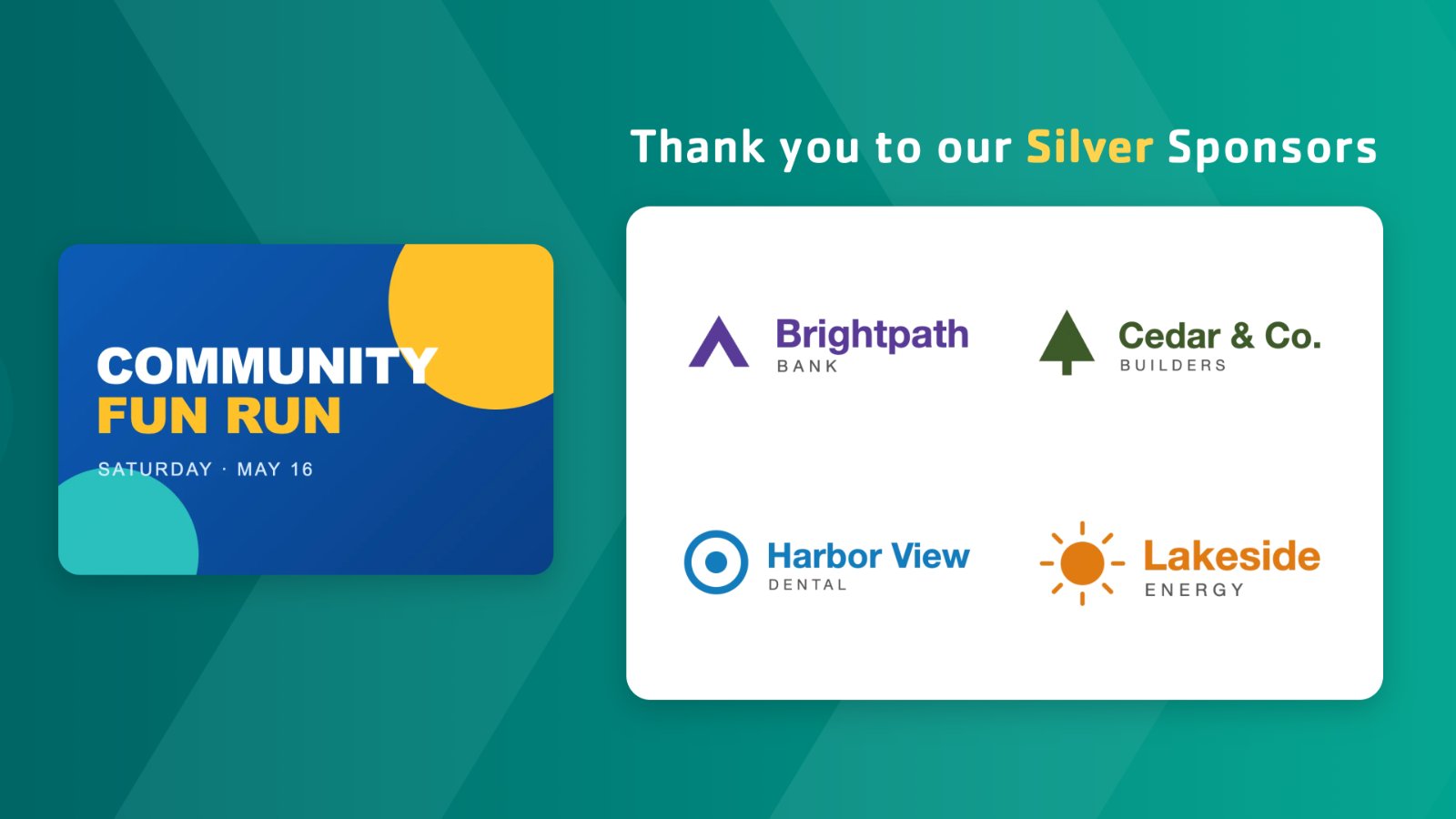
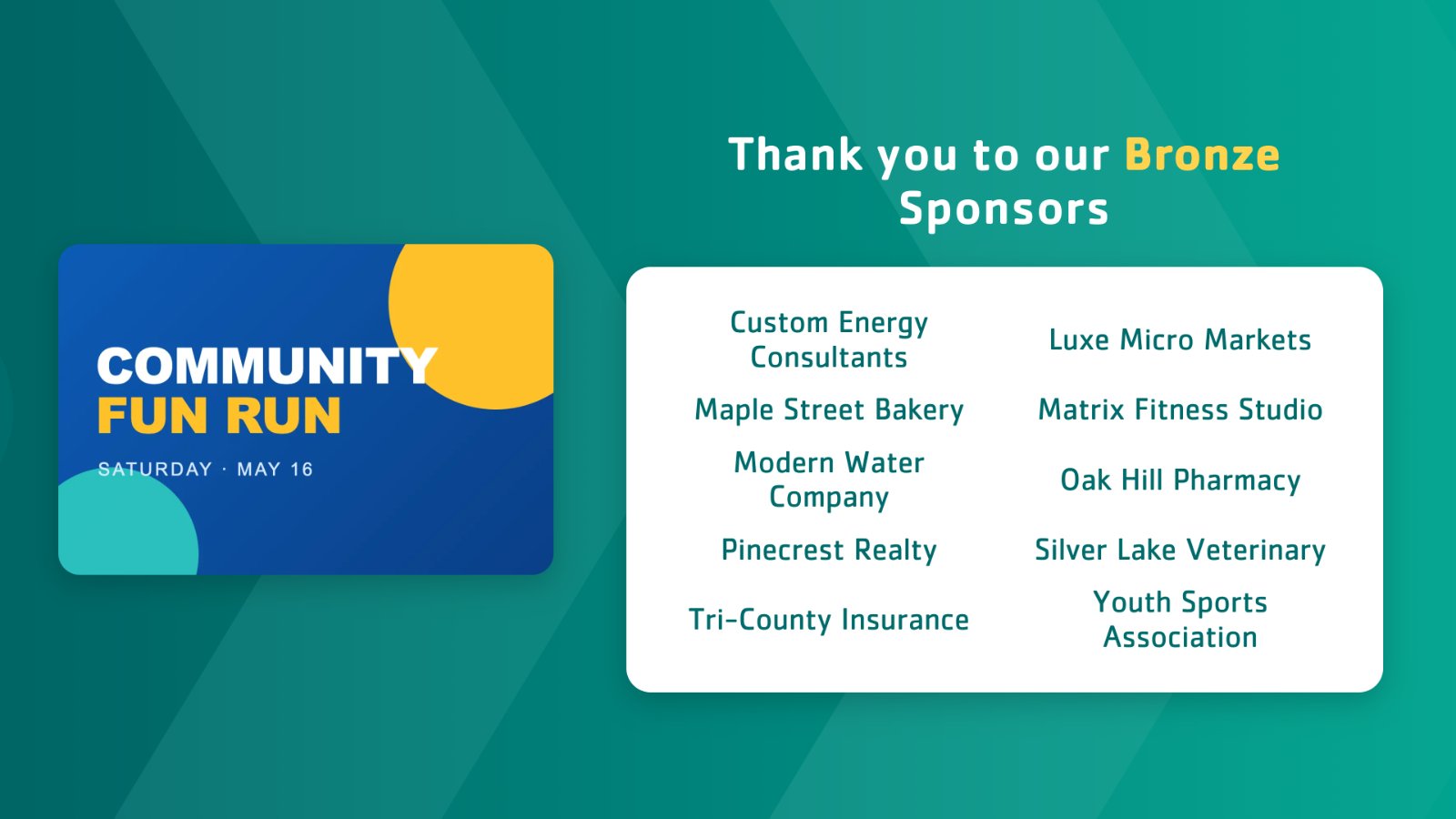
Sponsor Reel thanks your sponsors the way an event sponsor video does: each major sponsor gets a slide of their own, with their logo and the year they started giving, then your supporting sponsors follow tier by tier, such as Silver and Bronze, as a panel of logos or a list of names. Then it starts again. It fills itself from your donor list, so a new sponsor appears without editing the display.

Set it up
- Go to Donor Recognition → Templates and click Use template on Sponsor Reel.
- Give it a Display name, then fill in each tab and click Continue. The Preview shows the display as you type.
- Click Create display.
- In My displays, open its ⋮ menu and click Set to Screen, or add it to a playlist.
How it picks the sponsors
The major sponsors and every tier are groups you describe with filters: Relationship type, Sponsorship level and a donation amount range. For example, major sponsors are the Gold level, a Silver Sponsors tier is the Silver level, and a Bronze Sponsors tier is every gift from $500 to $999.
- An empty filter means everyone. A group with no filters at all takes every donor.
- Each sponsor shows once per loop, in the first group they match: the major sponsors first, then the tiers in their order. So overlapping filters never thank anyone twice.
- Only donors in their recognition period show, and a group with nobody in it is skipped; see Recognition periods.
Major sponsors
| Setting | What it does |
|---|---|
| Show major sponsors | Each major sponsor gets a slide of their own. Untick it to show the tiers only. |
| Title | Shown above each major sponsor, "Thank you sponsors" to start with. Up to 80 characters. You can make words bold. |
| Relationship type | Only the types you pick: Donor, Sponsor, Partner or In-kind Sponsor. Empty means every type. |
| Sponsorship level | Only the levels you pick. Empty means every level. |
| Donation amount | A Minimum and a Maximum, for example a minimum of 1000. A gift of exactly the maximum is included. Leave both empty for every amount. |
| Time per major sponsor | How long each major sponsor stays on screen, in seconds. 10 to start with. |
Each slide shows the sponsor's logo on a large white card, or their name when they have no image. Under it, Giving since shows the year from the sponsor's Donor since date; a sponsor without one shows no year.
Tiers
Click Add tier for each group of supporting sponsors, and use the ↑ and ↓ arrows on a tier to set their order.
| Setting | What it does |
|---|---|
| Title | Shown above the tier, for example Thank you to our **Silver** Sponsors. Up to 80 characters. Required. |
| Relationship type | Only the types you pick. Empty means every type. |
| Sponsorship level | Only the levels you pick. Empty means every level. |
| Minimum donation, Maximum donation | The tier's amount range; leave them empty for every amount. A gift of exactly the maximum is included. |
| Time per tier page | How long each page of a tier stays on screen, in seconds. 15 to start with. |
A tier shows the logos of its sponsors when every one of them has an image, and a list of names when any of them doesn't, so the panel never has gaps. A tier with more sponsors than fit on one screen is split into pages, with dots under the panel, or a count such as 3 / 13 when a tier has more than 10 pages.
Options
| Setting | What it does |
|---|---|
| Sort sponsors alphabetically | Sorts each group by name. Untick it to show the highest donation first. |
| Locations | Shows only sponsors of the locations you pick; see Show donors by location. |
Appearance
| Setting | What it does |
|---|---|
| Header image | Optional event or campaign artwork from your media library, shown on every slide: at the top in portrait, on the left in landscape. |
| Theme | Default, Blue, Teal, Purple, Yellow or Red. |
| Background | Theme color, plain White, or Dark for an evening event. White and Dark keep the theme color on the titles. |
| Animate | Brings each slide in with a short animation, the logos and names one after the other, and lets the background drift slowly. Untick it for a still screen. |
Tips
- Set up your sponsors in the donor list. Give each one the Sponsor type, a Sponsorship
level and a logo as their image, and fill Donor since for the "Giving since" year. Use the
same spelling of a level on every sponsor:
Goldandgoldare two different levels. - For the sharpest logos, use a PNG on a white or transparent background, trimmed close to the logo itself.
- Amounts never show on screen. They only decide which group a sponsor is in.
- Portrait screens stack the header image, the title and the panel; long tiers get more pages.
- Nobody to show? With When no donors match set to Skip the display, a display with no sponsor in any group is skipped on your screens, and My displays marks it Won't play.
- Pick each sponsor yourself instead? Use Sponsor Showcase or Featured Donors.
Also searched as: sponsor video, event sponsors, sponsor tiers, gold silver bronze, sponsor levels, thank you sponsors, giving since, sponsor logos.
Related articles
- Choose a donor display style and theme The ten Donor Recognition styles side by side, and how themes and logos work.
- Donor recognition: from donor list to screen How your donor list feeds your Donor Recognition displays, and how to add, edit and find donors.
- Recognition periods: why a donor appears or disappears How long a donor is shown, and what to check when a donor is missing from a screen.
- Show each location its own donors Tag donors with your sites, then let each display show only the donors of the screen's location, or of the locations you pick.
Still need help?
Our support team can walk you through it.