

My screen isn't showing my latest changes
The usual reasons a screen is stuck on old content, and how to force an update with Refresh.
Updated 2 min read
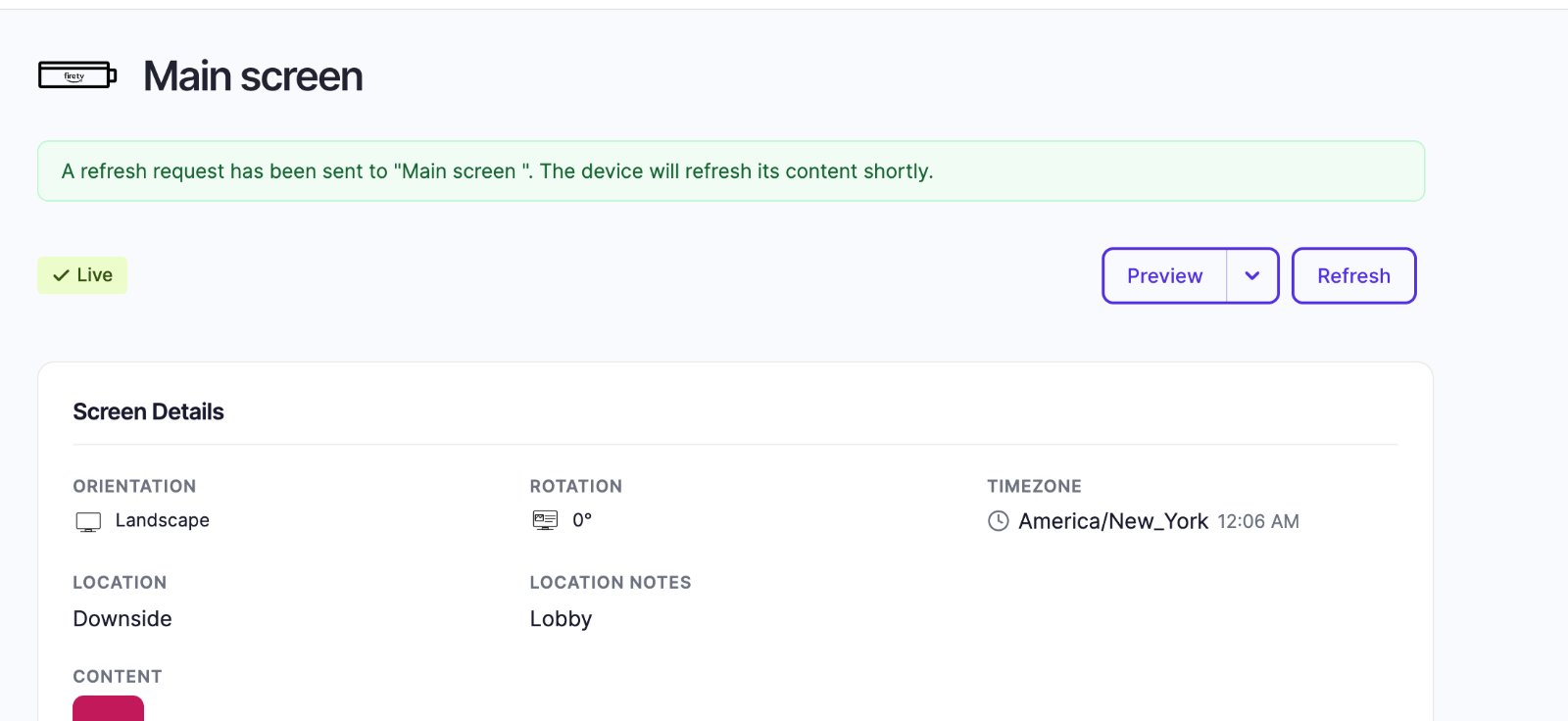
Changes normally reach your screens on their own within moments. When a screen is stuck on old content, it's usually one of three things: the device is offline, the playlist is still a draft, or the screen has different content assigned than you think. If none of those, click Refresh on the screen to force it to update.
Check these, in order
- Is the screen Live? Only a Live screen receives changes. Offline means the device has lost its connection; see My screen shows Offline. Inactive means no device is paired.
- Does the screen say "Subscription Not Active"? Your trial has ended or your plan is cancelled, so screens are paused. See My screens show "Subscription Not Active".
- Is the playlist published? A draft never plays. In Playlists, a playlist that still needs publishing says "Draft Saved. Publish required." Open it and click Save & Publish. See Drafts vs. published.
- Is the right content on the screen? Open the screen and check its Content, then click Preview to see what it will play.
- Force an update. Click Refresh at the top of the screen's page. A message confirms the request was sent, and the device reloads its content within moments.
Two screens show the same content when they shouldn't
Each screen plays what's set on its own Content, so two screens look the same when they're set to the same playlist or app. Open each screen and check Content:
- The same playlist on both? Make a separate playlist for each site (Duplicate the playlist and change the copy), and set each screen to its own.
- The same app, but each site needs its own colors or data? Duplicate the app, change the copy's Theme, Branch or Room, and put the copy on the other screen.
- One Donor Recognition display on both, but each site should thank its own donors? Set the display's Locations to Inherit screen location and give each screen its Location; see Show each location its own donors.
- The screens are in the same group? Groups don't share content; see Organize screens into groups and locations.
Good to know
- Refresh only appears for paired screens. An unpaired screen shows Pair instead.
- You rarely need Refresh. Use it when a device seems to have missed an update, not after every change.
- Scheduled items appear and disappear on their own schedule. If an item isn't showing, check its dates and times; see Schedule content for certain dates or times.
Also searched as: wrong content, old content, not updating, stuck, what is assigned.
Related articles
- Drafts vs. published: when changes go live Why a playlist isn't showing on screen, and how to work on changes without disturbing what's playing.
- My screen shows Offline Why a screen goes Offline, what to check at the display, and what to do when every screen is Offline at once.
- Preview what a screen is showing See exactly what's on a display without walking over to it.
Still need help?
Our support team can walk you through it.