

Classic
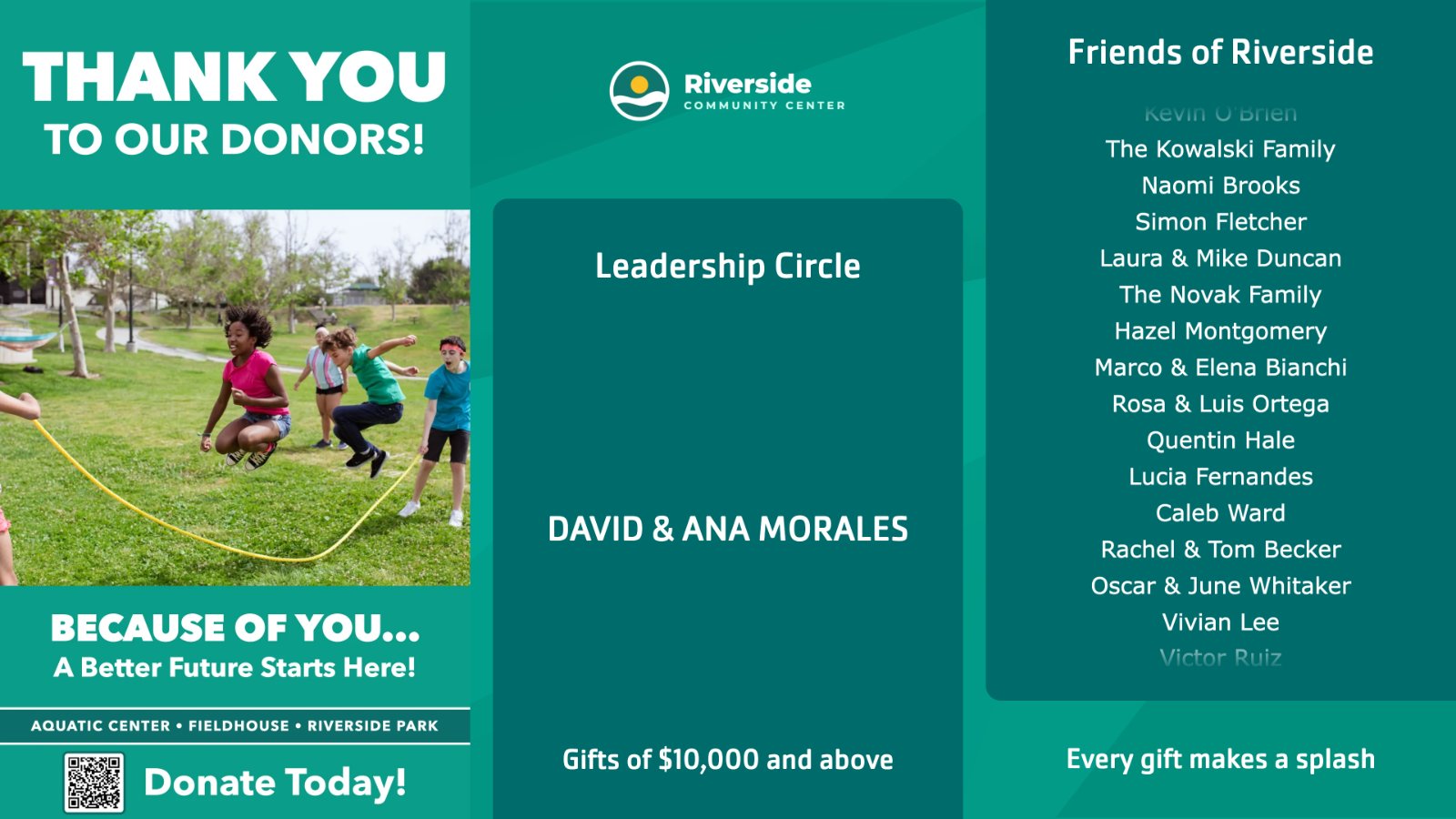
A three-panel donor board with featured slides, major donors one at a time and a list of supporters.
Updated 3 min read
Classic fills the screen with three panels: featured slides of your own images and stories on the left, major donors shown one at a time in the middle, and a scrolling list of supporting donors on the right. Donors come from your donor list automatically, by gift amount.
Set it up
- Go to Donor Recognition → Templates and click Use template on Classic.
- Give it a Display name, then fill in each tab and click Continue. The Preview shows the display with your current donors as you type.
- Click Create display.
- In My displays, open its ⋮ menu and click Set to Screen, or add it to a playlist.
Display donors alphabetically, above the tabs, sorts every donor panel by Display name. Untick it to show donors in a random order.
Locations, below it, limits every panel to donors recognized at some of your locations. Choose Inherit screen location to use the location set on each screen showing the display, so one display serves every site; you can add specific locations too. Donors with no location always show. Leave it empty to show every donor. See Show each location its own donors.
Featured Panel
| Setting | What it does |
|---|---|
| Display duration | How long each slide stays on screen, in seconds. Default 10. |
| Featured Slides | The slides in the left panel. Add an Image (a picture only) or a Story (a picture with Header, Title, Subtitle, Body, Link URL and Footer). A Story's Link URL shows as a QR code, for example to your donation page. Drag the rows to set the order. |
Major Donors
| Setting | What it does |
|---|---|
| Section Heading | Shown above the panel. |
| Section Footer | Shown below the panel. |
| Show donors with gifts of at least | The smallest gift that puts a donor here. Leave it blank for any amount. |
| Relationship type | Only donors of these types. Empty means every type. |
| Sponsorship level | Only donors of these levels. Empty means every level. |
| Display duration | How long each major donor stays on screen, in seconds. Default 15. |
Supporting Donors
| Setting | What it does |
|---|---|
| Section Heading | Shown above the list. |
| Section Footer | Shown below the list. |
| Show donors with gifts up to | The largest gift that puts a donor in this list. Leave it blank for any amount. |
| Relationship type | Only donors of these types. Empty means every type. |
| Sponsorship level | Only donors of these levels. Empty means every level. |
Branding
| Setting | What it does |
|---|---|
| Design Theme | Default, Blue, Teal, Purple, Yellow or Red. |
| Use the organization logo | Shows the logo from your organization's settings. Untick it to choose a Logo for this display only. |
Tips
- A donor without an image shows your organization's default donor image; see Donor Recognition settings.
- Keep the two amount limits apart. Set Show donors with gifts of at least on Major Donors and Show donors with gifts up to on Supporting Donors to the same amount, and every donor appears in exactly one panel.
- Donors leave on their own. A donor shows only during their recognition period; see Recognition periods.
- Crop donor images for this display with its own crop options; see Upload and organize images and videos.
Related articles
- Choose a donor display style and theme The ten Donor Recognition styles side by side, and how themes and logos work.
- Manage your Donor Recognition displays Create and edit a display with a live preview, put it on screens or in a playlist, see where it is shown, and duplicate or delete it.
- Recognition periods: why a donor appears or disappears How long a donor is shown, and what to check when a donor is missing from a screen.
Still need help?
Our support team can walk you through it.